Manufacturer: Dieyun Innovation Technology Co., LTD., No. 20,
Sanjiang Industrial Zone, Hengli Town, Dongguan city
Website: www.coolkiller.com
Email: support@coolkiller.com
Instagram: https://www.instagram.com/coolkiller_keyboard/
Twitter: https://twitter.com/coolkillerkbd
Youtube: https://www.youtube.com/@coolkillerkeyboard
Brand owner: Dongguan Nexa Sound Innovation Technology Co.,Ltd
Long press fn+4 to put the keyboard into 2.4G mode
4.2.4Gmode
Long press the back 4 keys and the white light will flash.
After successful pairing, the 4 keys are on for 2 seconds
5.Switching effect
fn+\| Enable keyboard to adjust light mode
fn+< Switch monochromatic colors
fn+enter Turn off/on the backlight
6.Charge
Charging state The charging indicator lights up green, the full lamp goes out, and the
low voltage red light flashes.
*1,Lamp working current 250MA sustainable time about 15 hours (working all the time)
*2,Lamp off working current 40MA sustainable time about 80 hours (always working)
*3,Standby current 0.5MA Standby time about 180 days
*4,Enter standby mode. Press any key to start the keyboard and enter working mode.
7.Back connection
1.Keyboard startup defaults to the last connected device
2.fn+1 (fn+2, fn+3) White slow flash connection
*The keyboard must have been paired with a modified device for this function
9.Compatible system
Support operating system:WIN XP/WIN 7/WIN 8/WIN 10/Android/IOS/MAC
8.Storage and use environment
1.Storage temperature:-20℃~+70℃
2.Operating temperature:-20℃~+60℃
3.Storage humidity: Relative humidity in the non-condensing state30%RH~95%RH
10.Custom driver
11.troubleshooting
1.Make sure your product's USB wireless receiver is properly plugged into
the USB port on your computer.
2.Ensure that the computer meets system requirements.
3.The product and the wireless receiver are beyond the effective connection
distance, please reduce the distance between the product and the receiver.
Fn Combination Key (MAC system)
Reset function
F1
F2
F3
F4
F5
F6
F7
F8
F9
F10
F11
F12
Bluetooth device1
Bluetooth device2
Bluetooth device3
2.4G mode
Wired mode
Light mode switching
Monochromatic light
switching
Backlight brightness+
Backlight brightness-
Backlight velocity-
Backlight velocity+
PARTSC
SCRLK
PAUSE
INS
HOME
END
Turn off the
backlight
Fn Combination Key (MAC system)
Fn Combination key (WIN system)
Reset function
multimedia
Volume reduction
Volume plus
mute
Previous song
Next song
Pause play
stop
mail
Web page
MyComputer
Calculator
PARTSC
SCRLK
PAUSE
INS
HOME
END
Fn Combination key (WIN system)
List of contents:
CK 75 Mechanical keyboard ×1
Custom spring wire x 1
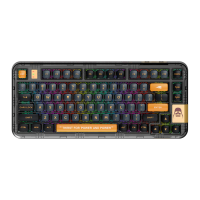
CK 75Transparent custom mechanical keyboard
Double head key extractor×1
Space bar silencer cotton x 1
Experience axis x 4
Supplement key cap x 1
Quick Start Guide
If you are a MAC user, flip the switch to switch to a MAC system
(After the conversion is successful, the system indicator will turn green)
System indicator light
Charging indicator light
Case indicator light
If you are a WIN user, please flip the system conversion switch to WIN
(The system indicator will turn red after the conversion is successful)
1.Toggle switch
1
2
1
Power switch (built-in lithium battery)
2
System transfer switch
2.Bluetooth connection
Long press fn+1/2/3 to enter pairing mode,
The keyboard pairing name:CK75 5.0/CK75 3.0
3.Connecting wire
Long press fn+5 to put the keyboard into wired mode
Long press 1/2/3 button and the white lamp will flash.
After successful pairing, 1/2/3 button will keep on for 2
seconds and restore the backlight
Long press the back 5 button and the white light will flash.
After the pairing is successful, the 5 keys will keep on for 2
seconds, and the backlight will be restored
Bluetooth device1
Bluetooth device2
Bluetooth device3
2.4G mode
Wired mode
Light mode switching
Monochromatic light
switching
Backlight brightness+
Backlight brightness-
Backlight velocity-
Backlight velocity+
Turn off the
backlight
Scan the code to download the driver
Tip: The driver only supports customization in wired and wireless modes
(MAC operating system supports only wired customization)
Domestic official website:
https://www.coolkiller.cn/
Overseas official website:
www.coolkiller.com


 To Next Page
 Need help?
 General