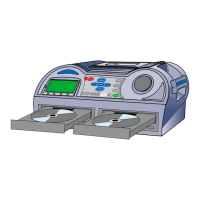
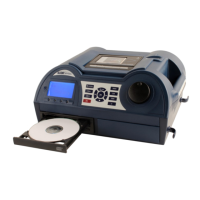
Eventually, this
screen is reached,
allowing users to
begin the splicing
process.
Information about the master CD is displayed. The master CD
is in PAUSE and CUEING mode.
Recording segments of a track to a blank CD
To record a segment from the master to the blank CD, start by
locating the point from which you want to begin the segment.
Select the track required using the and keys.
Select to begin playing the track and listen for the
moment that you wish to select as a start point.
Tip: You can use the rotary control knob to move quickly
backwards and forwards through the track enabling you to
pinpoint the location more quickly.
Now, press the key as the track is playing (at the
appropriate moment) to place the first (start) marker.
Alternatively, note the time where you want to set the marker
and press PAUSE. Using the rotary control you can then wind
back to the moment where you wish to place the marker
before pressing the key.
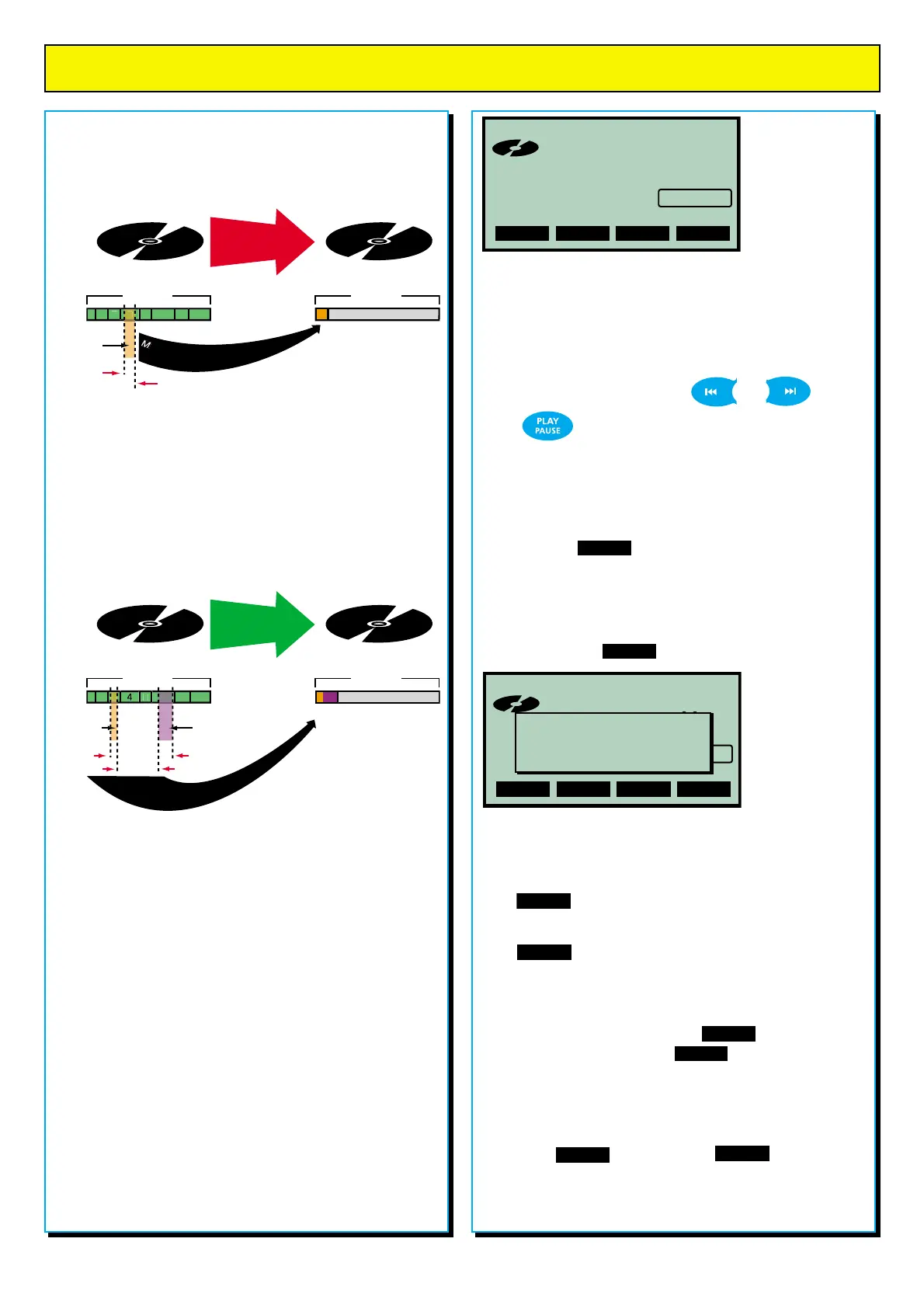
The display will
indicate where
“Mark 1” - the first
(start) marker -
has been placed.
Next, you can select a finish point. This can be on the same
track, or on another track - but it must be after the start point!
You’ll notice that the key marked “1” now reads “2”. Simply
locate the moment where you want finish the segment and
press again.
Now that you have start and finish points selected you can
press to copy the selection to the other disc
Alternatively, you can set third and forth “Marks” allowing you
to “splice” two separate segments together into one track.
Tip: At any point before you press the key, you can look
at your selections by pressing the key. Each press of the
key will scroll you through the markers with their appropriate start
and finish times shown in the main window. With each click, the
key number will identify which marker you are looking at.
You can edit any marker by selecting a new moment and
pressing the key. Then select to finish.
continued overleaf
splicehelp
Splicing
A is Paused
01 00:00
Remaining 04:33
set-> 1
cueing
SPLICING TRACKS
Splicing audio segments together
The Splice Tracks option allows users to select any given
portion of a CD and copy it to a blank (or partially filled and
unfixed) CD in the other drive.
In this example, a
segment of Track 4 has been
copied to a blank CD in Drive B.
So, imagine you have a number of tracks on a CD and that
you want to extract a segment of track 4. You can “mark” the
beginning and end of the segment and copy it to a CD in the
other drive (see example above).
You can select a segment of any length over 4 seconds in total.
It can start anywhere and finish later in the same track (or at any
subsequent moment in the entire CD).
In this example, part of
Track 3 is spliced together
with part of Track 6 to make a
new track on a blank CD in Drive B.
You can also select two separate segments and join them
together. The two segments will play as one track - without
any apparent gap in the middle.
The Splice facility offers users the opportunity to select the
best parts of a CD and copy them to a new disc. It has great
potential for the preparation of assessments and lessons.
It will also benefit drama departments in the compilation
of tracks for drama productions etc.
How to use the Splice facility
Start off by inserting the master CD in one drive, and a blank
(or partially filled but not fixed) CD in the other drive.
To select the Splice tracks option from the menu, go to Copy
functions > Copy or splice tracks > Splice tracks.
If both CDs are unfixed, follow the on-screen instructions to
decide which disc you want to copy from and to.
CD A
CD B
audio CD blank CD
COPY A SEGMENT
FROM ONE CD
TO ANOTHER
Track No.
1 2
5 6 7 8
Segment
selected
Track No.
1
"Mark" 1
"Mark" 2
a
n
d
c
o
p
y
t
o
a
n
e
w
C
D
a
r
k
t
h
e
s
t
a
r
t
a
n
d
e
n
d
o
f
t
h
e
s
e
g
m
e
n
t
CD A
CD B
audio CD blank CD
SPLICE TWO
SEGMENTS AND COPY
ONTO ANOTHER CD
Segment
selected
"Mark" 1
"Mark" 3
B
o
t
h
s
e
g
m
e
n
t
s
s
p
l
i
c
e
d
t
o
g
e
t
h
e
r
t
o
f
o
r
m
o
n
e
T
r
a
c
k
2nd Segment
selected
"Mark" 4
Track No.
1 2
splicehelp
Splicing
A is Paused
01 00:00
Remaining 04:33
set-> 2
cueing
Mark SET
Mark 1 set to
track 1 00:00.36


 To Next Page
 Loading...