13 | P a g e
Playback
Enter playback mode, as instructed earlier
Press the MENU button to enter the settings menu.
Use the ▼ or ▲ buttons to select and highlight the function you would like to adjust. Press
the MENU button to enter the subsequent menus and to exit the menu interface.
Press the “OK” button to enter or confirm the following settings:
Delete: Deletes the current files, or all the files on the display as per the on-screen
instructions.
Protect: Protects a file from being erased accidentally. To delete a protected file, it must
first be unlocked.
To upload picture/video files to your PC
1. Connect your USB cable to the mini USB port on the side of your dash cam.
2. Connect the full-size USB end of the cable to a USB port on your computer.
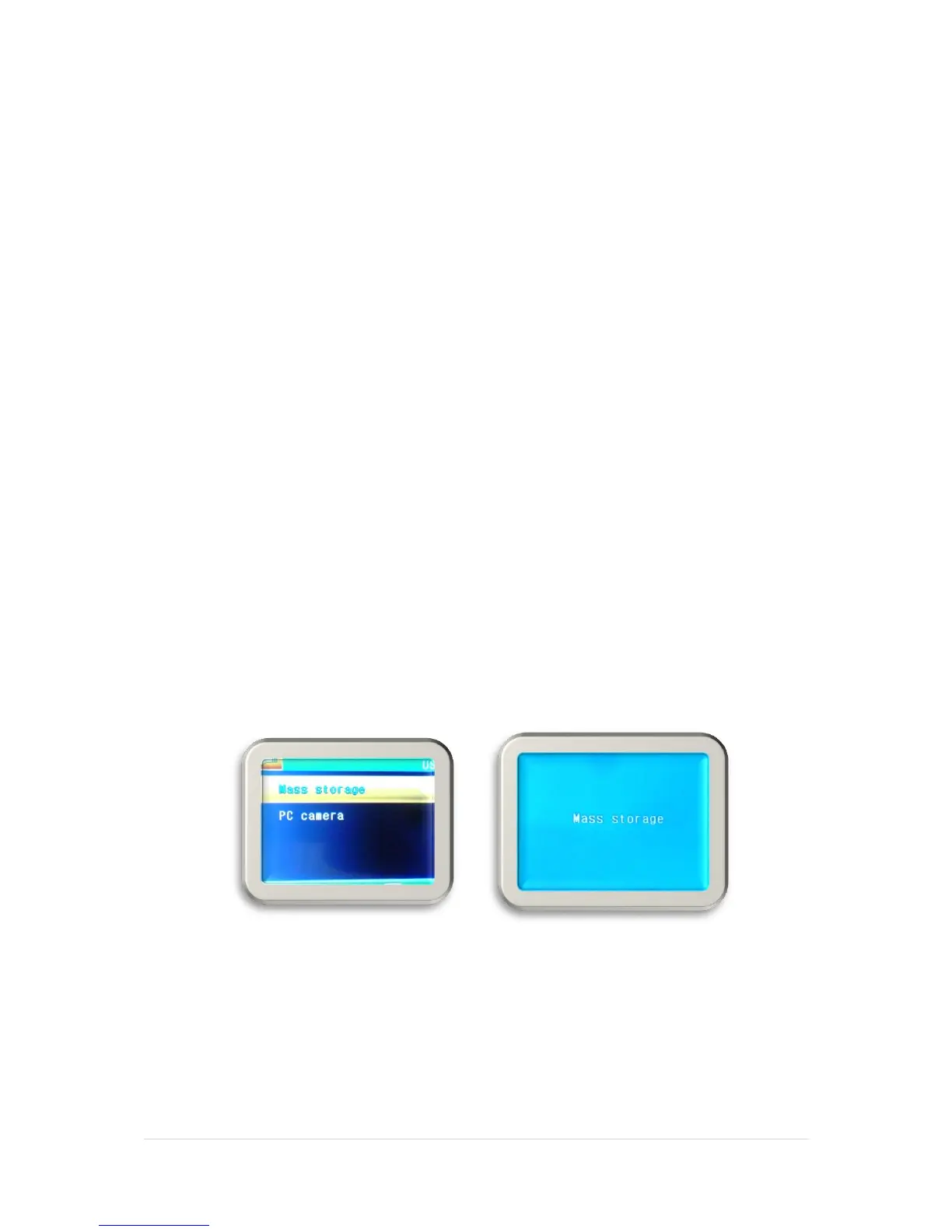
3. Wait a few moments, there will be two options:
▪ Mass Storage
▪ PC Camera
On the screen of the camera press the ▼ or ▲ buttons to select the “Mass Storage”,
then you can view, watch, upload or save files to your computer device.
Compatible computer operating systems are Windows XP, Windows Vista, Windows 7,
Windows 8 and Windows 10.


 To Next Page