2
LED Indicators
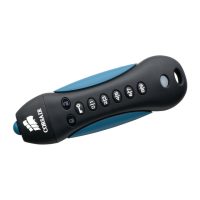
Your Flash Padlock 3 comes with three LED indicators on the top side of the unit. Each LED indicator, whether it’s
solid or flashing or appears with another LED indicator, provides feedback to you on the current state of the
Flash Padlock 3. Review the chart below to view the definition of each LED display pattern.
LED LED STATE EXPLANATION
Red - Fade Out Locking down/incorrect PIN entry.
Red blinking Locked and awaiting User defined PIN entry.
Blue blinking Locked and awaiting Admin defined PIN entry.
Green Solid Padlock 3 is unlocked in User mode.
Green blinking
When connected to a USB port if Green Led blinks every 2 seconds this
indicates the Padlock 3.0 has been set as ‘Read-Only’.
Green flickering Padlock 3 is unlocked in Admin mode.
Blue solid Connected to a USB port.
Blue blinking
Data exchange with host/changing User PIN/when not connected to a USB
port indicates an Admin PIN exists.
Red and Green
blinking alternately
Factory reset/deleting files in Admin mode.
Red and Green
flickering together
Awaiting Admin PIN entry.
Red and Blue
blinking together
When not connected to a USB port indicates that both User and Admin
PINs have been set on the PadLock 3.
Red and Blue
flickering together
Awaiting Admin PIN change.
If the module encounters a problem with a self-test it will light the LEDs in order red, green, blue, red, green, blue
and then it will power down. If this occurs, retry the operation and if the error persists contact technical support.
When the red LED flickers quickly it means that the drive is locked out from failed password attempts. Neither the
user nor the admin password may be used to unlock the drive while it is in state. This is described in more detail in
the section on Hacking Protection.
User Operation
The steps below show how you can set, change, or clear your User PIN, and how to lock and unlock your
Flash Padlock 3.
Setting User PIN
Your Flash Padlock 3 comes out of the box without any set User PIN. Until the User PIN is set, your Flash Padlock 3
is unsecure, allowing any user access to view your files on the Flash Drive. We recommend you set a custom User
PIN immediately.
DIRECTIONS EXPLANATION
PresstheKEYbuttontoawakenthedriveTheredLEDwilllightfirstand
thenthegreenLEDwilllightThedriveisunlocked
PressKEYbuttontwicetobeginenteringanewuserpassword Blue LED will blink.
EnternewuserpasswordItmustbebetweenanddigitslong
Padlock 3 does not permit a PIN with all of
the digits the same
PressKEYbuttontwicetoendentryofthenewpassword Green LED will blink.
Reenterthenewuserpassword
PressKEYbuttontwicetoendconfirmationofthenewpassword
TheredLEDwilllightwhilethepasswordisbeingsaved
WhencompletethegreenLEDwilllight
Green LED willlight
/
&
&
&


 To Next Page
 Loading...