1 2
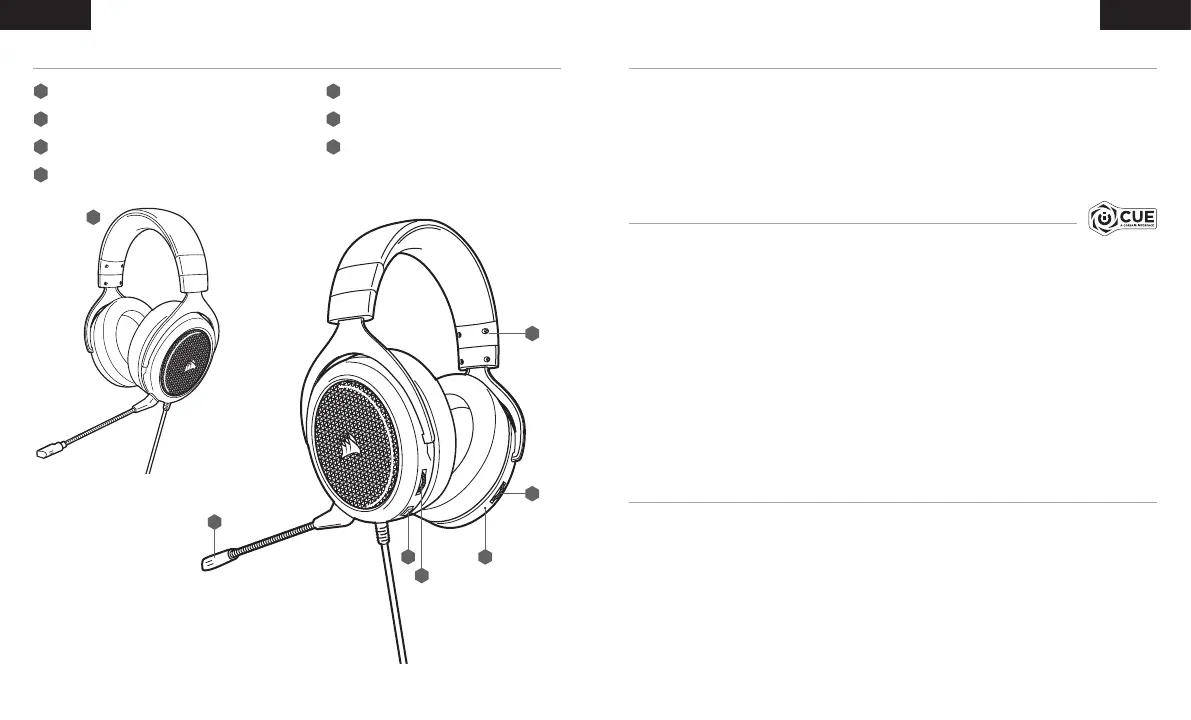
A
B
C G
D
E
F
HAPTIC TECHNOLOGY
GENERAL TIPS
CORSAIR iCUE
Experience audio like never before with immersive Haptic technology that creates a much wider range of
perceptible low-end frequencies for sound you can feel.
Adjust the intensity of the effect to your preference or turn it off completely using the Haptic effect control
dial located on the lower right ear cup of the headset.
Don’t be afraid to use the software equalizer to adjust the audio quality to your liking. EQ presets have
been provided for popular gaming and media types.
Prolonged listening at high volumes may adversely affect your hearing. Take breaks between sessions and
always begin with the volume at the lowest possible level before increasing.
Headband adjustment
Haptic effect control
Haptic effect status LED
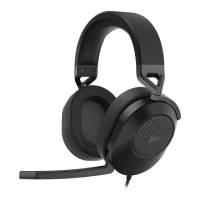
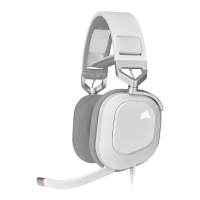
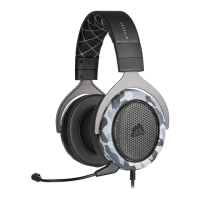
CORSAIR HS60 HAPTIC headset
Detachable microphone boom
Mute button
Volume control
ENGLISH ENGLISH
CONTENTS, CONTROLS AND FEATURES
A
D
C
B
E
G
F
Go to corsair.com/support/downloads to download the CORSAIR iCUE software.
Using iCUE software will enable the full feature set of the HS60 HAPTIC headset.
Note: If the headset is used without software, some features will be disabled.
> Install the iCUE software on a PC running Windows 7, Windows 8.1, Windows 10 or later.
> After installation is complete, reboot your PC, and launch iCUE.
iCUE software can be used to:
> Select and customize audio equalizer (EQ) settings.
> Adjust microphone input volume and microphone sidetone.
The software’s built-in documentation explains how to use the HS60 HAPTIC’s features in greater detail.



 To Next Page