Button and Switch Functions
On/Off Switch
• OFF Position – The unit will remain OFF if the switch is in this position.
• ON Position – When the switch is in this position, you will be able to set up you preferred settings in the camera
menu. Once you have your desired settings chosen, the camera will turn on after sitting idle for 10s. You will
see a 10s countdown after which your camera will turn on and begin taking pictures. If the countdown starts,
and you are not finished setting up your camera, you can hit any button to access the menu and stop the
countdown.
Button Functions
• Arrow Keys – You will use these keys to navigate the menu screen, as well as take test images.
o Test Image
Left Arrow Key – if you click and hold this key, your camera will take an image and upload it to
the server.
Right Arrow Key – if you click this key, your camera will take an image and save it to the SD card.
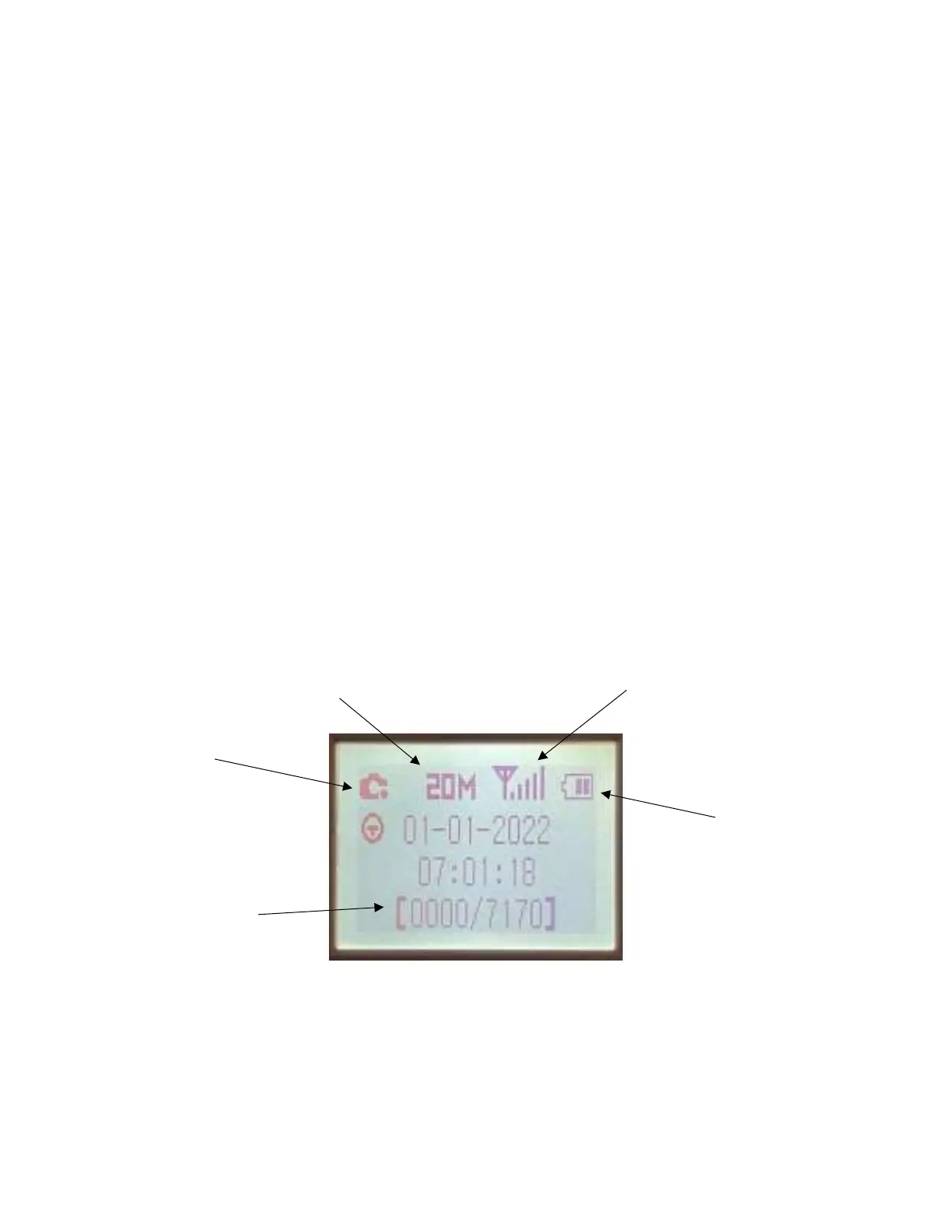
o Photo/Dual Mode – You can quickly switch between photo and dual mode by clicking the “up” arrow
key. You will see a dot to the right of the camera icon on the screen when in dual mode.
• OK Button – You will use this button to select your settings.
• Menu (M) Button – Press the menu (M) button to access the settings for your camera. To go back to the main
screen, press (M) again.
Understanding Main Screen Information
Mode
Shown in Dual
Mode


 To Next Page