Need help?
Do you have a question about the Cowon plenue D3 and is the answer not in the manual?
Details on accessing the product website for updates, FAQs, and user guides.
Covers trademarks, copyright, legal compliance, and manual update policies.
Information regarding BBE Sound Inc. license and registered trademarks for the product.
Essential safety guidelines, proper handling, usage warnings, and environmental considerations for the device.
Instructions for connecting the PLENUE D3 to a power source and charging its battery.
Steps to connect the player to a PC, transfer files, and safely disconnect.
Procedures for inserting and removing microSD cards to expand storage capacity.
How to connect headphones or receivers to the balanced audio line-out port.
Guide to enabling Bluetooth, pairing devices, and using features like call alarm.
Step-by-step instructions for downloading and installing new firmware for the device.
An overview of the playback interface, controls, and on-screen indicators.
Methods for selecting music by folder, artist, album, genre, and playlists.
Adjusting playback settings such as looping, shuffling, and playback speed.
Managing earphone/headphone modes, output priorities, and Bluetooth audio settings.
Detailed configuration for display, timer, music, system, and JetEffect 5 audio enhancements.
Comprehensive technical details, dimensions, supported formats, and system requirements.
Solutions for common problems including power, sound, connectivity, and file display errors.
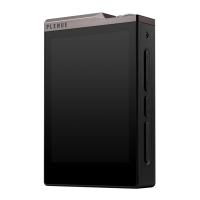
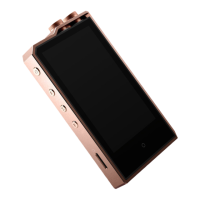
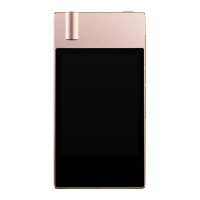
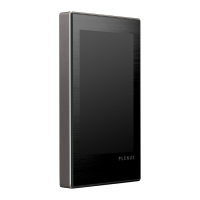
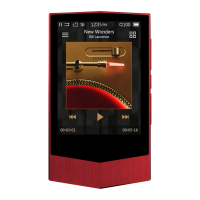
The PLENUE D3 is a high-quality portable digital audio player designed for an enjoyable digital experience. This user guide provides comprehensive information on its functions, usage, and maintenance.
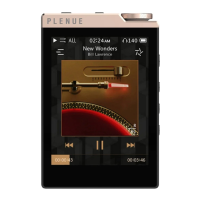
The PLENUE D3 is primarily a music player, supporting a wide range of audio file formats including DSD, FLAC, WAV, AIFF, ALAC, APE, MP3, WMA, OGG, and DCF. It features a 2.8-inch Wide Angle Touch LCD for intuitive navigation and control. The device is equipped with a balanced audio port, delivering high-quality audio output with both positive and negative audio signals. It also supports Bluetooth connectivity, allowing users to connect to Bluetooth-supported devices for music playback and to receive call notifications from a paired smartphone. The PLENUE D3 incorporates JetEffect 5, a sophisticated sound technology that enhances sound quality and provides various presets and customizable settings for an optimized listening experience.
To turn the device on or off, press and hold the Power button. A brief press of the Power button will turn the display on or off. The device can be charged by connecting it to a PC via a USB Type-C cable or by using an authentic USB DC adapter for smartphones (5V/1A or higher recommended for faster charging). The LED indicator shows the charging status (Red for charging, Green for charging complete). It is recommended to fully charge the product before first use or after a period of disuse. For safety, avoid charging in enclosed spaces.
The PLENUE D3 connects to a PC via a USB Type-C cable for file transfer. Once connected, the device appears as a removable drive, allowing users to copy music files. It is crucial to use the "Safely remove hardware" function before disconnecting the device from the PC to prevent data loss or malfunctions. The device supports microSD cards for expandable storage. To insert a microSD card, gently press it into the slot. To remove, turn off the power and then press the card again. Always turn off the power before removing the microSD card for data protection. microSD cards of 64GB or more should be formatted using an FAT32 formatting tool.
The device features both a standard earphone jack (3.5mm) and a balanced audio port (2.5mm). When connecting a receiver to the balanced audio port, a specific icon will appear in the upper-right corner of the screen. Balanced and unbalanced outputs cannot be generated simultaneously. The device also has a Headphone Mode which increases output for headphones, requiring caution due to increased volume. The Audio L/R setting allows adjustment of the stereo balance.
To use Bluetooth, navigate to 'Settings ► Bluetooth' and enable it. The device will search for nearby Bluetooth devices. Once a device is discovered, select it to connect. The Bluetooth connection icon will turn blue when successfully connected. The PLENUE D3 can also provide call alarms when connected to a smartphone, displaying caller ID for incoming calls during music playback. This feature is available only when a wired receiver is connected. Answering a call on the smartphone will terminate the Bluetooth connection with the PLENUE D3.
The playback screen displays track information, playback progress, and various control icons. Users can play/pause, skip to previous/next tracks, rewind/fast forward, and drag the progress bar to a desired point. A short press on the album artwork area navigates to the Music Selection Screen, while a long press goes to the Playlists Screen. The volume can be adjusted using the Volume Wheel or by swiping on the volume control screen.
Music can be selected by folder, artist, album, genre, song year, or new files. Users can also view tracks added to Favorites or access playlists.
The playback settings offer options such as looping, shuffling, and choosing to play a track, all tracks, or a folder. Users can add the current track to Favorites, replay a section, and set audio output related items. The Matrix Browser can be started from here. Time display can be toggled between elapsed and remaining time. Playback speed can be adjusted (50%~150%). JetEffect 5 presets can be selected, and the playback screen skin can be changed. The PLENUE D3 supports Gapless Playback, ensuring seamless transitions between tracks.
The 'Detailed Settings' menu allows customization of various aspects:
JetEffect 5 offers 44 presets and 4 user-customizable presets. It includes features like EQ (5-band equalizer), BBE+ (BBE, Mach3Bass, 3D Surround, MP Enhance), and Special Effect (Reverb with 9 modes). These settings allow users to fine-tune the sound to their preference, providing a rich and immersive audio experience.
The PLENUE D3's firmware can be upgraded to improve product capabilities and fix bugs. To upgrade, download the latest firmware from the COWON website, copy it to the root folder of the device, safely disconnect, and then power on the device. The upgrade will start automatically. It is important to fully charge the player and not turn it off during the upgrade process to avoid damage and voiding the warranty. Back up all important data before upgrading, as data may be deleted.
The manual provides solutions for common issues such as the device not turning on, no sound, incorrect language settings, files not appearing in the list, and PC recognition problems. For persistent issues, COWON's website offers FAQ and online inquiry services.
Users are advised to handle the product and its accessories with care, avoid using it for purposes other than described, and refrain from operating it while driving. Listening at high volumes for extended periods can harm hearing. The device should not be disassembled, exposed to water or extreme temperatures, or subjected to hard impacts. Only genuine cables and chargers should be used. Regular data backup is recommended, especially before servicing, as the company is not responsible for data loss. When formatting built-in memory or microSD cards, use the specified file system (FAT32/FAT16/NTFS). For MAC OS users, the 'EJECT' procedure must be performed before removing the product.
 General
| Resolution | 480x800 |
|---|---|
| Storage | 64GB |
| Battery Life | Up to 45 hours (MP3) |
| Audio Formats | MP3, WMA, OGG, FLAC, WAV, APE, ALAC, AIFF, DSD |
| DAC | Cirrus Logic CS43131 |
| Wi-Fi | No |
| External Storage | MicroSD card |
| Output Power | 2Vrms |
| Signal-to-Noise Ratio | 130dB |
| Battery Life (Hi-Res) | 30 hours |
| Headphone Output | 3.5mm |
| Output | 3.5mm Unbalanced |

 To Next Page