Need help?
Do you have a question about the Cowon PLENUE J and is the answer not in the manual?
Details on accessing the product website for information and support.
General terms, copyright notice, and legal compliance information for the manual.
Information regarding BBE Sound, Inc. licensing and trademarks for the product.
Essential safety instructions to prevent product damage and ensure user safety.
Lists and illustrates the items included in the product package.
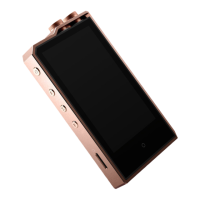
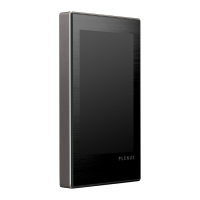
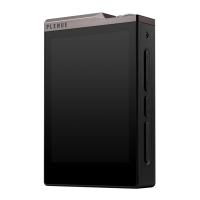
Identifies and labels the physical buttons, ports, and display elements of the PLENUE J.
Explains the operation of each physical button for power, volume, and playback control.
Details how to connect the device for charging and indicates battery status.
Guide on connecting the player to a PC for file transfer and safe disconnection.
Instructions for inserting and removing a microSD card, including formatting notes.
Guide on how to download, install, and verify product firmware updates.
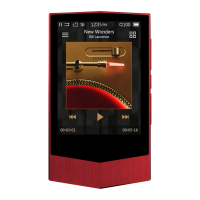
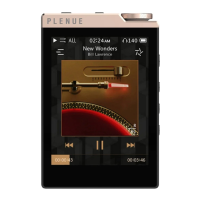
Explains the interface elements and controls visible during music playback.
Describes how to browse and select music files by folder, artist, album, and other criteria.
Details playback options like looping, shuffling, replay, and sound effect presets.
Explains JetEffect 5 sound settings, including EQ, BBE, and Reverb adjustments.
Lists hardware specifications like model, capacity, display, and audio codecs.
Provides solutions for common problems like power, sound, connectivity, and memory issues.
The PLENUE J is a portable digital audio player designed for high-quality music playback, offering a range of features for an enhanced listening experience. This user guide provides comprehensive information on its functions, usage, and maintenance.
The PLENUE J primarily functions as a high-resolution audio player, supporting various audio formats including FLAC, WAV, AIFF, ALAC, APE, MP3, WMA, and OGG. It is equipped with JetEffect 5, a sophisticated sound technology that includes 48 presets (44 factory presets and 4 user presets) to customize the sound output. These presets encompass a wide array of sound effects such as BBE, Mach3Bass, 3D Surround, MP Enhance, and Reverb (9 modes), allowing users to tailor the audio to their preferences. The device also features a 5-band equalizer for fine-tuning frequencies.
The player supports Gapless Playback, ensuring a seamless transition between tracks without any audible gaps, which is particularly beneficial for live recordings or classical music. It also offers a resume function, allowing the device to pick up playback from the last track when powered on.
For navigation and control, the PLENUE J includes physical buttons for Power On/Off, Volume Up/Down, Play/Pause, Previous/Next Track, and Rewind/Fast Forward. The device also features a touchscreen display for intuitive interaction. The display can be turned on or off briefly with a single press of the power button.
The PLENUE J has built-in memory for storing music files and supports external memory expansion via a microSD card slot, providing ample storage for extensive music libraries.
The PLENUE J can be charged by connecting it to a PC via a Micro USB cable or by using an authentic Micro USB DC adapter for smartphones (5V/2A or higher recommended for faster charging). An LED indicator shows the charging status (Red for charging, Green for complete). It is recommended to fully charge the product before its first use or after a long period of disuse. For safety, charging should occur in an open space, avoiding enclosed areas.
To transfer music files, connect the PLENUE J to a PC using the provided Micro USB cable. The device will be recognized as a mass storage device. Files can be copied by dragging and dropping them into the PLENUE J's storage. It is crucial to perform the "Safely Remove Hardware" procedure before disconnecting the device from the PC to prevent data corruption. The device supports file transfer on Windows, MAC OS, and Linux.
To expand storage, insert a microSD card into the designated slot. The device will automatically refresh its database to display the music files on the card. Before removing the microSD card, always turn off the device to protect data. Large-capacity microSD cards (64GB or more) should be formatted using an FAT32 formatting tool with a recommended allocation unit size of 32KB or more for proper recognition.
The PLENUE J offers various ways to browse and select music, including by folder, artist, album, genre, song year, new files, and playlists. Users can also view all tracks saved on the product or access a list of favorite tracks. During playback, the screen displays album artwork, track information, and playback controls. Users can play/pause, skip tracks, rewind/fast forward, and drag the progress bar to navigate to a specific point in the track. The device also supports displaying lyrics if available in the album information.
Playback settings allow users to enable looping (repeat), shuffling, and choose to play a single track, all tracks, or a folder. Users can adjust the skip interval for previous/next track functions and set the rewind/fast forward speed. The device also offers a Matrix Browser and the ability to select different skins for the playback screen.
The detailed settings menu provides extensive customization options:
The PLENUE J's firmware can be upgraded to improve product capabilities, fix bugs, and adjust performance. Users can download the latest firmware from the COWON website, copy it to the root folder of the device, and then safely disconnect. The upgrade process will start automatically when the product is turned on. It is essential to fully charge the player before upgrading and not to turn off the device during the update process to avoid damage and voiding the warranty. Backing up important data before an upgrade is also recommended as data may be deleted.
The manual provides solutions for common issues such as the device not turning on (check battery, charge, or perform a reset by holding volume + and - buttons for 6 seconds), no sound (check volume, file availability, earphone connection), incorrect language settings (delete 'SYSTEM' folder via PC and reboot), files not appearing (check browser mode), PC not recognizing the player (connect directly to motherboard USB port), and discrepancies in memory capacity (system area usage). It also advises against reformatting the built-in memory on a PC, as it may lead to recognition issues or slower transfer rates. If formatting is necessary for external microSD cards, use FAT32 with a 32KB or more allocation unit size.
For further assistance, COWON's website offers FAQs and a one-to-one inquiry service for registered members.
 General
| Connectivity | USB 2.0 |
|---|---|
| Frequency Response | 20Hz - 20kHz |
| Display | 2.8 inch TFT LCD |
| Storage Capacity | 64 GB |
| Audio Formats Supported | MP3, WMA, OGG, FLAC, WAV, APE |
| Output | 3.5mm headphone out |
| Battery | Lithium polymer |
| Charging Time | 3 hours |
| Sample Rate | FLAC, WAV, AIFF, ALAC : 8kHz ~ 192kHz (8/16/24bit per Sample) / MP3, WMA : 8kHz ~ 48kHz (8/16bit per Sample) / OGG : 8kHz ~ 48kHz / APE : Fast, Normal, High (8kHz ~ 48kHz) |

 To Next Page