111
Audio & Video
The Contour Program Guide lets you adjust the audio and video settings to provide the best sound and picture quality
for your television. You can do this either by using the Quick Setup wizard, which will walk you through the setup
process one step at a time, or by using individual audio and video settings.
Run Quick Setup Wizard
Quick Setup wizard walks you through audio and video settings in a step-by-step manner. It is an easier way to adjust
your settings if you are not technically savvy. To run a Quick Setup wizard, begin at the Settings Menu.
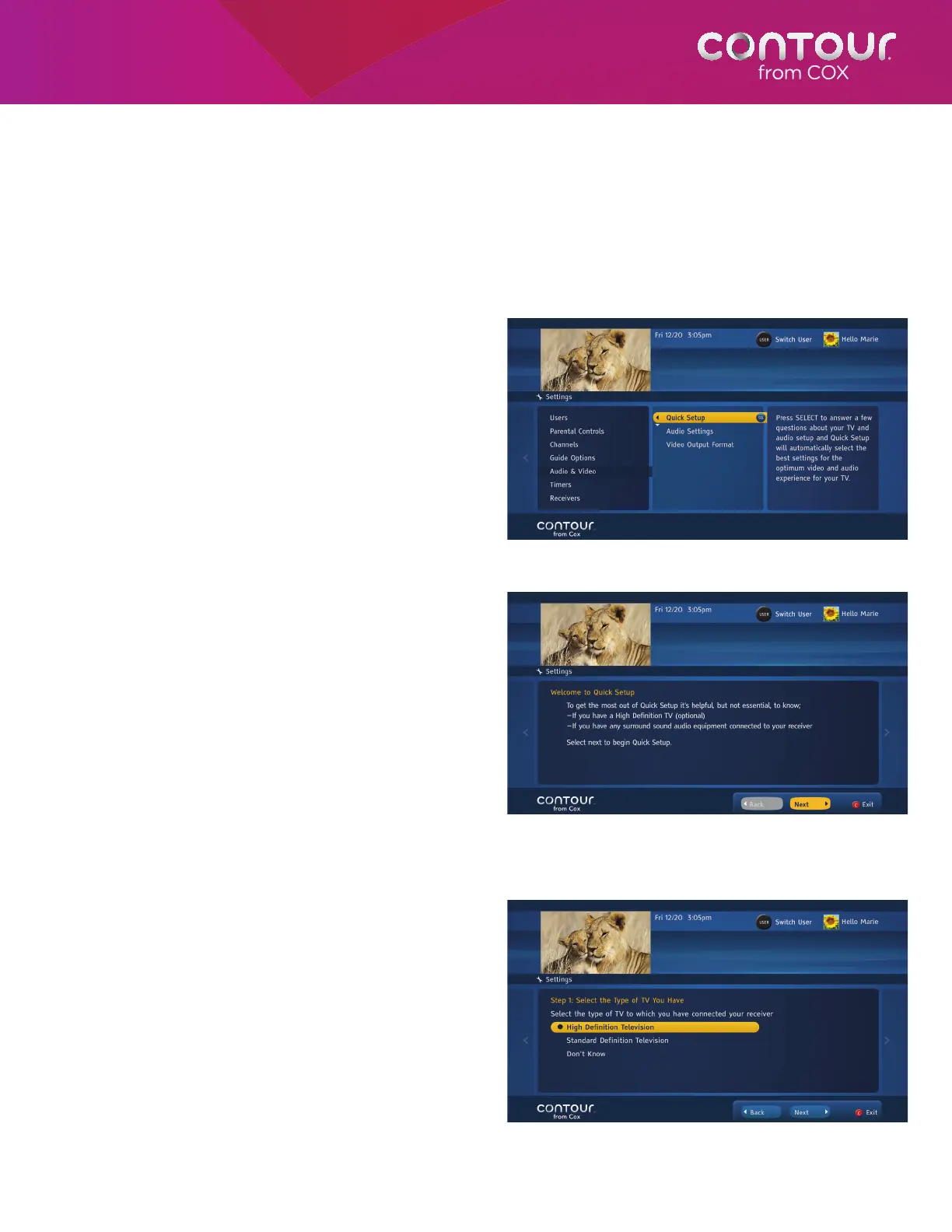
1. Use the DOWN arrow to highlight Audio
& Video. Press the RIGHT arrow or SELECT
button to highlight Quick Setup in the center
card.
2. Press the RIGHT arrow or SELECT button to
confirm Quick Setup. This will open the Quick
Setup wizard. The first screen of the Quick
Setup wizard is a welcome screen. Once you
have read the instructions, press SELECT to
move to the next screen.
3. On the next screen, you will be asked to
confirm how your receiver is connected
to the television. If the Quick Setup wizard
detects a HDMI connection, then this option
is automatically selected. Press SELECT to
confirm and move to the next screen.
4. On the next screen, you will be asked
to confirm what kind of television set is
connected to the receiver. If you selected
HDMI connection in the previous screen,
then HDTV television option is automatically
selected. Press SELECT to confirm and move
to the next screen.
Note: If you select Standard Definition Television
instead, then the Video Settings test is not run and
the Quick Setup skips straight to Select Your Audio
Output for Standard Definition TV.
Press SELECT to launch the Quick Setup wizard.
Press SELECT to proceed to the next step of the
Quick Setup wizard.
Confirm your selection and press the DOWN arrow
to highlight the Next button and then press
SELECT to proceed to the next step.



 To Next Page