
 Need help?
Do you have a question about the CP Plus CP-UNR-4K2161-V2 and is the answer not in the manual?
Essential safety guidelines and warnings for installation and operation.
Procedure for inspecting the NVR and its accessories upon delivery.
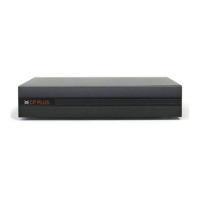
Information on front and rear panels and their functions.
Step-by-step instructions for installing a hard disk drive (HDD).
Detailed technical specifications of the NVR model.
Explanation of indicator lights on the NVR's front panel.
Description of the connectors and ports on the NVR's rear panel.
Diagram illustrating typical device connection setup.
Setting the admin password and unlock pattern during initialization.
Configuring security questions for password recovery.
Finalizing the device initialization process and proceeding to setup wizard.
Methods for resetting the admin password using email or security questions.
Instructions for accessing and logging into the NVR via a web browser.
Appendix detailing toxic or hazardous materials in the product.
 General
| Camera Type | IP Camera |
|---|---|
| Resolution | 4K (3840 x 2160) |
| Operating System | Embedded LINUX |
| Dimensions | 260mm × 236mm × 48mm (10.2" × 9.3" × 1.9") |
| Lens Type | Fixed |
| Video Compression | H.265/H.264 |
| Power Supply | DC 12V |
| IP Camera Input | 16 Channel |
| Interface | HDMI, VGA |
| HDMI Resolution | 3840 × 2160 |
| VGA Resolution | 1920 x 1080 |
| Decoding Capacity | Up to 16 channels |
| Video Detection and Alarm | Motion detection |
| Alarm input | 4 channels |
| Relay Output | 2 Channel |
| Ethernet | 10/100/1000 Mbps |
| Protocols | HTTP, HTTPS, TCP/IP, IPv4/IPv6, UPnP, RTSP, UDP, SMTP, NTP, DHCP, DNS, IP Filter, DDNS, FTP, Alarm Server, IP Search (Support CP Plus IP camera, DVR, NVS, etc.), P2P |
| Smart Phone | iOS, Android |
| Interoperability | ONVIF compliant |
| Internal HDD | No |
| HDD Slots | 1 |
| USB | 1 USB 2.0 |
| Operating Conditions | Temperature: -10°C to +55°C, Humidity: 10% to 90% RH (non-condensing) |
| Type | NVR |
| Video Output | 1 HDMI, 1 VGA |
| Network Interface | 1 RJ-45 port (10/100/1000 Mbps) |
| Operating Temperature | -10°C to +55°C |
| Operating Humidity | 10% to 90% RH (non-condensing) |

 To Next Page
