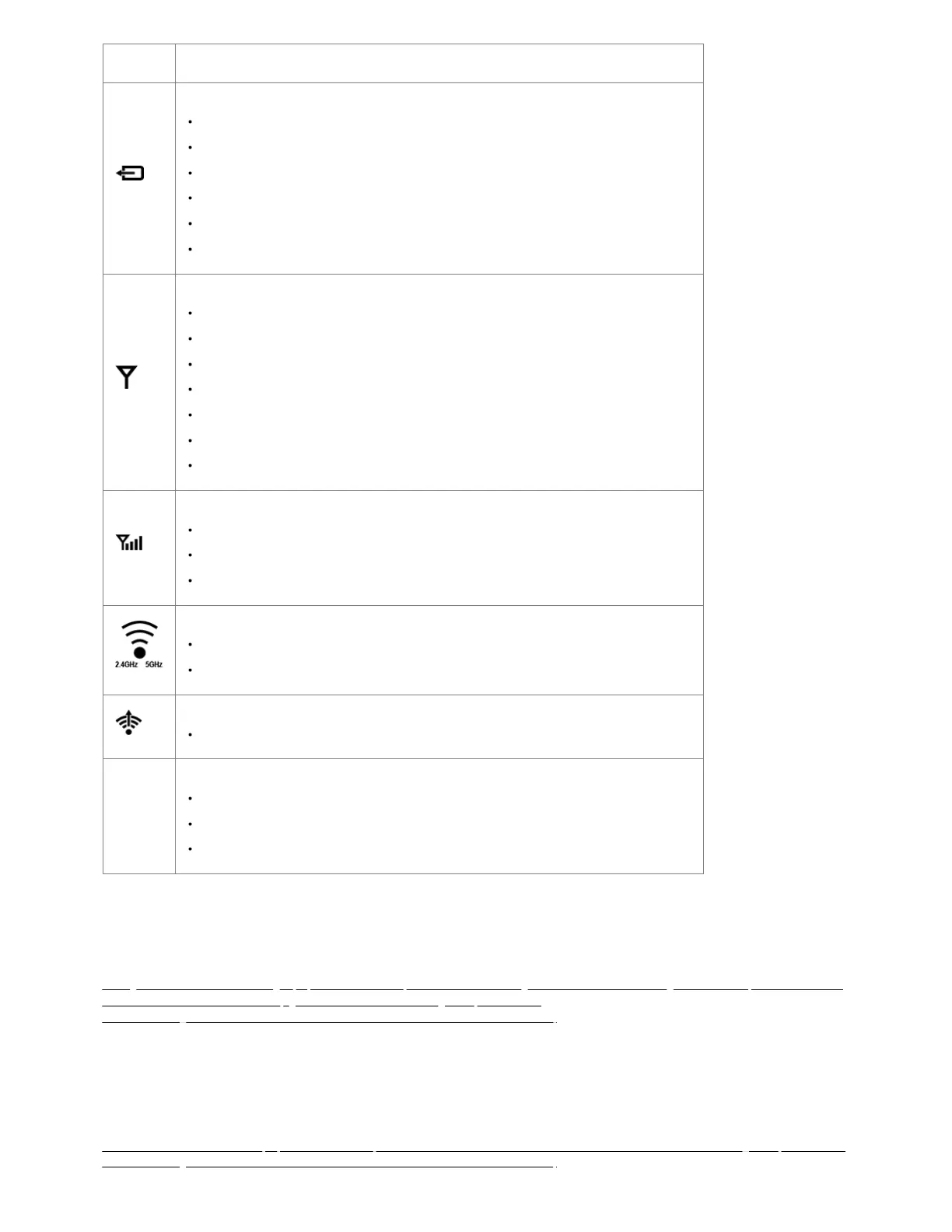
INDICATOR BEHAVIOR
MC400 MODEM: Indicates information about the optional MC400 modem.
Green = Modem has established an active connection
Blinking Green = Modem is connecting
Amber = Modem is not active
Blinking Amber = Data connection error. No modem connection possible
Blinking Red = Modem is in the process of resetting
No Light = Modem not connected
INTEGRATED MODEM Indicates information about the integrated modem.
Green = Modem has established an active connection
Blinking Green = Modem is connecting
Amber = Modem is not active
Blinking Amber = Data connection error. No modem connection possible
Blinking Red = Modem is in the process of resetting
Blinking Red with Signal Strength LEDs = SIM door is not installed, modem is off
No Light = Modem not connected
SIGNAL STRENGTH Blue LED bars indicate the active modem’s signal strength.
4 Solid Bars = Strongest signal
1 Blinking Bar = Weakest signal (a blinking bar indicates half of a bar)
4 Blinking Bars = SIM door is open and the modem is powered off
WiFi STATUS: Indicates information about WiFi channels.
2.4 GHz Green = Activity on 2.4 GHz WiFi band
5 GHz Blue = Activity on 5 GHz WiFi band
WiFi AS WAN: Indicates WiFi as WAN status.
White = WiFi as WAN active
Other
ADDITIONAL LED INDICATIONS
Several different LEDs blink when the factory reset button is detected
Two of the modem LEDs blink red in unison for 10 seconds when there is an error during NCOS upgrade
When an external USB modem is plugged in, only the Signal Strength LEDs will light up
Connecting to NetCloud
Activate your device through NetCloud Manager (NCM). Your device is packaged with NetCloud services, and activation requires that you log into your
NetCloud account. Refer to the following for more information:
Getting Started with NetCloud Manager (https://customer.cradlepoint.com/s/article/Getting-Started-with-NetCloud-Manager?ui-force-components-controllers-
recordGlobalValueProvider.RecordGvp.getRecord=1&r=82&ui-knowledge-components-aura-
actions.KnowledgeArticleVersionCreateDraftFromOnlineAction.createDraftFromOnlineArticle=1)
Troubleshooting
If the device takes longer than 5 minutes to connect to the Internet, you may need to log into the local UI of the device to make configuration changes or start
the troubleshooting process. You must be physically co-located with the device in order to do this. Refer to the following document for more information:
No Internet or Connection Issues (https://customer.cradlepoint.com/s/article/NCOS-No-Internet-or-Connection-Issues?r=47&ui-knowledge-components-aura-
actions.KnowledgeArticleVersionCreateDraftFromOnlineAction.createDraftFromOnlineArticle=1)






 To Next Page