Tutorials
Ableton Live Lite 4 for E-MU
E-MU 1212
m
/1820/1820
m
PCI Digital Audio System 33
2 - Running Proteus X LE VSTi from Ableton Live Lite 4
E These instructions also
apply to Proteus X or
Emulator X.
These instructions explain how to run Proteus X LE from within Ableton Live Lite 4.
Ableton Live’s forte is making it easy to combine pre-recorded audio and MIDI clips in
new and exciting ways. In this tutorial, you’ll learn how to use a MIDI keyboard or the
excellent pre-recorded MIDI loops that come with Ableton Live Lite 4 to play
Proteus X LE.
Select the Virtual Instrument
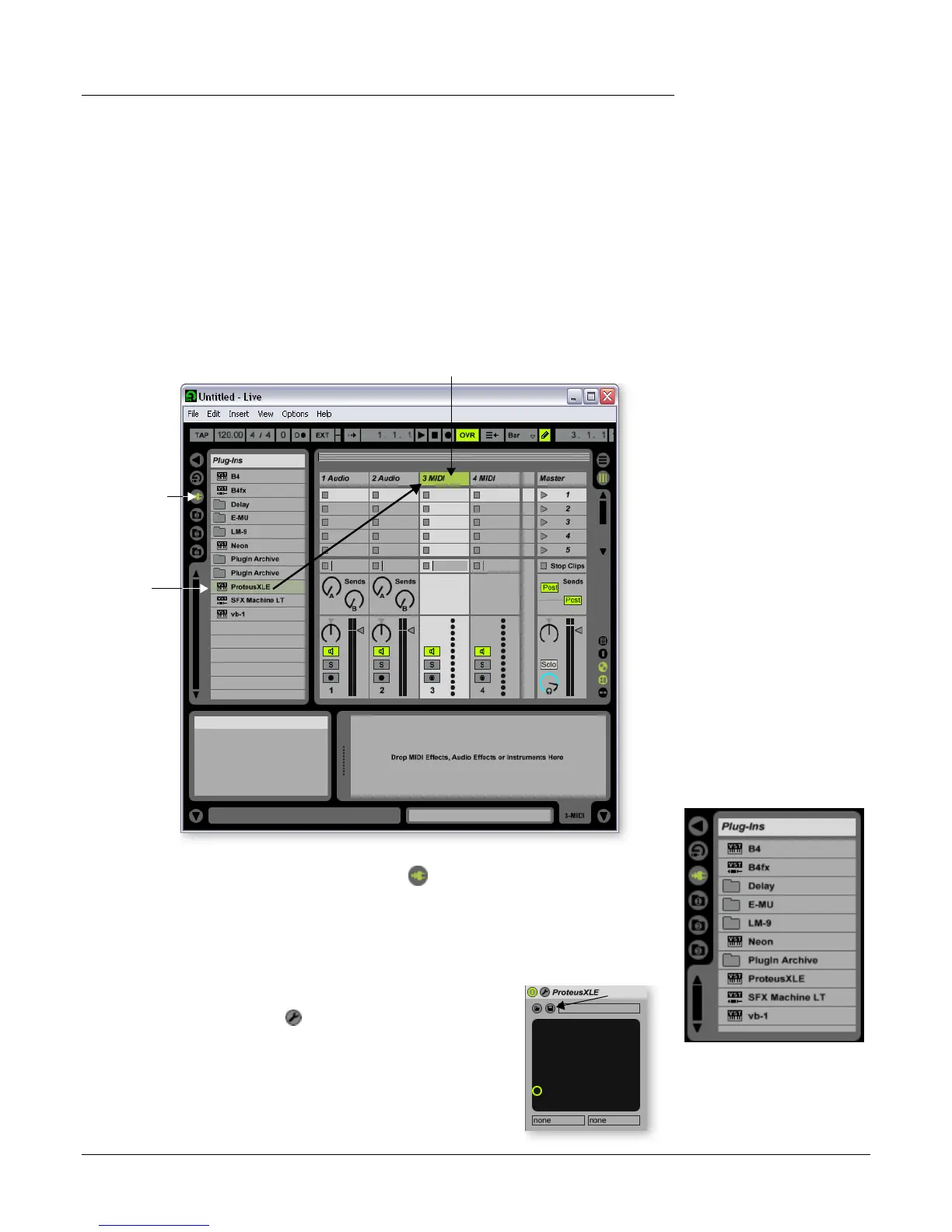
1. If you began with Tutorial 1- Setting up the Preferences, you should have a new set
open with two audio tracks and two MIDI tracks such as the one shown below. (If
you have another set open select New Live Set (Ctrl+N) from the File menu.)
2. Click on the Plug-in Device Browser button on the left side of the window.
The list of Ableton Plug-ins appears at the left side of the window.
3. Select Proteus X LE from the Plug-ins list and drag it over the MIDI Track heading
as shown above. Wait a second or two, then you’ll see the Proteus X LE VSTi appear
in the MIDI Track View area below the mixer.
Load the Proteus X LE Bank
4. Click on the wrench icon on Proteus X LE in the MIDI
Track View area.
1. Click
Here
to open
Plug-ins
2. Drag
Proteus X LE
3. Drop Here



 To Next Page