Tutorials
Cakewalk Sonar LE
26 Creative Professional
4 - Running Proteus X LE VSTi from Sonar LE
Important: If Sonar
was installed BEFORE
Proteus X LE, you will
have to run the
Cakewalk VST Adapter
before Sonar can use the
VSTi. (Start, Programs,
Cakewalk, Cakewalk VST
Adapter)
These instructions explain how to start Proteus X LE from within Sonar LE. If you have a
MIDI keyboard, you should connect it now using the setup diagrams and instructions
that came with your E-MU Digital Audio System. Without a keyboard, you will only be
able to play one note at a time using the mini keyboard on Proteus X LE.
Select the Virtual Instrument
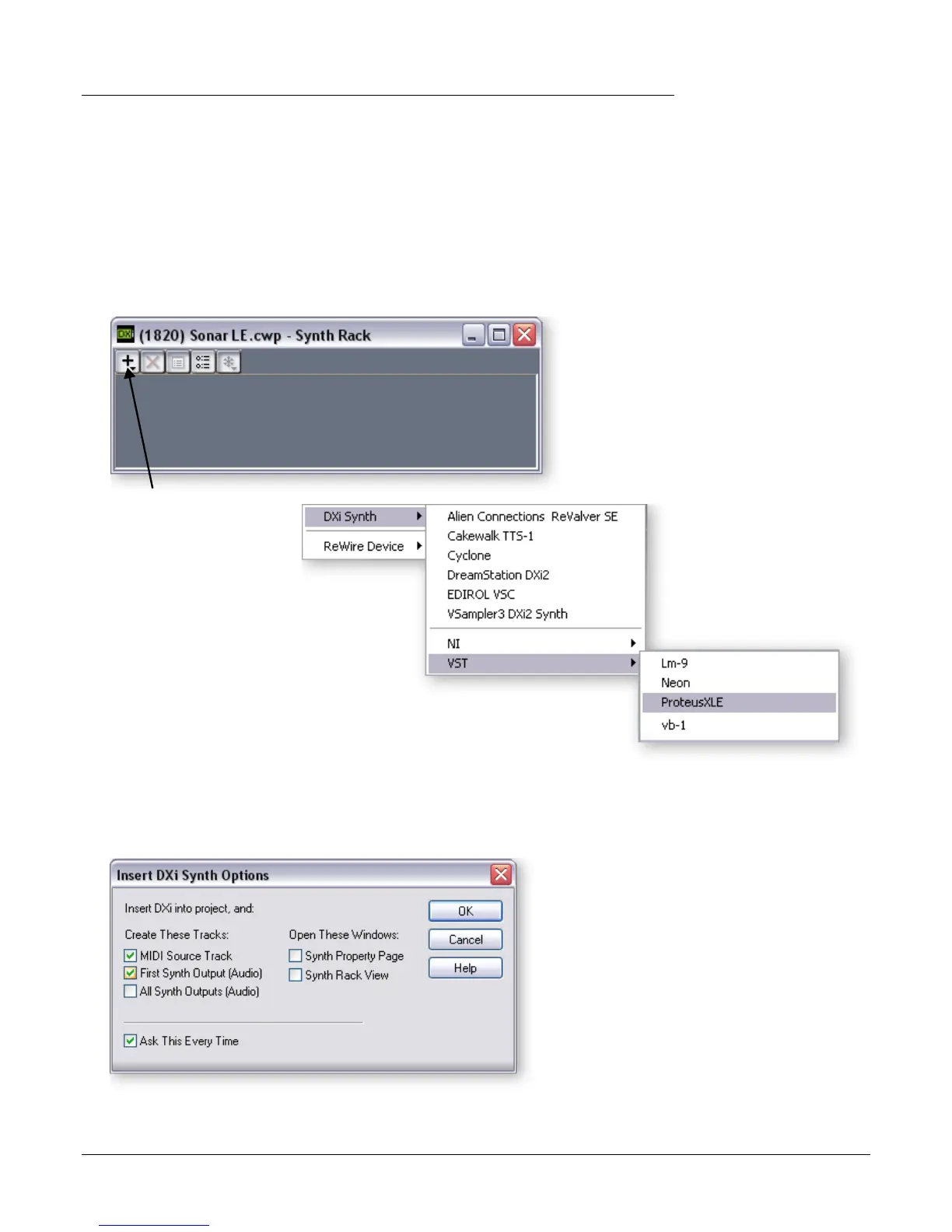
1. From the Sonar LE Project window, select Synth Rack from the View menu. The
following window appears.
2. Click on the + symbol to add an instrument. Follow the path shown above and
select Proteus X LE from the list or VST instruments. The following pop-up dialog
box appears.
E These instructions also
apply to Proteus X or
Emulator X.
3. Select the default options (MIDI Source Track & First Synth Output) as shown. Click
OK to continue. (This may a take a few seconds.)
Click Here



 To Next Page