8
Stopping/Pausing a music track
Press the Play/Pause button .
Skipping folders (Albums)
1. Press the Scroller.
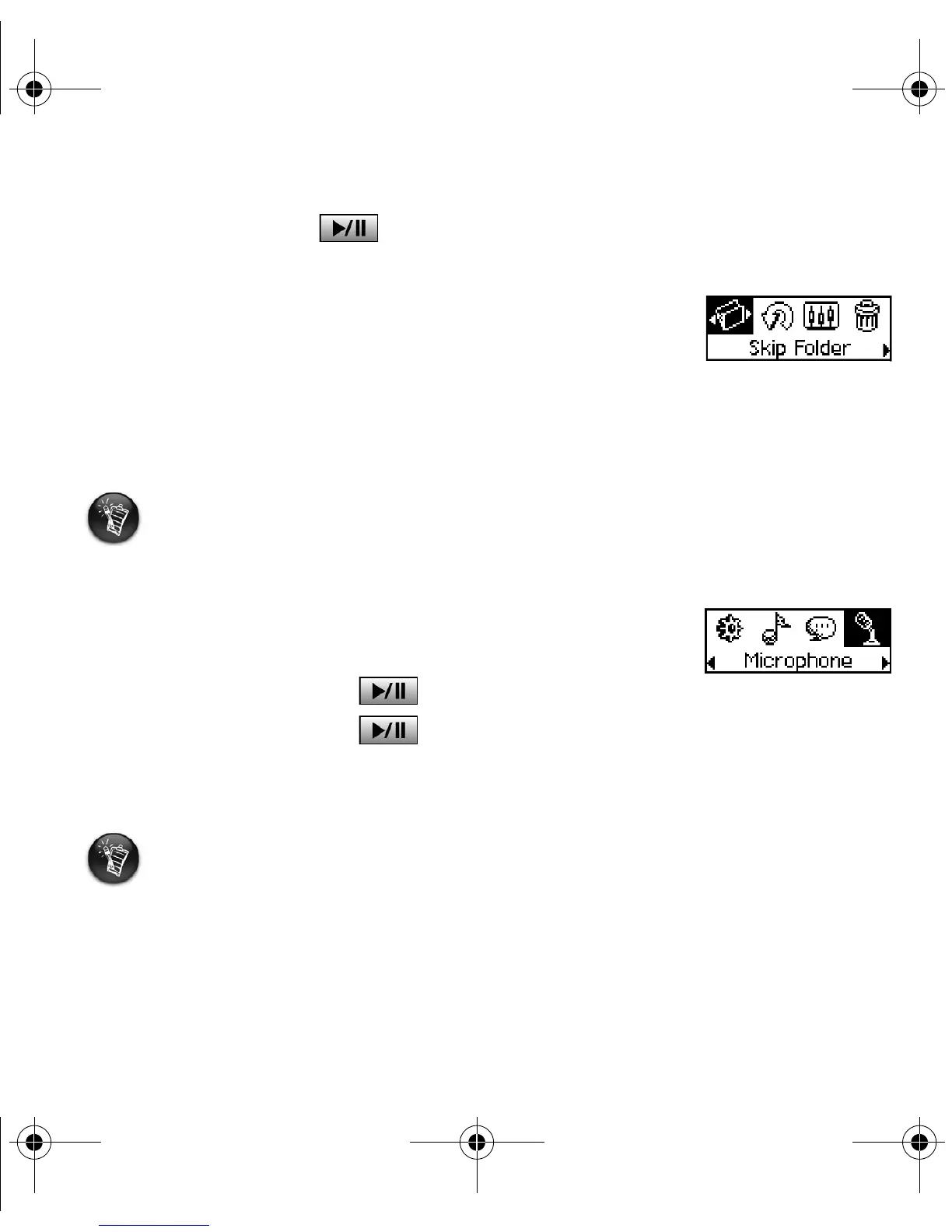
2. Scroll Select Skip Folder (Figure 4).
3. The Skip Folder menu appears.
4. Scroll to the folder that you want to skip to.
5. To resume normal playback, press the Scroller again.
Making a voice recording
1. Press the Scroller. Scroll Select Microphone (Figure 5).
2. The recording bar appears onscreen.
3. Press the Play/Pause button to start the recording.
4. Press the Play/Pause button again to end the recording.
5. A name is automatically assigned to your recording and is saved in your player. The naming
convention typically used is: VOC [Current File Number].
For easy navigation, store your albums as folders in the root directory.
When recording, the available recording time is determined by:
- available memory space in your player.
- battery power remaining in your player.
Figure 4
Figure 5
MuVo TX FM QSB English 20th May.fm Page 8 Wednesday, May 19, 2004 4:44 PM




 To Next Page