Using Your NOMAD Software 16
To format the internal or external memory:
1. Select the icon for the internal or external memory.
2. Click the Format icon.
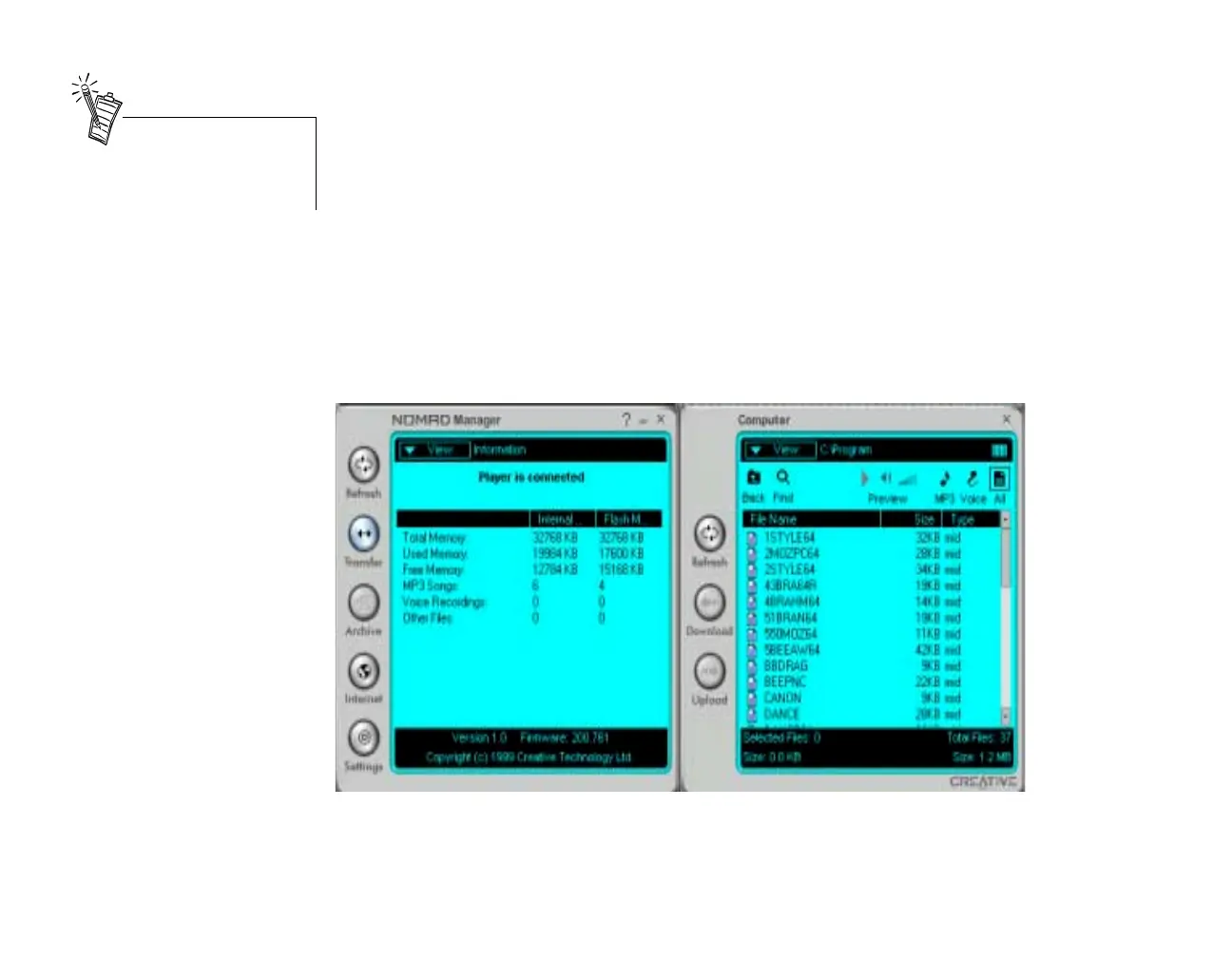
To view status of the Player memory:
1. Click the View button to drop down the Explorer.
2. Select the internal or external memory to view the files on the Player.
The amount of memory used and available are displayed at the bottom of the window.
If you change the external memory (the flash card), click the Refresh button to display the file information
for the new card.
To copy files from your hard disk (or other sources):
1. On the Nomad Manager window, click the Transfer button. The Computer window is displayed next
to the Nomad Manger.
2. Use the View button in the Computer window to locate files on your hard disk (or other sources) to
copy to the Player memory.
If the internal memory is
formatted, you can proceed with
adding files to the Player.



 To Next Page