Installing Creative WebCam NX Pro 1-5
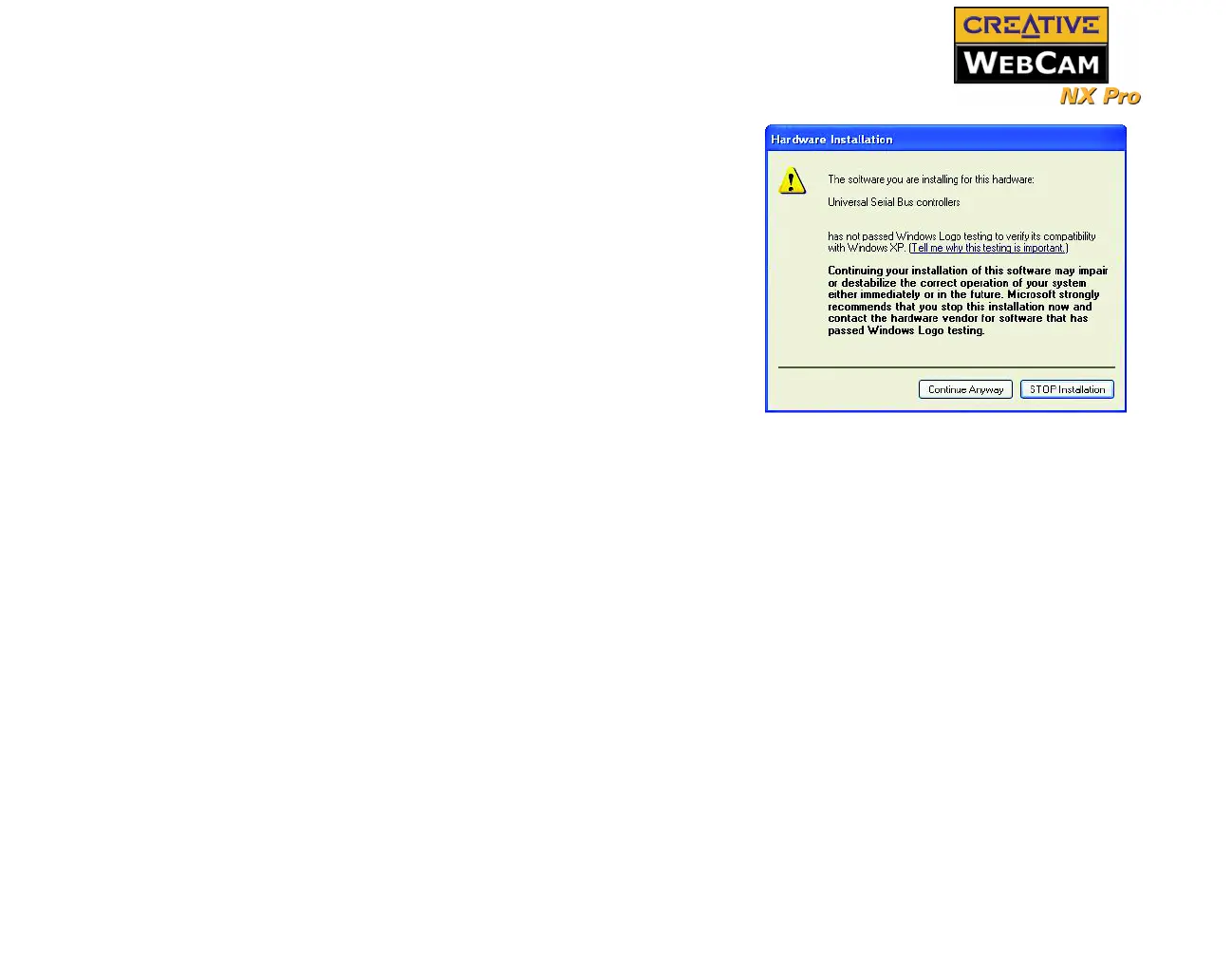
2. When a Hardware Installation Dialog box
appears (Figure 1-4), ignore the message and
click the Continue Anyway button. For more
details on this warning message, see "Problems in
Windows XP" on page B-2. Installation will be
complete in a while.
3. Check the image in the Video preview pane of
the Creative WebCam NX Pro Camera
Configuration dialog box. If it flickers or
displays a series of dark bands, click the Cancel
Flicker button.
4. Click the Finish button, and then restart your
computer if you are prompted to do so.
Verify ing t he
installation in
Windows 98/98SE
and Windows Me
1. Right-click the My Computer icon on your desktop.
2. On the menu that appears, click Properties.
3. In the System Properties dialog box, click the Device Manager tab.
4. Click the plus (+) sign next to the Imaging Device icon.
The entry “Creative WebCam NX Pro” should appear.
Verify ing t he
installation in
Windows 2000 &
XP
1. Right-click on My Computer.
2. On the menu that appears, click Properties.
3. In the System Properties dialog box, click the Hardware tab.
4. Click the Device Manager button. A window appears.
5. Click the plus (+) sign next to the Imaging Device icon.
The entry “Creative WebCam NX Pro” should appear.
Figure 1-4: Hardware Installation
dialog box




 To Next Page