Installing Software in Windows 95/98 2-1
2
Installing Software in Windows 95/98
This chapter shows you how to install the
audio software in Windows 95/98 after
installing your card. It consists of the
following sections:
❑
Setting Up the Audio Drivers
❑
Installing the Applications
❑
Using Sound Blaster Live!
❑
Configuring Your Speakers
❑
Uninstalling the Applications
❑
Reinstalling the Audio Drivers From the
Installation Disc
Setting Up the Audio
Drivers
You need device drivers to control the
components on your audio card. After you
have installed the card and switched on your
system, Windows 95/98 automatically detects
the components, and then either installs the
drivers automatically or prompts you for the
drivers. You may encounter the following
messages, which may not be in the sequence
shown.
❑
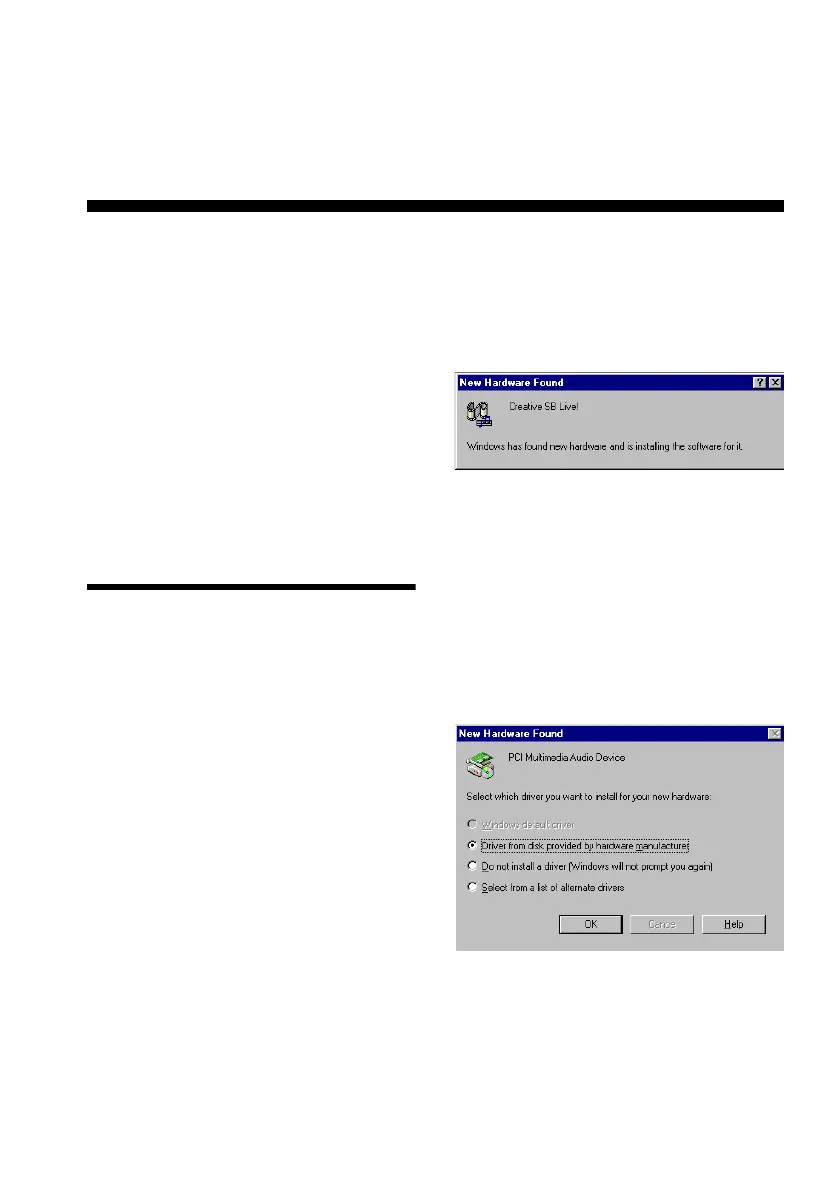
If a message similar to Figure 2-1 appears,
just take note of it and wait for the next
message.
❑
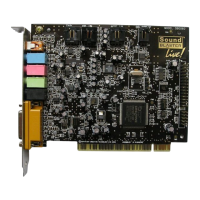
If a dialog box similar to Figure 2-2
appears, click the Driver From Disk
Provided By Hardware Manufacturer
option, and then click the OK button. If
you are prompted for the Windows 95
installation diskette or disc, insert it into a
drive, and then click the OK button.
Figure 2-1: Message box indicating the
detection of a device.
Figure 2-2: Driver installation dialog box
where the Windows default driver
option is not available.



 To Next Page