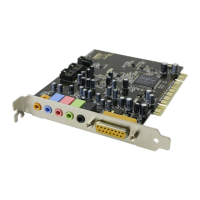
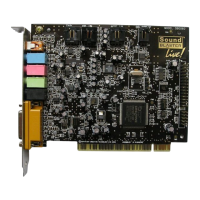
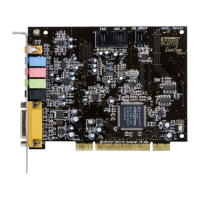
Installing Sound Blaster Live! 7
"!&+12
(3
1. Log on to your computer as Administrator.
2. Click Start on the Windows Taskbar, select Settings, and click on Control Panel.
3. Double-click the
Multimedia
icon, click the
Devices
tab, and then click the
Add
button.
4. On the Add dialog, select Unlisted Or Updated Driver from the List of Drivers, and then click the
OK button.
5. Insert the Windows NT 4.0 CD-ROM into the CD-ROM drive.
6. In the Install Driver dialog, type E:\DRVLIB\MULTIMED\JOYSTICK\X86 (E:\ is the
CD-ROM drive letter), and then click the OK button.
7. On the Add Unlisted Or Updated Driver dialog, select Analog Joystick Driver, and then click the
OK button.
8. On the Microsoft Joystick Configuration dialog, click the OK button.
9. Restart your computer when prompted.



 To Next Page