5
Overview – Creative SXFI CARRIER
1
Does not control volume setting of devices connected
to SXFI-out. Please adjust device’s volume directly on the
connected SXFI-enabled device
2
When in Device Settings’ menu,
- Press the Play / Pause button once to enter the menu or
apply selected settings
- Press the Volume - / Next Track button to go to the next
menu selection
- Press the Volume + / Previous Track button return to the
previous menu selection
- Press the Menu or Back button to exit device’s Settings
menu
3
For SXFI-enabled devices connected via rear SXFI-out,
please use the Super X-Fi button located on the device to
enable / disable Super X-Fi Headphone Holography and
the Volume Control Dial / Buttons to control playback
volume. Super X-Fi Headphone Holography is available
via Headphone-out only. When switched to Speaker
Mode, Super X-Fi Headphone Holography, as well as the
corresponding LED(s) will be turned o
Remote Control
1
2
3
4
5
6
7
8
9
10
11
12
13
14
15
16
17
18
19
20
21
1 2
6
5
8
9
10
15
19
17
21
20
13
11
3
7
14
16
18
12
4
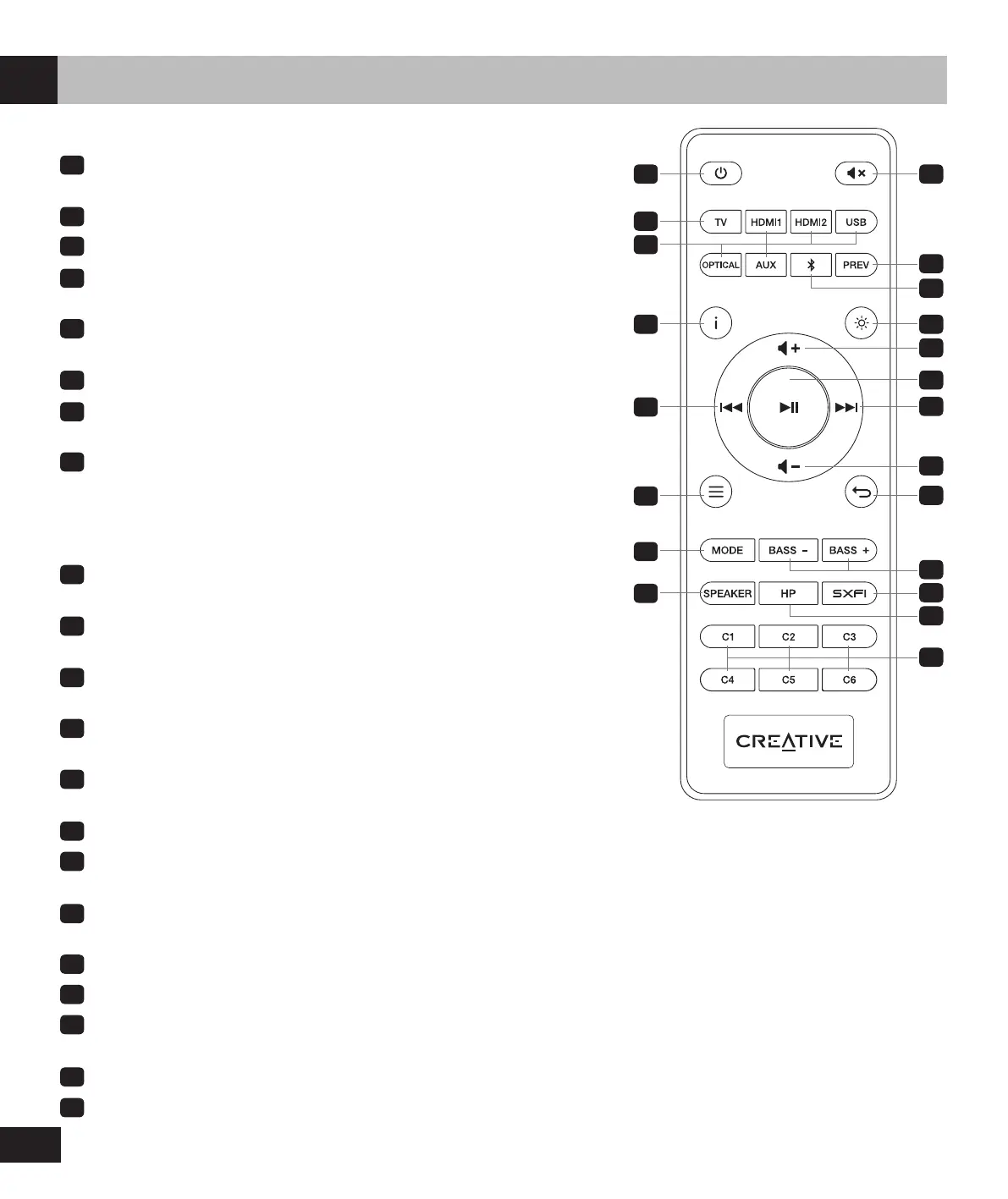
Power Button: Press once to turn on soundbar. Press once again
to enter Standby mode
Mute Button: Press once to mute / unmute audio playback
TV: Press once to manually switch TV ARC / eARC
Source Selection Buttons (HDMI 1, HDMI 2, USB, Optical, AUX):
Switch to corresponding input source
Bluetooth Button: Press once to switch to Bluetooth mode. Press and
hold for 2s to enter Bluetooth Pairing mode
Previous Button: Press once to return to previously selected source
Info Button: Press to display the following: Audio format information
(Dolby encoded / PCM), Sound mode, and current source
LED Display Button: Press to toggle between Bright mode, Dark
mode, and OFF
• Bright Mode: 100% brightness
• Dark Mode: 50% brightness
• OFF: Lights up only when there is an interaction; turns o after 5s
Volume + Button: Increases volume.
1
Press and hold to continuously
increase the volume
Volume – Button: Decreases volume.
1
Press and hold to continuously
decrease the volume
Play / Pause Button: Press once to play / pause audio source
(For USB audio and Bluetooth modes only)
Previous Track Button: Press once to return to previous track
(For USB audio and Bluetooth modes only)
Next Track Button: Press once to skip to next track
(For USB audio and Bluetooth modes only)
Menu Button: Press once to enter device’s settings menu
Back Button: Press once to go back to parent menu or exit device’s
settings
2
menu
Mode Button: Press once to cycle through available Sound modes
(Movie > Music > Night > Neutral > SuperWide)
Bass – / + Button: Press once to adjust subwoofer’s bass level
Speaker Button: Press once to switch to speaker-out
SXFI Button: Press once to turn on / o Super X-Fi Headphone
Holography when in Headphone-out
3
mode
HP Button: Press once to switch to Headphone-out mode
Custom (C1-C6) Buttons: Custom buttons are customizable using the
Creative app
EN



 To Next Page