Transferring and Managing Content 45
Recording with the built-in microphone
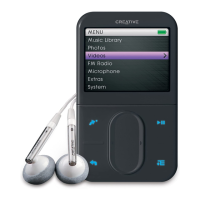
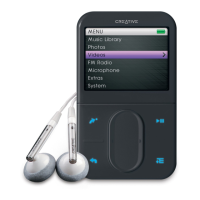
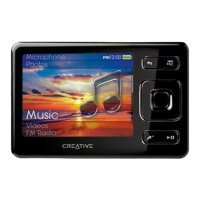
1 In the main menu, Select Microphone.
2 Press the Options button and select Start Recording to start recording.
3 While recording, you can press the Options button and select one of the following
items:
■ Pause
Pauses the recording. You can also pause the recording by pressing the Play/Pause
button.
■ Resume
Resumes the paused recording.
■ Split
Starts a new recording.
■ Stop
Stops and saves the recording.
4 The recorded track is named MIC followed by the date and time of the recording (MIC
YYYY-MM-DD HH:MM:SS). For example, if you record a track on March 15, 2005 at 2:57
pm, the track is named MIC 2005-03-15 14:57:00.
5 To preview your new recording, press the Options button and select Preview. To delete
it, select Delete Recording.
6 To view and play back recorded tracks, see "Playing recorded tracks" on page 46.






 To Next Page