Software Crestron D3 Pro
™
3. When you are satisfied with the light level, you can click Done to exit real-
time control, or else you can click the Next or Prev buttons to adjust the next
or previous circuit listed in the Load Schedule.
To adjust lights from the Programming View
1. Select the button that controls the lights you want to adjust and open the
event tab.
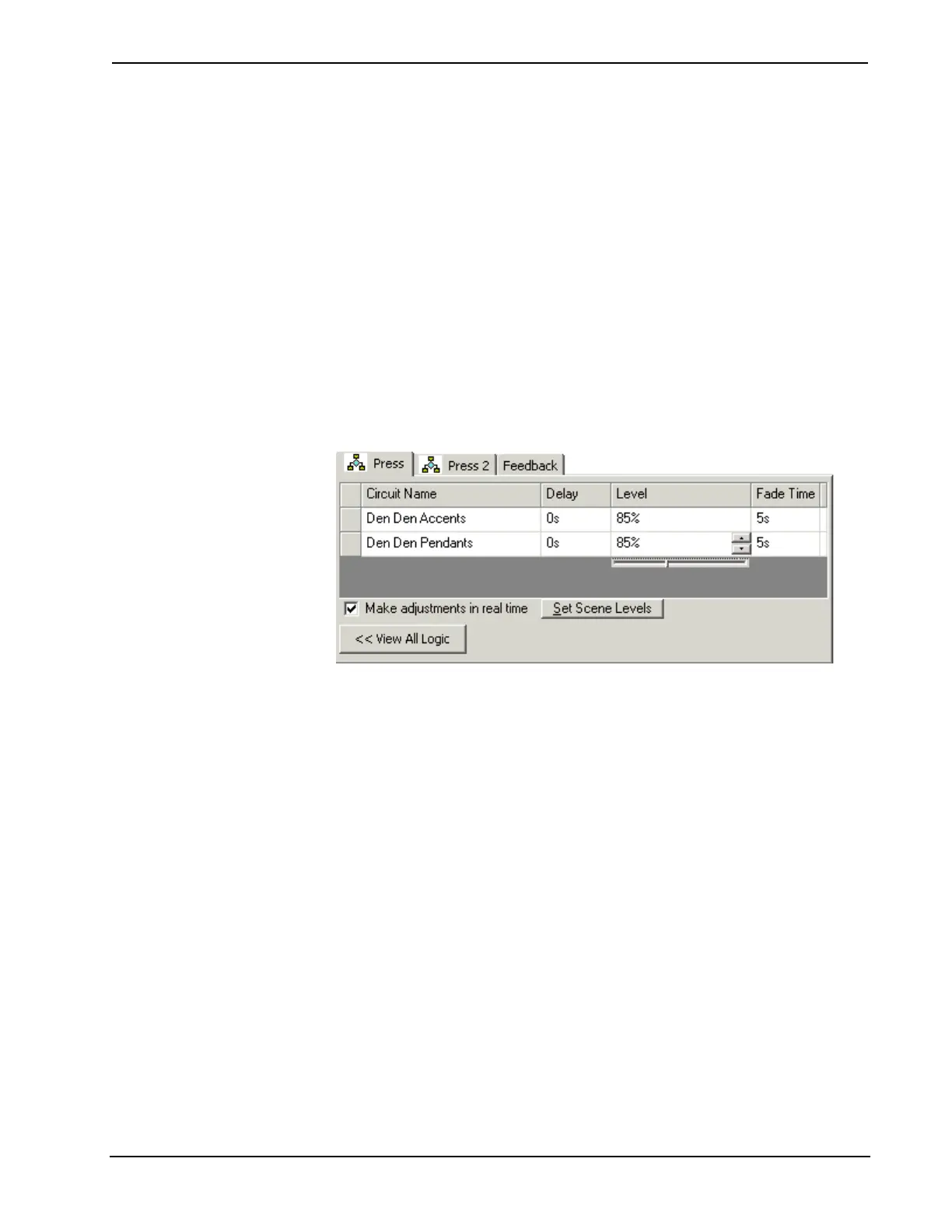
2. Click the Adjust Lighting Levels button at the bottom of the screen.
3. Select the Make adjustments in real time check box.
4. To cause all the lights in the list to jump to their preset values, click Set
Scene Levels (this step is optional).
5. To change the level of an individual light, click the Level field to display the
slider control.
6. Adjust the slider up and down until the lights are at the desired level. You
can also type the desired value into the box and press the Enter key.
7. When you are satisfied with the light level, click View All Logic to return to
the event tab.
Conditional Statements
A conditional statement allows actions to occur or not occur based on whether a
certain condition is true or false. For example, you can trigger a “Close Drapes” or
“Open Drapes” command depending on whether the downlights in a room are on or
off, or whether the current lighting level is above or below a certain value.
Conditionals are expressed as follows:
If <expression> Then
<action 1>
<action 2>, etc.
[Else]
<action x>
<action y>, etc.
End If
Where <expression> is any logical expression that results in either true or false.
68 • Crestron D3 Pro™ Reference Guide – DOC. 5998a



 To Next Page