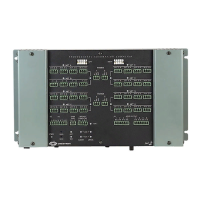
Crestron PAC2M Professional Automation Mini Computer
• Confirm Ethernet connections between PAC2M and PC. If connecting
through a hub or router, use CAT5 straight through cables with 8-pin RJ-45
connectors. Alternatively, use a CAT5 crossover cable to connect the two
LAN ports directly without using a hub or router.
• Use the Address Book in the Crestron Toolbox to create an entry for the
PAC2M with the PAC2M’s TCP/IP communication parameters.
• Display the “System Info” window (click the
icon) and select the
PAC2M entry. Communications are confirmed when the device information
is displayed.
Programs and Firmware
• Display the network device tree (Tools | Network Device Tree) to show all
network devices connected to the control system. Right-click on the
PAC2M to display actions that can be performed on the PAC2M:
Upgrade firmware ⇒
⇒
⇒
• Upload the SIMPL Windows file to the control system using SIMPL
Windows or Crestron Toolbox.
• Upgrade PAC2M firmware via Crestron Toolbox.
Establish USB or TCP/IP communications with the PAC2M and
display the “System Info” window.
Select Functions | Firmware… to upgrade the PAC2M firmware.
For details on uploading and upgrading, refer to the SIMPL Windows help file or the
Crestron Toolbox help file.
Operations Guide – DOC. 6507 Professional Automation Mini Computer: PAC2M • 17



 To Next Page