17
Colour of the indicator
lamp
Operating mode
Blue Bluetooth mode (the
announcement “Bluetooth
mode“ is heard)
- ashes - no Bluetooth connection
- lights up - Bluetooth connection
established
Pink * USB mode (the announce-
ment “U-Disc playback“ is
heard)
Green * AUX-IN mode (the announce-
ment “Aux in mode“ is heard)
* The USB and AUX-IN mode can only be chosen, if a stor-
age medium or audio cable is connected.
Volume
Use the
buttons to adjust the volume as desired.
Log Device into Home Network
NOTE: Important!
• Your router must be congured so that it allows new
WLAN devices to be connected.
• The smartphone or tablet-PC has to be logged into the
same network that you want to log in the device.
1. Install the MUZO Player App on your smartphone or
tablet-PC.
2. Turn the device on and choose the Wi-Fi mode.
3. Start the MUZO Player App.
Settings in the MUZO Player App
NOTE:
The shown screenshots may vary optically according to the
App version used.
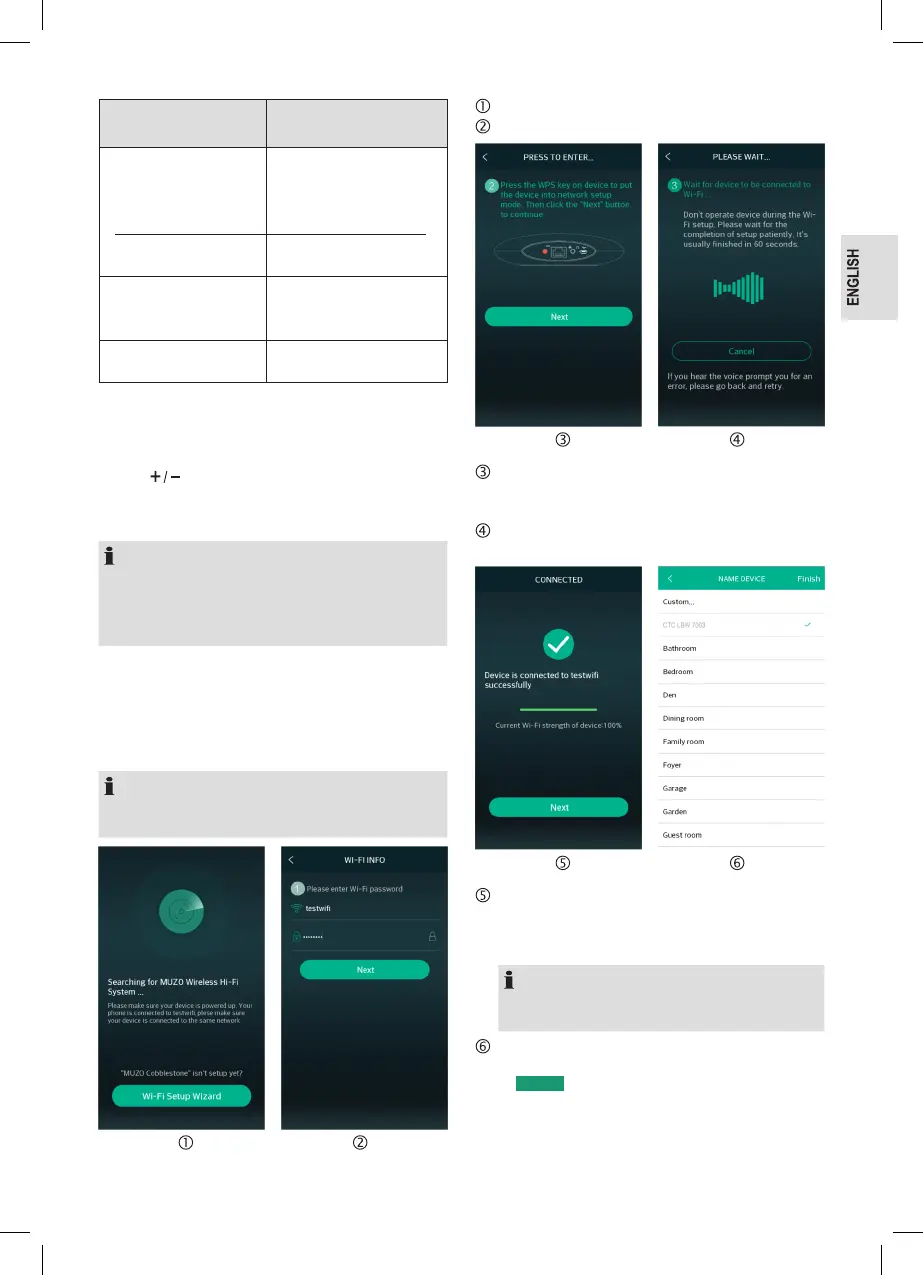
Click on “Wi-Fi Setup Wizard“.
Choose your router and enter the password.
Press the WPS button on the device for approx.
2 seconds. You will hearn: “SEARCHING FOR Wi-Fi
CONNECTION“.
The device is registered in your router and in the MUZO
Player App.
When the device has found a WiFi connection, you will
hear: “WAITING FOR Wi-Fi CONNECTION“. If the login
was successful, you will hear “Wi-Fi CONNECTED“ and
the current WiFi signal strength is shown.
NOTE:
If the login was not successful, you will hear: “FAILED
TO CONNECT Wi-Fi ROUTER”.
In the next window you can choose a name for the device
or enter your own description under “Custom...“. Click
on
Finish
to accept the setting. You will see a short
instruction for using the App.



 To Next Page