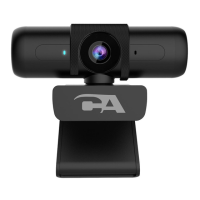
Camera application - Allows you to preview the webcam image, capture still
frames and video clips.
- Select the Start button
- Select ‘Camera’ from the list of applications
After you open the Camera app:
- Select Photo or Video then select it again to take a picture or start a video.
If you are making a video, select Video again to finish recording.
- To see your new photo or video, or ones you’ve taken before
- Select the Start button
- Select ‘Photos’ from the list of applications
Note:
If you are using a laptop with an integrated camera or have a second camera
installed, you will need to change the camera selected in the app so that
CA Essential Webcam Flex is selected.
- To select between cameras, select the camera icon with the circular arrow in the
top right corner of the application. Selecting the icon will switch between installed
cameras.
- If only one camera is installed on your Windows computer, the camera icon with
the circular arrow will not be displayed.
Using Camera Applications on Your Windows 10 Computer
Page 8



 To Next Page