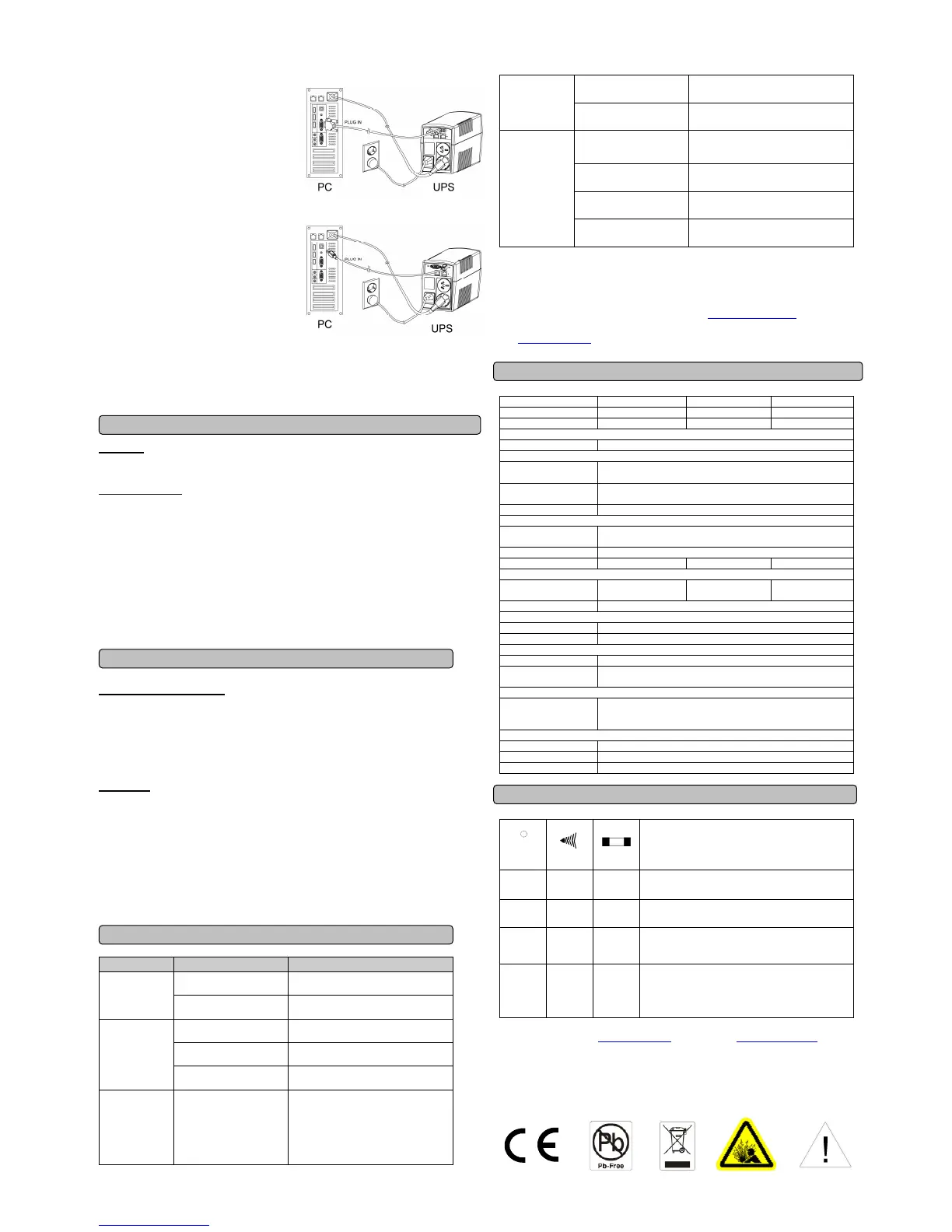
4. Serial Port to PC
This port allows connection and communicates
from the DB-9 serial on the computer to the
UPS unit. The UPS communicates its status
to the PowerPanel
®
Personal Edition software.
This interface is also compatible with the UPS
service provided by Windows 98, Windows ME,
Windows NT, Windows 2000, Windows XP,
Windows Server 2003, Windows Vista,
Windows 7.
5. USB Port to PC
This port allows connection and communication
from the USB port on the computer to the UPS
unit. The UPS communicates its status to the
PowerPanel
®
Personal Edition software. This
interface is also compatible with the UPS service
provided by Windows 98, Windows ME,
Windows NT, Windows 2000, Windows XP,
Windows Server 2003, Windows Vista,
Windows 7.
NOTE: Only one of these two ports can be used as communication and control of the UPS unit at
one time.
6. Communication Protection Ports
Communication protection ports will protect any standard modem, fax, telephone line.
FUNCTIONAL TEST
AC Mode
The UPS delivers power to the loads derived from the utility and maintains proper battery charge. It also
regulates the output voltage to within a narrow range.
On-Battery Mode
The UPS operates on battery when the line voltage or frequency has fallen outside the limits. Local
users are alerted to this mode of operation by visual and audible indicators. The UPS provides power to
the load from the battery and through its inverter and the output voltage and frequency of the UPS are
regulated within a narrow range
1. Switch On
Press the power switch on the front panel then the status LED will light up.
2. Switch Off
Press again the power switch, the status LED on the front panel will go off.
3. Cold Start / Start on Battery:
This UPS can be turned on even when AC is not present.
Press the power switch on the front panel then the status LED will light up.
ROUTINE MAINTENANCE AND STORAGE
ROUTINE MAINTENANCE
1. Use dry soft clothes to clean the front panel and plastic parts. Do not use any detergent that
contains alcoholic ingredient.
2. The expected lifetime of the battery is around 3 years. Improper operation and harsh environment
will reduce the actual lifetime.
3. Unplug the UPS from power inlet if the UPS will not operate for long period of time.
STORAGE
1. First turn off your UPS and disconnect its power cord from the wall outlet. Disconnect all cables
connected the UPS to avoid battery drain.
2. The UPS should be stored in a cool dry location.
3. Make sure the battery is fully charged before the UPS is stored.
4. For extended storage in moderate climates, the battery should be charged for 12 hours every 3
months by plugging the power cord into the wall receptacle and turning on the main switch. Repeat
it every 2 months in high temperature locations.
TROUBLE SHOOTING
Problem Possible Cause Solution
The UPS does
not perform
expected
runtime.
Batteries are not fully
charged.
Recharge the battery by leaving the UPS
plugged in.
Battery is slightly worn out.
Contact CyberPower Systems Technical
Support.
The UPS will not
turn on.
The unit is not connected to
an AC outlet.
The unit must be connected to a
220-240V 50/60Hz outlet.
The battery is worn out.
Contact CyberPower Systems Technical
Support.
Mechanical problem.
Contact CyberPower Systems Technical
Support.
Outlets do not
provide power to
equipment
Fuse is blown due to
overload
The serial/USB cable is
connected to the wrong
port.
Try another serial/USB port of your
computer.
The unit is not providing
battery power.
Shutdown your computer and turn the
UPS off. Wait 10 seconds and turn the
UPS back on. This should reset the unit.
The serial cable is not the
cable that was provided with
the unit.
You must use the cable included with the
unit for the software.
CyberPower warrants to you, the original purchaser, that CyberPower UPS will be free from defects in
design, assembly, materials and workmanship for two years ( battery is only one year) from the date of
original purchase. Any warranty services, please contact your local dealers or distributors.
CyberPower Technical Support Contact Information: service@cpsww.com.au
Visit www.cpsww.com.au for more trouble shooting information under support session,
TECHNICAL SPECIFICATIONS
Model Value600EI Value800EI Value1000EI
Capacity (VA) 600VA 800VA 1000VA
Capacity (Watts) 360W 480W 550W
Input
Frequency Range 47~63Hz(Auto Sensing)
Output
On Battery Output
Voltage
Simulated Sine Wave at 230Vac +/-5%
On Battery Output
Frequency
50/60 Hz +/-1%
Overload Protection On Utility: Fuse, On Battery: Internal Current Limiting
Physical
Total # of UPS
Receptacles
2
Maximum Dimensions 140mm(H)*100mm(W)*300mm(D)
Weight 4.77 kg 5.33 kg 5.42 kg
Battery
Sealed Maintenance
Free Lead Acid Battery
Fuse
Condition
On Off Normal
Normal
Flash
Two
Beeps
Normal
Utility Failure - The UPS is providing battery power to outlets.
Flash
Rapid
Beeps
Normal
Utility Failure - The UPS is providing battery power. The
rapid beeps indicate the battery will run out of power shortly.
Off
Long
Beep
Normal/
Blown
Overload - Occurs when connected equipment exceeds the
rating of the unit. Turn the UPS off and unplug at least one
piece of equipment from the UPS. Check the fuse and do the
replacement if necessary. Turn the UPS on.
For more information, visit www.cpsww.com.au or contact us via sales@cpsww.com.au
Entire contents copyright ©2012 CyberPower Systems, Inc., All rights reserved. Reproduction in whole
or in part without permission is prohibited. PowerPanel
®
and PowerPanel
®
Plus are trademarks of
CyberPower Systems (USA), Inc.


 To Previous Page
 Loading...