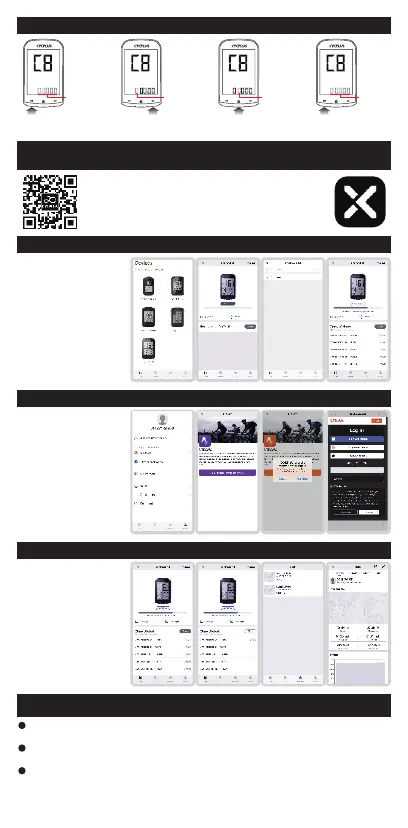
ODO
KM
Press left button
to start setting.
ODO
KM
Press right button
to modify the digit.
ODO
KM
ODO
KM
Press mid button to
switch the setable digit.
Press left button
to finish setting.
all digit
flashing
the setable
digit flashing
the setable
digit flashing
all digit
flashing
XOSS APP Connection
Scan QR code or download the APP from Google
play or APP store, register by email. Then open
the phone Bluetooth.
Open “XOSS", choose
CYCPLUS M1. Then click
connect, choose the paired
computer among the found
devices.
Connecting M1 Computer
Odograph Setting
Connecting STRAVA/Training Peaks
Find Strava / Training Peaks
in your personal files and click
connect. Log in Strava /
Training Peaks with account
and passwords (Google and
Facebook account login is not
supported) .
Click Sync, the record will be
synced to APP. If Strava is
connected, the data will be
automatically synced to Strava.
Choose the activity on the
exercise page, you will see the
cycling data.
Updating Data and Checking the Analysis
Notes
Memory: After the memory is used up, the computer will overwritethe previous records according
to the chronological order.
Data recording: Long press left button to turn on, press the left button to start recording data.
Don't forget long press the middle button to save the record after riding.
1
2
3
Backlight After setting the time zone, backlight will be automatically lighted every night from :
18:00-9:00. The screen will light on with a press of any buttons, and light off 10s later.
03


 To Next Page