10
Getting Started (continued)
Setting up a Wireless Ad-Hoc Network
When assigning IP addresses to the computers on the network, please
remember that the IP address for each computer must be in the same
IP address range as all the computers in the network, and the subnet
mask must be exactly the same for all the computers in the network.
For example: If the first computer is assigned an IP address of 192.168.0.2
with a subnet mask of 255.255.255.0, then the second computer can be
assigned an IP address of 192.168.0.3 with a subnet mask of 255.255.255.0,
etc.
IMPORTANT: If computers or other devices are assigned the same IP
address, one or more of the devices may not be visible on the network.
IP Address
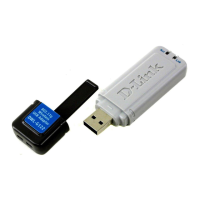
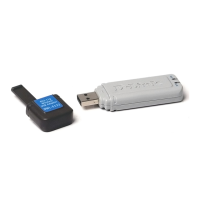
Install the D-Link AirPlus G DWL-G122 Wireless USB adapter into
the desktop computer. (See the Quick Installation Guide included with
the product.)
Set the wireless configuration for the adapters to Ad-Hoc mode, set
the adapters to the same channel, and assign an IP address to each
computer on the Ad-Hoc network.
Install the D-Link AirPlus G DWL-G122 Wireless USB adapter into
the laptop computer. (See the Quick Installation Guide included with
the product.)
DWL-G122
Wireless USB Adapter
TM


 To Next Page
 Loading...