Open the Pokémon Go App
Select Main Menu Settings ‘Connected Devices and Services’ ‘Accessory Devices’
Select ‘Pokémon Go Plus’ in the ‘Available Devices’ list to search for the Go-tcha
Evolve Pro+
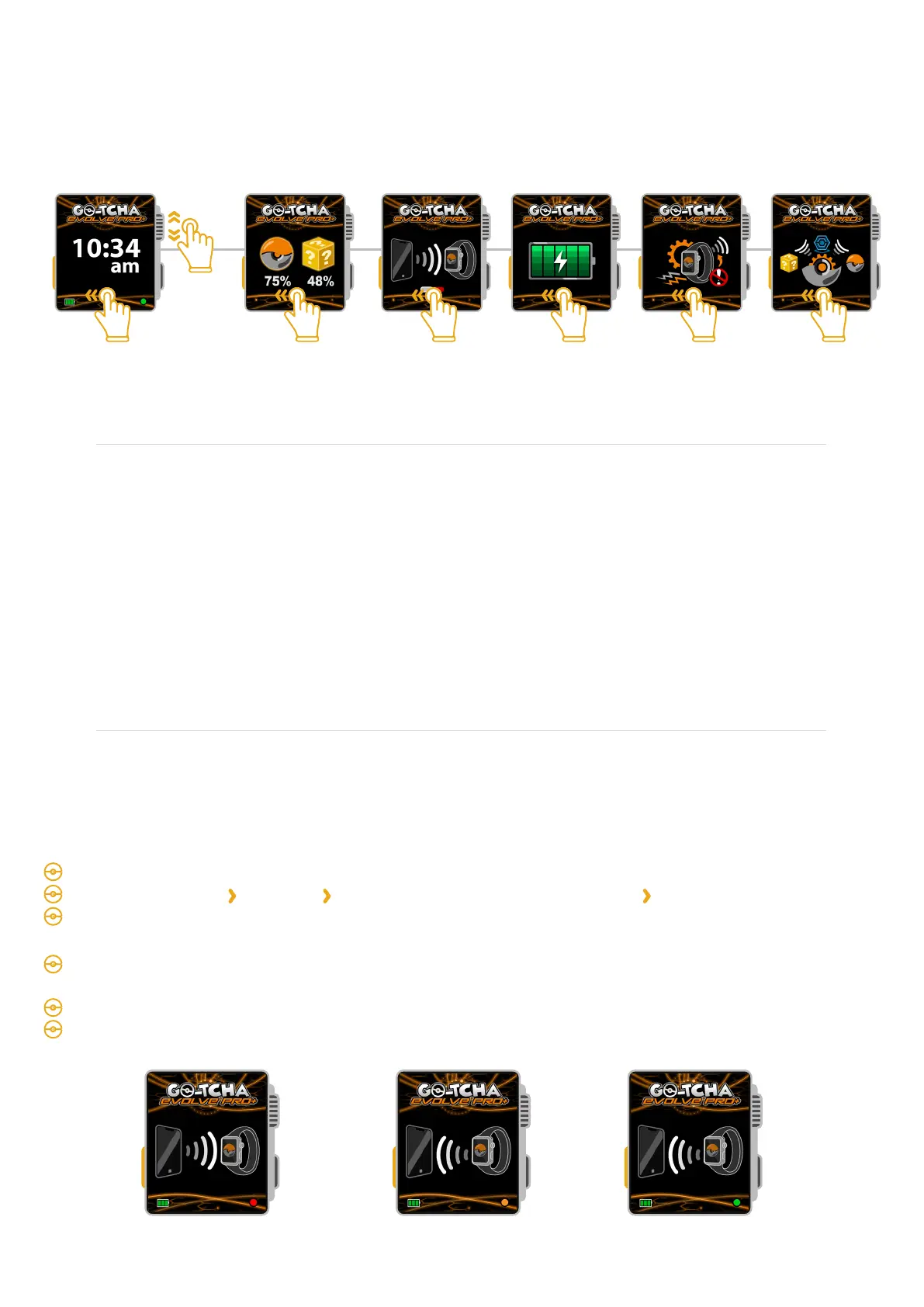
On the Go-tcha Evolve Pro+ swipe across from the Clock/Home Screen to the
Bluetooth Connection screen
Tap the Bluetooth Connection Screen to connect - Bluetooth will be activated for 10 seconds
The coloured dot in the corner of the screen will change to reflect it’s connection status
Connecting Your Go-tcha Evolve Pro+
To connect your Go-tcha Evolve Pro+ to the Pokémon Go App:
Navigating The Menu Function Screens
Wake the Go-tcha Evolve Pro+ by pressing the rotary crown button on the right hand side to see the
clock home screen and swipe left/right or turn the rotary crown up/down to switch between the home
menu screens.
Clock/
Home Screen
Catch
Settings
Watch
Settings
Battery
Life
Bluetooth
Connection
Catch
Success
Rate %
Amber = ConnectingRed = Not Connected Green = Connected
‘Catch Success Rate’
The catch success rate percentages will be shown for each gaming ‘session’. A ‘session’ starts when
the Go-tcha Evolve Pro+ connects to the Pokémon Go App and ends when the watch times out and
disconnects.
When you reconnect the Go-tcha Evolve Pro+, a new session will start and your stats will be reset.
You will be able to view your stats from your last session until you reconnect the Go-tcha Evolve
Pro+ watch.


 To Next Page