Setting The Time
Go-tcha Evolve Pro+ can function as a 12 or 24 hour clock.
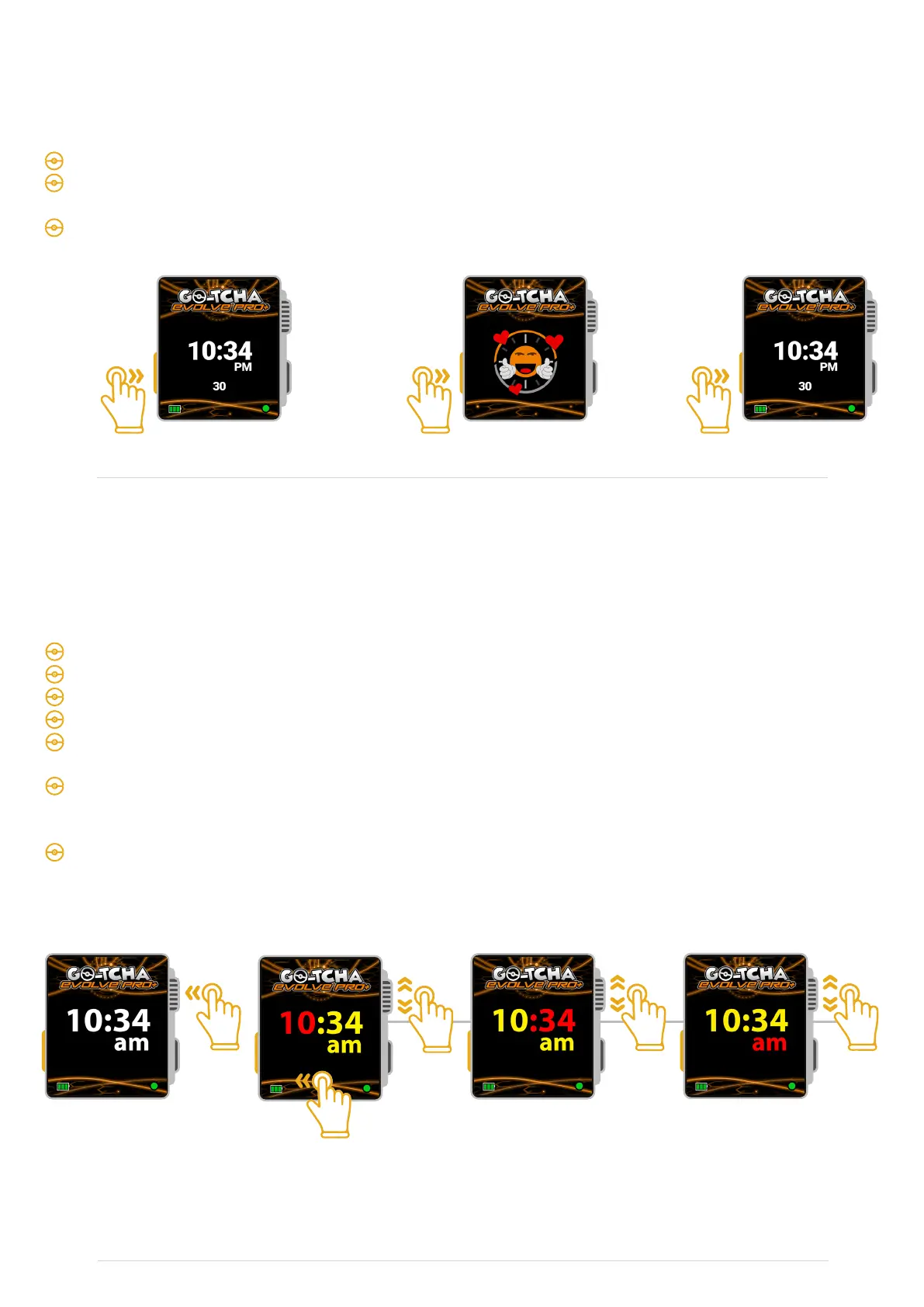
To set the time from the clock screen:
Press and hold the rotary crown button for 2 seconds to enter ‘Clock Update Mode’
The time on the screen will change colour from white to red and yellow
The number highlighted in red is changeable and always starts with the hour
Turn the rotary crown up or down, or swipe left or right on the screen to set the desired time
To change from hours to minutes, press the rotary crown button. The minutes which were
previously yellow will now be highlighted in red
To change the clock from 12 to 24 hour display or vice versa, press the rotary crown button again
so that the am/pm/24 is highlighted red and turn the rotary crown or swipe left or right on the
screen to change between 12 and 24 hour modes
To change the time to pm, once am is selected, press the dial to select the hour field again, scroll
past 12 and the clock will change to pm
Hours
MinutesTime Display
12/24 Hour
2 sec
‘Buddy Timer’
You can also set a 30 minute Buddy Timer to remind you to feed your Pokémon buddy. The buddy
time can be used while the Go-tcha Evolve Pro+ is not connected to the Pokemon Go app.
To set the timer press the orange button on the left hand side twice
When the timer runs out, the watch will vibrate and an animation will appear on the screen
for 60 seconds - this can be cancelled early by pressing the orange button once
To restart the timer at any point, press the orange button twice
To set
timer press
button 2
times
To cancel the
animation alert
press button
1 time
To restart
the timer
press button
2 times
Resetting The Time
You will need to reset the time on the Go-tcha Evolve Pro+ when the battery runs flat.


 To Next Page