EasyManua.ls Logo

Defender SP301-C - User Manual

Defender SP301-C
10 pages
Print Icon
To Next Page IconTo Next Page
Loading...
INSTRUCTION MANUAL V1.0
SP301-Cwww.defender-usa.com
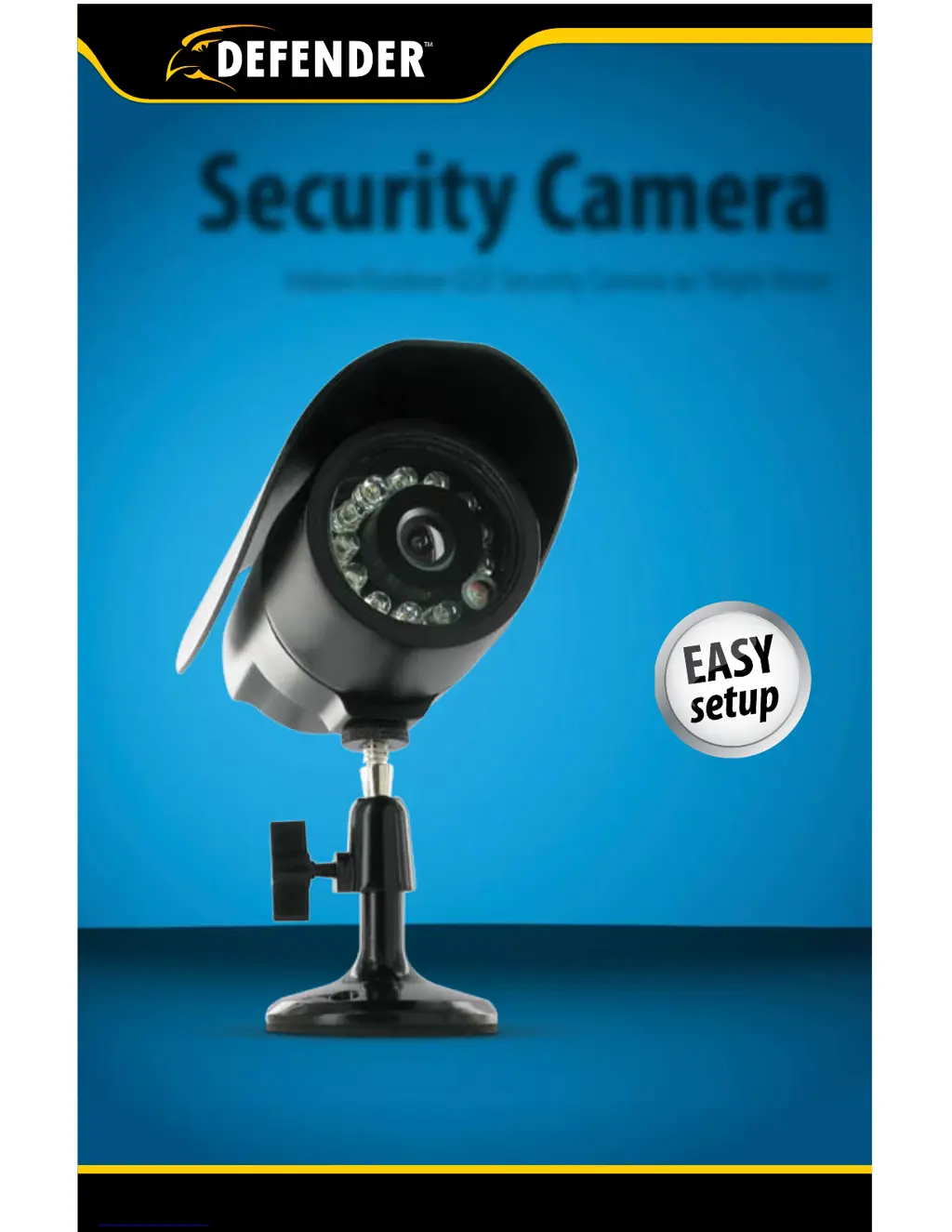
Security Camera
Indoor/Outdoor CCD Security Camera w/ Night Vision

Questions and Answers

  • S
    Samuel ColeAug 1, 2025
    Why is there no picture/signal on my Defender Security Camera?
    • R
      Ryan MartinezAug 1, 2025
      If you're not getting a picture or signal from your Defender Security Camera, here are a few things to check: * Ensure your TV/monitor is on the correct video input channel. * If connected to a VCR/DVR, verify it's properly connected to your TV/monitor. * Check all connections to ensure they are secure. * Confirm the power supply is working, and the camera is powered up.
  • J
    Joshua AllisonAug 8, 2025
    What to do if my Defender SP301-C picture is too dark?
    • M
      mbenjaminAug 8, 2025
      If the picture from your Defender Security Camera is too dark, consider these points: * If using at night, ensure the subject is no more than 15ft away. * If using during the day, the camera may not be getting enough light. * Check the brightness and contrast settings on your TV/monitor or VCR/DVR if connected. * Moving the camera to another location may also help.
  • J
    Jo LeeAug 16, 2025
    How to fix a picture that is too bright on my Defender SP301-C Security Camera?
    • W
      William PriceAug 17, 2025
      To resolve a picture that is too bright on your Defender Security Camera: * Ensure the camera isn't aimed at direct sunlight. * Adjust the sunshade by sliding it forwards to block out excess light. * Make sure nothing is obstructing the CDS sensor on the camera. * Consider moving the camera to another location.
  • A
    Andrew FloydAug 25, 2025
    Why is night vision not working on my Defender SP301-C?
    • G
      gomezkarenAug 25, 2025
      If the night vision on your Defender Security Camera isn't working, try the following: * Test the camera in a completely dark environment. * Cup your hands around the front of the camera and check if the LEDs are glowing red. * Verify the power supply is functioning correctly. * Remember that LEDs need to reflect off an object within range to display an image.

Summary

Customer Support and Returns

Do Not Return to Store

Directs users to contact DEFENDER support for assistance before returning the product.

Contact Information

Provides channels for support: email, live web chat, and toll-free phone/fax numbers.

Product Warranty Information

Warranty Terms and Conditions

Details the one-year limited warranty, exclusions, and return procedures.

Installation Guide

Mounting the Camera

Instructions for physically installing the camera to a desired location.

Connecting the Camera

Steps to connect the camera's video/power wire and power adapter.

Troubleshooting Common Issues

No Picture;Signal

Resolving issues where the camera displays no image or signal.

Picture Brightness Issues

Adjusting camera or display settings for optimal picture brightness.

Night Vision Not Working

Troubleshooting steps for when the night vision feature fails to activate.

Product Specifications

Technical Features and Ratings

Detailed specifications including resolution, IP rating, operating temperature, and dimensions.

Notes and Customer Information

Customer Information Card

A section to record product details for future reference and support.

Drilling Template for Mounting

Wall Mounting Instructions

Provides a template and guide for drilling holes for wall mounting the camera.

Online Resources and Disclaimer

Website Information

Details on accessing product information, manuals, and software updates online.

Product Usage Disclaimer

Disclaimer regarding responsible product use and liability limitations.

Defender SP301-C Specifications

General IconGeneral
Motion DetectionYes
ConnectivityWi-Fi
StorageMicroSD card (up to 128GB), Cloud
Operating Temperature-4°F to 122°F (-20°C to 50°C)
AudioTwo-Way Audio
Storage CapacityUp to 128GB

Related product manuals