-13-
(3) Wireless Sync via Sidus Audio™
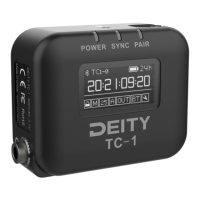
The Sidus Audio™ App for the TC-1 allows you to wirelessly sync a number of TC-1s
with each other via Bluetooth. (Tested with more than 20 units). You can
synchronize, monitor, set up, perform firmware updates and change basic
parameters of your TC-1 via Sidus Audio™ . This includes settings such as timecode,
frame rate, device name, out type, TOD (Time of Day) timecode and more.
Sidus Audio™ communicates with your TC-1 via Bluetooth. Make sure Bluetooth is
activated on your mobile device and TC-1.
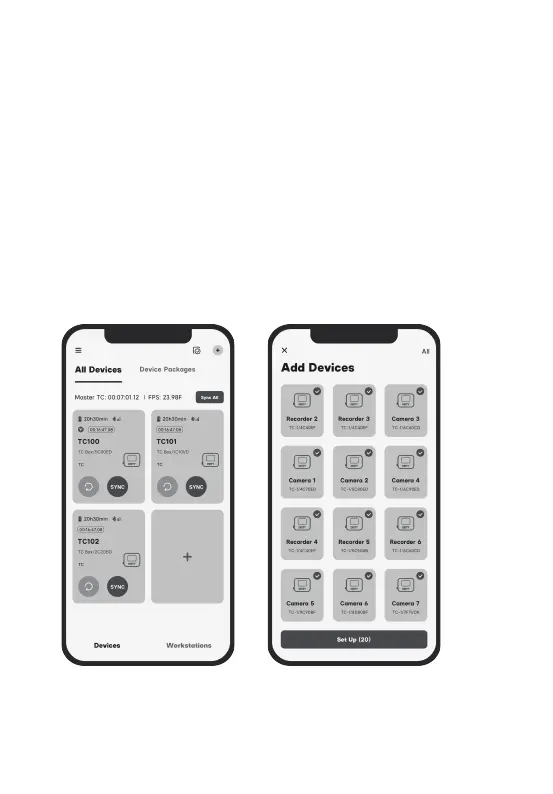
To perform the wireless sync, just open Sidus Audio™ on mobile device and add all
TC-1 units to the monitoring list. In that list you will find the button Set. Before
wireless sync it is recommended to use the DID to set individual device names to
better identify TC-1 units.
· Tap Set Up and a window will pop up with a Sync All option. This will synchronize
all TC-1 units to the ”master“ TC-1 timecode or TOD timecode it fetches from modile
device.
· Tap on SYNC for each TC-1 to synchronize to this “ master ” TC-1 individual.
* SYNC LED slowly flashing red indicates that TC-1 is waiting to be syncronized or
syncronization was unsuccessful.
* SYNC LED quickly flashing indicates that the syncronization is on-going.
* SYNC LED staying green indicates that TC-1 stays at Master Run mode or syncronization
was successful .
You can download the detailed user manual of Sidus Audio™ here
https://m.sidus.link/support/sidusAudio/index.


 To Next Page
 Loading...