24/7 Technical Support: 800-966-5520 - Option 3 Merchant Support: 800-966-5520 - Option 4
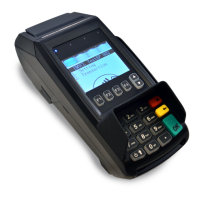
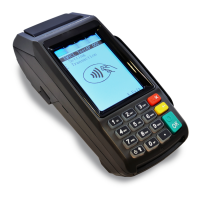
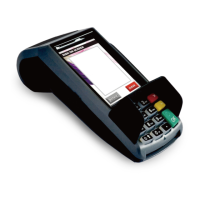
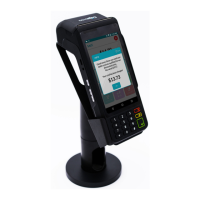
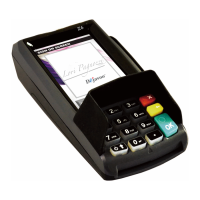
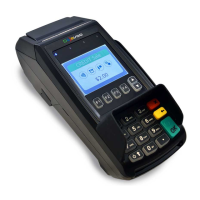
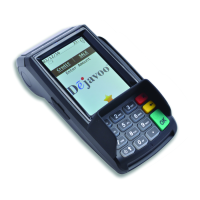
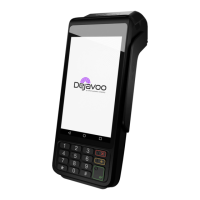
DEJAVOO QD2, QD4 Quick Reference Guide
Deactivate Gift Card
1. Select the GIFT icon from the Home Screen.
2. Select the DEACTIVATE icon.
3. Swipe or manually enter the gift card number.
4. The terminal will ask if you’d like to deactivate the card
with a refund: Select YES or NO.
5. Terminal will begin printing receipt for the merchant,
then prompt “Tap for customer receipt”.
Void Sale
1. Select the GIFT icon from the Home Screen.
2. Select the VOID icon.
3. Swipe or manually enter the gift card number.
4. Enter the Reference ID # found on the original Redeem
receipt, then press OK.
5. Terminal will begin printing a receipt with the voided
amount and balance.
Gift Card Balance Inquiry
1. Select the GIFT icon from the Home Screen.
2. Select the BAL INQ icon.
3. Swipe or manually enter the gift card number.
4. Terminal will show remaining balance on the screen and
begin printing a receipt with the current card balance.
Gift Card Balance Transfer
1. Select the GIFT icon from the Home Screen.
2. Use the screen to swipe left.
3. Select BAL XFER.
4. Key in the amount you wish to transfer, then press OK.
5. Swipe or manually enter the number of the original gift
card.
6. Swipe the new gift card to be activated. It cannot be
entered manually.
7. The terminal will show the balance on the screen and
print a receipt with the details.
Store Credit
1. Select the GIFT icon from the Home Screen.
2. Use the screen to swipe left.
3. Select the STORE CR icon.
4. Enter the amount of the store credit, then press OK.
5. Swipe or manually enter the gift card number.
6. Terminal will then begin printing receipt for the
merchant, it will then prompt “Tap for customer receipt”.


 To Next Page