Dejavoo Systems Instruction Manual V525.15 72
SECURITY SETTINGS (CORE MENU)
Dejavoo’s secure multi-application functionality allows applications to coexist yet function
independent of each other. Terminal level passwords are configurable for each host
application and for the Core Menu.
The following are security option that can be configured for the Core Menu:
Menu Security Edit Password Retrieve Password
MENU SECURITY (CORE MENU)
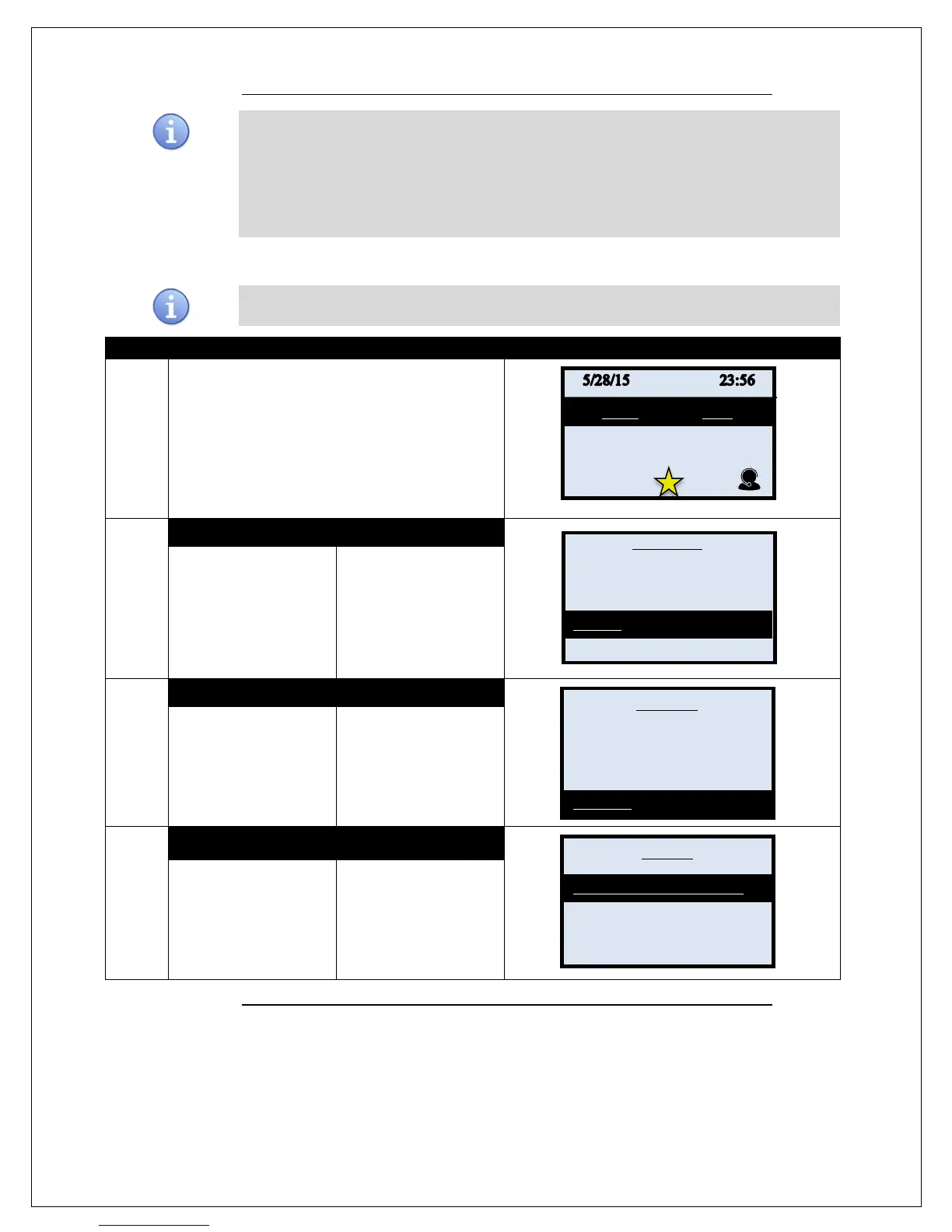
Use the chart below to configure the password requirement for accessing Core Menu options.
1.
From the idle prompt press the OK key to access
the Core Menu.
2.
NON TOUCH SCREEN
TOUCH SCREEN
Using the down arrow
key highlight the word
UTILITY and press OK
* If prompted input
password, default is 1234
Using your fingertip
TAP the word UTILITY
* If prompted input
password, default is 1234
3.
NON TOUCH SCREEN
TOUCH SCREEN
Using the down arrow
key highlight the word
SECURITY and press
OK
Using your fingertip
TAP the word
SECURITY
4.
NON TOUCH SCREEN TOUCH SCREEN
Using the down arrow
key highlight the words
press OK
Using your fingertip
TAP the words MENU
UTILITY
Continued on next page
Settlement ->
Reports ->
Favorites ->
Utility ->
Retrieve Password ->
Settings _>
Software Downalod ->
Communications ->
Favorites ->
Security ->
Settings _>
Edit Password ->
Key Injection Pass ->


 To Next Page