13
Dejavoo Systems Restaurant Addendum V720.08
TRANSACTION PROMPTS
The Transaction Prompts menu option allows the user to disable and enable Industry
specific prompts during the transaction. Options Include:
Clerks Invoice # Card Code Card Present
Card Code AVS Fraud Prevention Cash Back
Tips: (1) If prompts are turned off information specific to that prompt will not be captured and
not be available on reports. (2) For CVV2 and Card Present options you should first
check settings with your merchant services provider.
CLERKS/SERVERS
Use the chart below to enable or disable the Clerk ID, Server ID or Employee ID
prompt during a transaction. To associate the Clerk/Servers name to their ID, see
1.
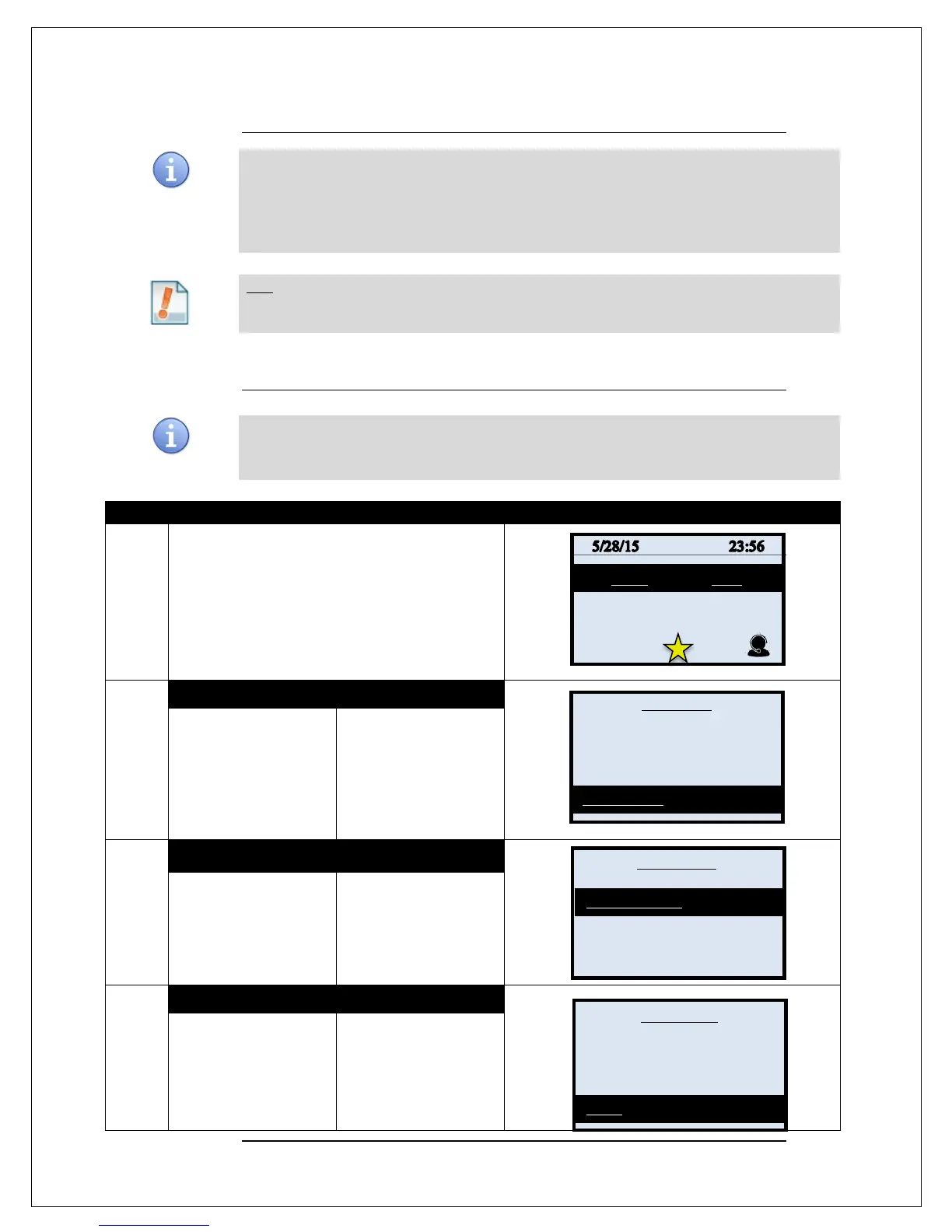
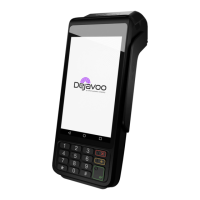
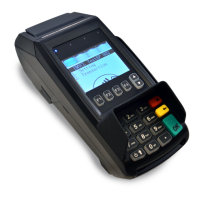
From the idle prompt press the OK key to access
the Core Menu.
2.
NON TOUCH SCREEN
TOUCH SCREEN
Using the down arrow
key highlight the word
APPLICATIONS and
press OK
* If prompted input
password, default is 1234
Using your fingertip
TAP the word
APPLICATIONS
* If prompted input
password, default is 1234
3.
NON TOUCH SCREEN TOUCH SCREEN
Press OK on
Credit/Debit/EBT
Using your fingertip
TAP the words
CREDIT/DEBIT/EBT
4.
NON TOUCH SCREEN
TOUCH SCREEN
Use the down arrow to
highlight SET UP and
press OK
* If prompted input
password, default is 1234
the words SET UP
* If prompted input
password, default is 1234
Continued on next page
Settlement ->
Reports ->
Favorites ->
Utility ->
Report ->
Host Utility
Presale Ticket
Reprint Receipt ->


 To Next Page