Dejavoo Systems Instruction Manual V525.15 24
MULTI-MERCHANT DEBIT CARD SALE
Use the chart below to process a Debit Card sale. It is important to note that for security and
regulations manually entering a debit card is not allowed, debit cards must always be swiped
at the point of sale.
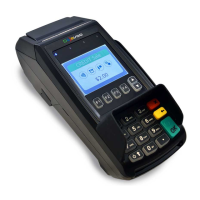
For a successful transaction you must be a debit card accepting
merchant.
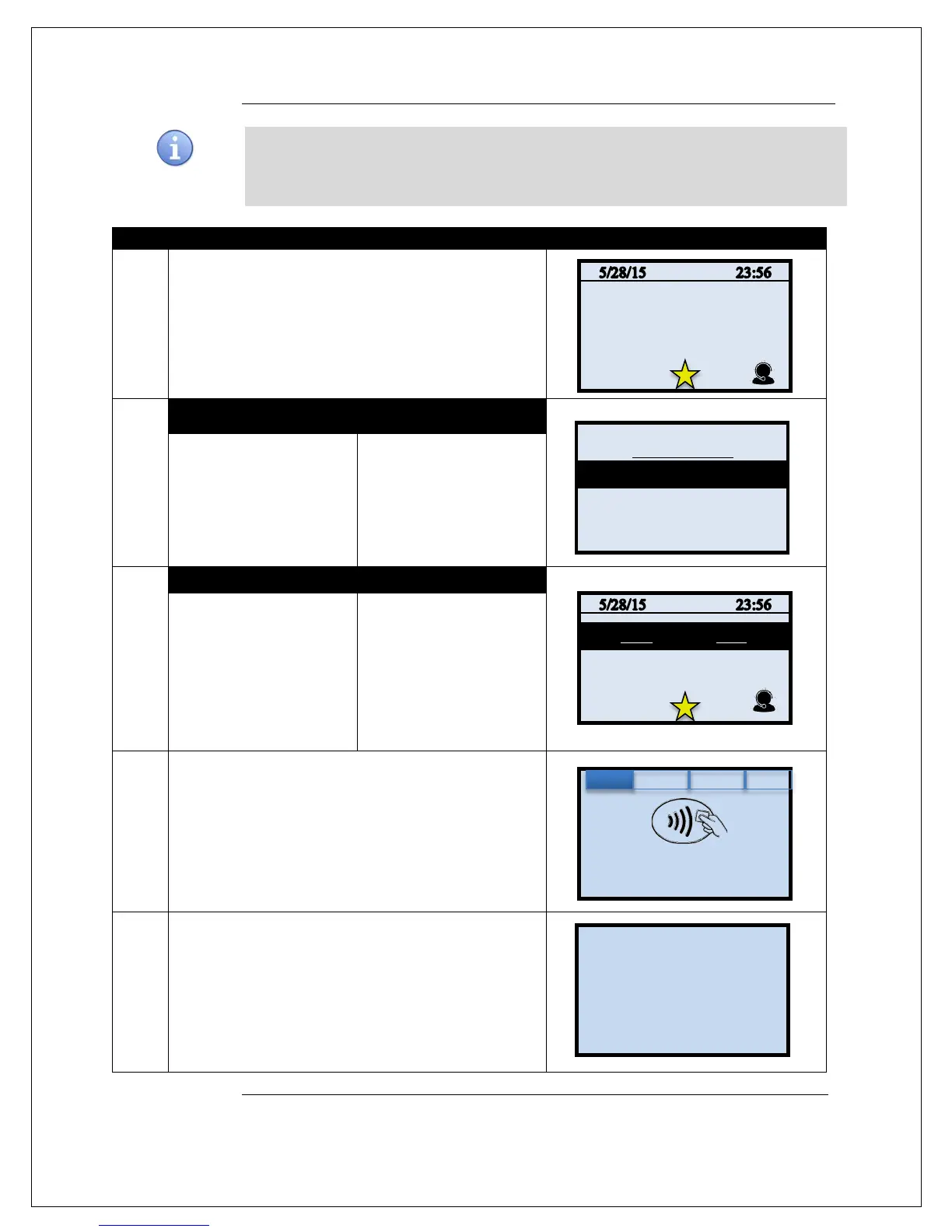
1.
Input the merchants assigned number or press 0 to list all
merchants processing in the terminal.
2.
NON TOUCH SCREEN TOUCH SCREEN
Use the up and down arrow
to highlight the desired
merchant to process the
sale for.
Use your fingertip to tap
the desired merchant to
process the sale for.
3.
NON TOUCH SCREEN TOUCH SCREEN
Press the down arrow
button to change the
payment type to DEBIT
Input the SALE AMOUNT
and press OK
Use your fingertip to Tap
the word CREDIT then
Tap the word DEBIT in
the menu list.
Input SALE AMOUNT and
press OK
4.
Swipe or Insert Debit Card.
5.
Customer Inputs PIN on Encrypted terminal PIN Pad or
Encrypted External PIN Pad and presses OK.
Continued on next page
ENTER PIN
(Press 0 to List)
XYZ Hair Salon
PDQ Spa Service
Enter Card #
Sale: $5.00


 To Next Page