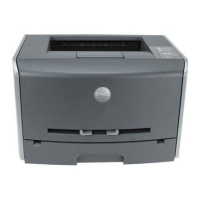
Dell 1710n Laser Printer
Hardware Quick Tips
Revised 11/06
7. After all the paper jams have been removed, reinsert
the paper trays and the printer drum assembly back
into the printer. Push the ‘Continue’ button on top
of the printer for the printer to continue printing
again.
► Turning the Printer Off
1. The power button is located on the back of the
printer as indicated below in the red circle.
2. Push the switch toward the ‘o’ symbol to turn the
printer off. To turn it back on, push the switch
towards the ‘-’ symbol.
► Changing the Toner Cartridge
NOTE: Toner cartridges can only be ordered
directly from Dell.
1. Open the front of the printer. Push the button (as
indicated by the red circle) and pull up on the blue
handle.
2. Unpack the new toner cartridge. Remove the toner
from the plastic bag and pull off the black material
around it.
IMPORTANT: Do not to remove the yellow sticker
off the toner cartridge (as shown below) when
removing the packaging off the toner cartridge.


 To Next Page