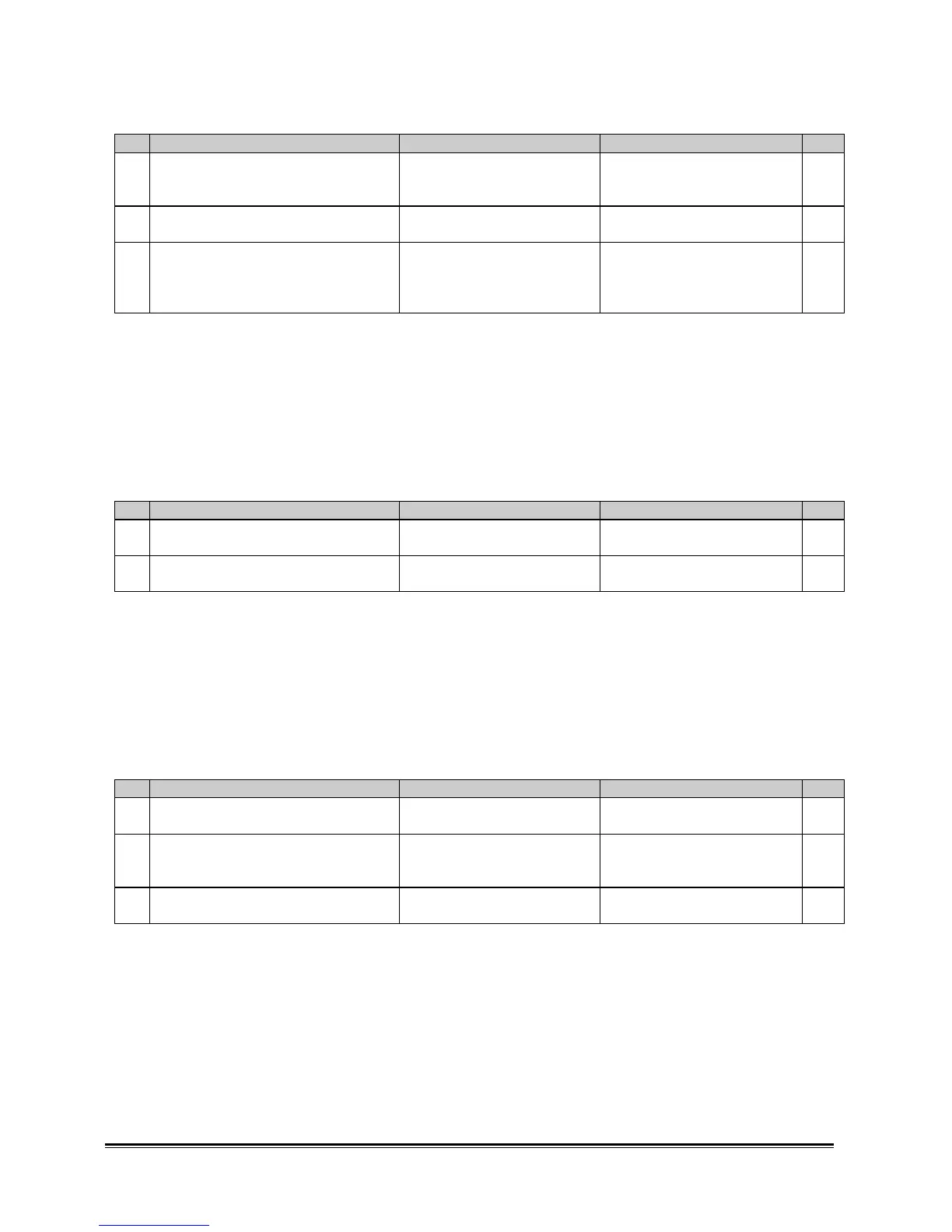
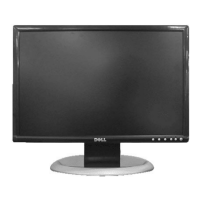
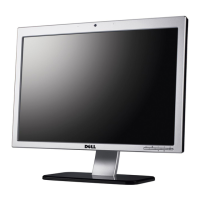
Dell 2000FP LCD Monitor Service Guide
Trouble Shooting
Step Check item Yes No Note
1 Use source selection key to let S-Video
/ Composite video displayed with full
screen instead of PIP window.
- -
2 Check if video signal is displayed
normally
Step 3 S-Video / Composite video
troubleshooting
3 Set PIP feature active and set PIP
settings like PIP Brightness and PIP
Contrast correctly. See if the problem is
solved
CND / The monitor is good. Contact ACM
Keys not working troubleshooting
Normal operation
The 8 keys on the monitor are for Power On/Off, Auto-adjust, Source Selection, and OSD controls.
Troubleshooting scope
This troubleshooting applies to the case that image is displayed on the screen normally but some of the key
functions are not working properly.
Step Check item Yes No Note
1 Check if the control board and wires are
connected well
Step 2 Fix the wires.
2
Check if CON115 and CON109 are well
connected with the wires.
Check IC120 circuit. Fix the wires.
DDC troubleshooting
Normal operation
The monitor can be detected by Plug-and-Play Windows system. Graphics cards normally need valid EDID
data to be detected before the DVI port can be activated.
Troubleshooting scope
This troubleshooting applies to the case that the monitor cannot be detected by PNP Windows system.
Step Check item Yes No Note
1 Check if the D-SUB / DVI signal cable
is good.
Step 2 Replace with a good cable.
2 Use DDC programming equipment to
dump EDID and see if EDID can be read
out.
Step 3 Check IC104 circuit for D-SUB
port and IC402 for DVI port.
3 Check if EDID content is correct. Contact ACM. Keep the serial number and re-
program the EDID.







 To Next Page