Press the Page Down button to step to next page.
Press the Menu button to activate the OSD. Use the directional keys and Menu button to navigate through the OSD.
Press the Vol+ button to increase the volume, press the Vol- button to reduce the volume. (Enabled only when AV/PC button switches to A/V mode)
Adjust image distortion caused by horizontal shifting of the projector orientation.
Auto Vertical keystone correction
Press the button to adjust the image distortion caused by tilting the projection AUTOMATICALLY.
Aim the remote control at the screen, and press and hold the Laser button to activate the laser light.
l The projector has a multi-language On-Screen Display (OSD) that can be displayed with or without an input source present.
l The OSD allows you to make image adjustments and change a variety of settings. If the source is a computer, the OSD allows changes to the
Computer Image tab. When using a video source, the OSD allows changes to the Video Image tab. The projector automatically detects the source.
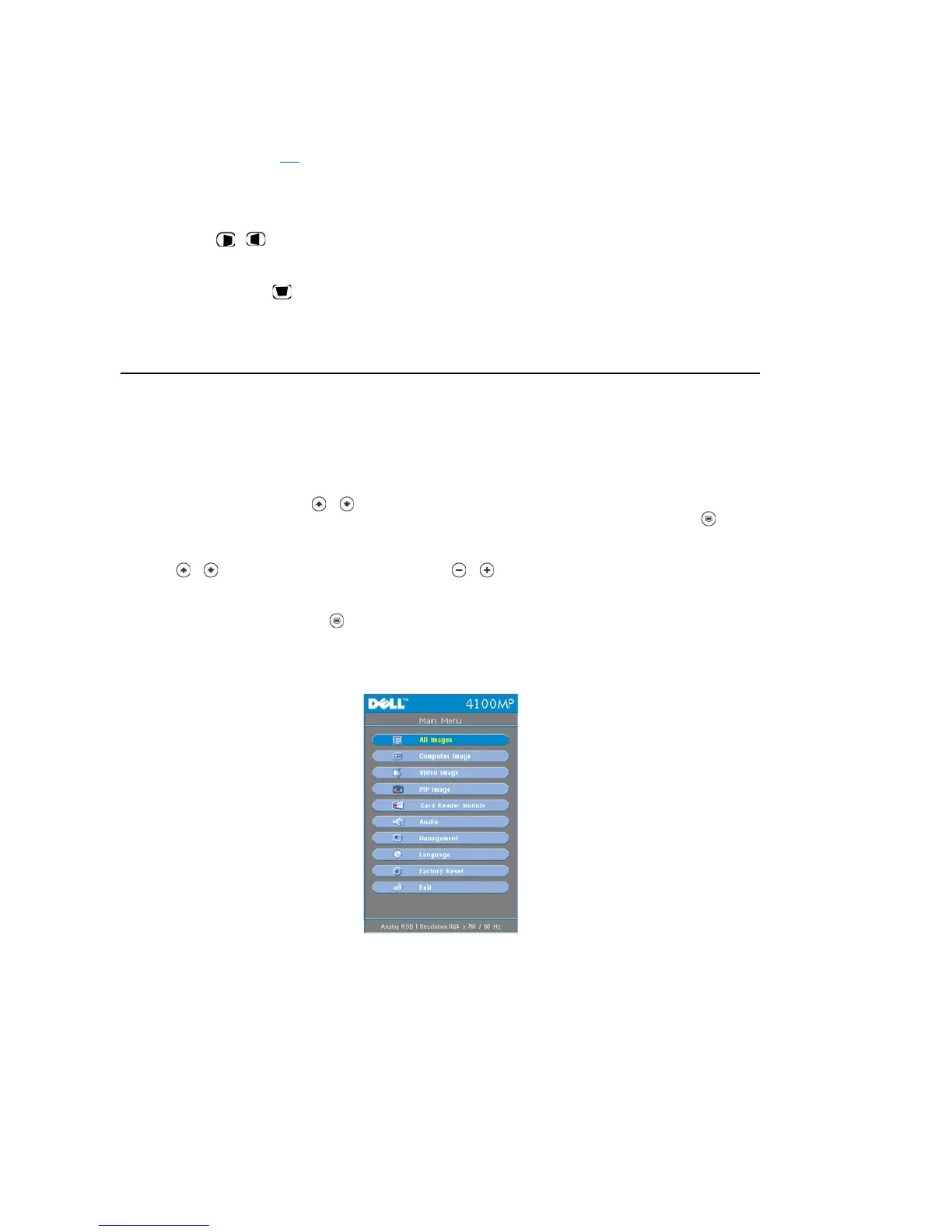
l When the OSD is on the screen, press or to navigate through the OSD tabs.
Example: All Images--> Computer Image--> Audio--> Management--> Language--> Factory Reset. To make a selection in a tab, press on
keypad or "Menu" on remote controller.
l Press or to make a selection and adjust the settings by pressing or on keypad or Left and Right button on the remote controller.
When an item is selected, the color of the item will change to dark blue.
l To exit the OSD, go to "Exit" tab and press button on keypad or "Menu" on remote controller.
All Images Menu



 To Next Page