See "Power On/Off the Projector."
Press the Source button to switch between Analog RGB, Digital RGB, Composite, Component-i, S-video, Analog YPbPr sources, and the card reader
(Optional accessory).
Press the Freeze button to temporarily stop motion video. Press the button again to resume.
Press the Mute button to mute or un-mute the projector speaker.
Press the PIP button to turn on/off the PIP screen.
Press the PIP Swap button to swap the foreground and background display sources.
Slide Show (Enabled only when projection with the photo images from the optional card reader)
Press the Slide Show button to display all the photo images in the memory card one by one.
Pre-view (Enabled only when projecting photo images from the optional card reader)
Press the Pre-view button to browse thumbnails of all the photo image files.
Normal (Enabled only when projecting photo images from the optional card reader)
Press the Normal button to display the photo images one by one manually controlled by Page Up or Page Down button.
Rotate (Enabled only when projecting photo images from the optional card reader)
Press the Rotate button to rotate the image on the screen.
Press to synchronize the projector to the input source.
Auto Adjust will not operate if the OSD (On-Screen Display) is displayed.
Initiates the Learning Mode on the remote control for switching the RF transmission channel by pressing prgm button.
Use or to select OSD items, use "left" and "right" button to make adjustments. The AV/PC mode button has to be switched to AV position for
activating the Up, Down, Left, and Right function on navigator button. In the PC position, these keys emulate PC keyboard commands.
Press the button to digitally magnify an image up to 32 times on the screen. Press the button to reduce the zoomed image.
Press Blank Screen button to hide the image, press again to resume display of the image.
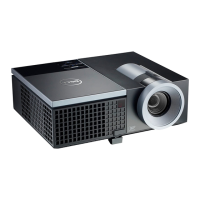
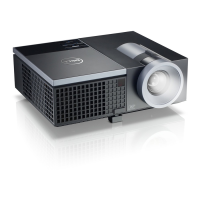
The Dell 4100MP Micro-projector has preset configurations that are optimized for displaying data (PC Graphics) or video (movies, games, etc.). Press
Video Mode button to toggle between PC mode, Movie mode, Game Mode, sRGB, or User mode (for user to setup and save preferred settings).
Pressing the Video Mode button once will show the current display mode. Pressing the Video Mode button again will switch between modes.
Switch AV Mode and PC Mode by shifting the AV/PC button. At PC Mode, the mouse function will be enabled. While at AV Mode, the Volume+/-, and
Zoom In/Out buttons on remote mouse pad will be enabled. Or Up, Down, Left and Right directional buttons for OSD control when menu pops up on the
screen.
Press the Page Up button to step to previous page.


 To Next Page
 Loading...