Installing driver over the network
121
2. Using a Network-Connected Machine
4
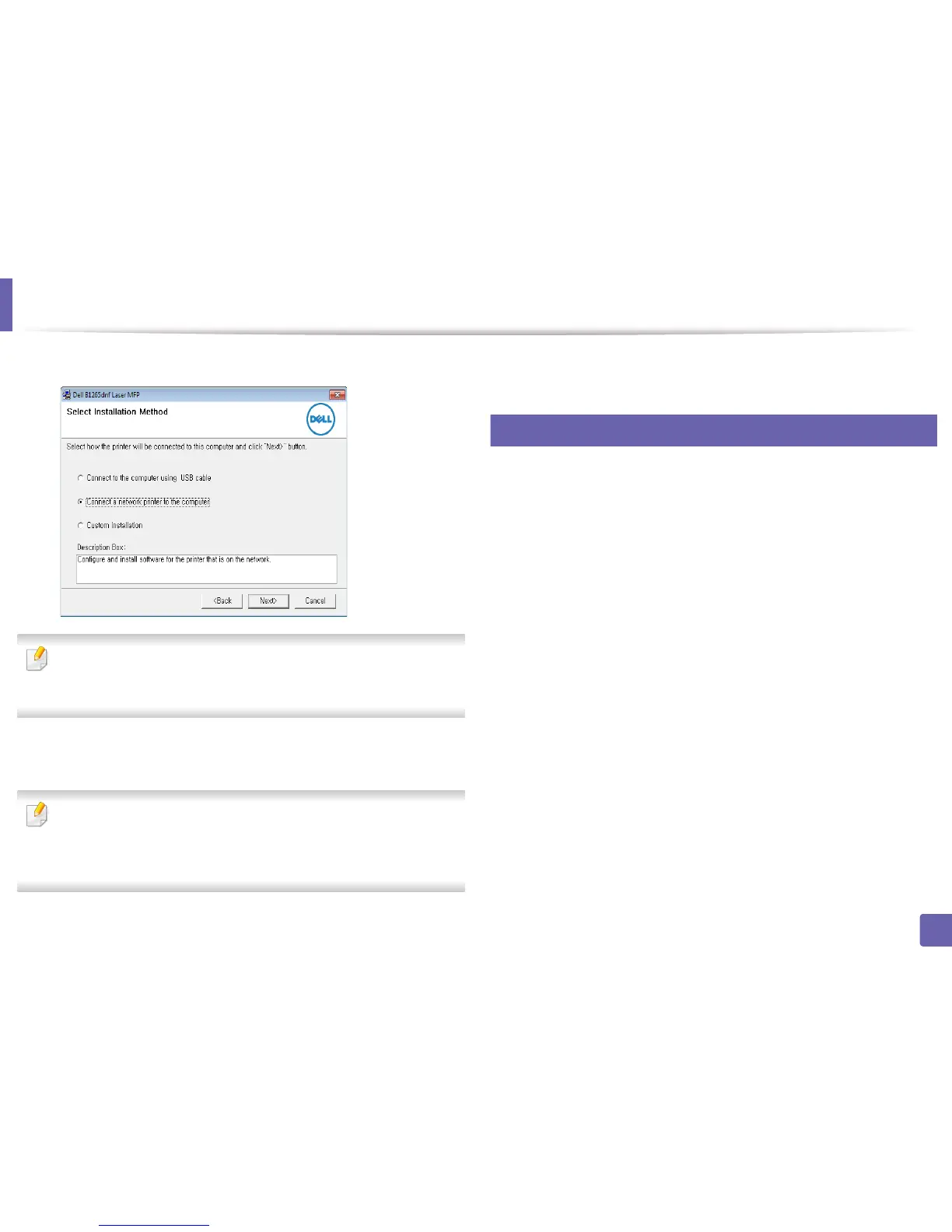
Select Connect a network printer to the computer. Click Next.
The Custom installation allows you to select the machine’s connection and
choose individual components to install. Follow the instructions on the
window.
5
The searched machines will be shown on the screen. Select the one you
wish to use and click Next.
If you cannot find your machine in network, turn off the firewall and click
Update. For Windows operating system, Start > Control Panel and start
windows firewall, and set this option unactivated. For other operating
system, refer to its on-line guide.
6
Follow the instructions in the installation window.
6
Macintosh
1
Make sure that the machine is connected to your network and powered
on.
2
Insert the supplied software CD into your CD-ROM drive.
3
Double-click the CD-ROM icon that appears on your Macintosh desktop.
• For Mac OS X 10.8 or higher, double-click the CD-ROM that appears
on Finder.
4
Double-click the MAC_Installer folder > Installer OS X icon.
5
Click Continue.
6
Read the license agreement and click Continue.
7
Click Agree to agree to the license agreement.
8
When the message which warns that all applications will close on your
computer appears, click Continue.
9
Click Continue on the User Options Pane.










 To Next Page