EasyManua.ls Logo

Dell D11S - User Manual

Dell D11S
85 pages
Print Icon
To Next Page IconTo Next Page
Loading...
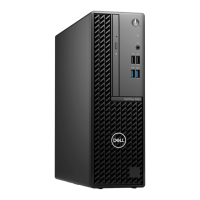
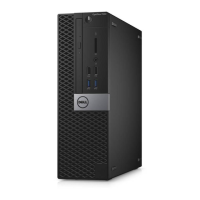
Dell OptiPlex 5055 Ryzen APU Tower
Owner's Manual
Regulatory Model: D11S
Regulatory Type: D11S003
June 2018
Rev. A00

Table of Contents

Other manuals for Dell D11S

Questions and Answers

  • P
    paul30Aug 20, 2025
    What to do if Dell D11S Desktop power LED is blinking white?
    • M
      Melissa AndersonAug 20, 2025
      If the power LED light on your Dell Desktop is slowly blinking white, it indicates that the computer is in sleep mode. To bring the computer out of sleep mode, press the power button. Also, ensure all power cables, including the main power cable and front panel cable, are securely connected to the system board.
  • T
    Tyler SanchezAug 22, 2025
    Why is the power LED on my Dell D11S Desktop blinking amber?
    • A
      Anthony GreenAug 22, 2025
      If the power LED light on your Dell Desktop is steady or blinking amber, it indicates that the computer fails to complete POST or there is a processor failure. Try removing and reinstalling any cards, including the graphics card if applicable. Also, ensure the power cable is connected to the system board and processor.
  • M
    Mark EstesAug 25, 2025
    What to do for memory failures on a Dell D11S Desktop?
    • M
      Mary CookAug 25, 2025
      If your Dell Desktop is experiencing memory failures, try reseating the memory and swapping it with a known good memory module if available. If these steps don't resolve the issue, replace the memory.
  • S
    shawn79Aug 26, 2025
    How to troubleshoot possible memory failure on Dell Desktop?
    • C
      Cristina OwenAug 26, 2025
      If your Dell Desktop has a possible memory failure, try removing the memory modules one by one to determine which one has failed. If you identify a failed memory module, replace it. Otherwise, replace the motherboard.
  • M
    Mark HerreraAug 28, 2025
    How to fix memory configuration error on Dell D11S?
    • S
      Sheila RiveraAug 28, 2025
      If your Dell Desktop has memory configuration or incompatible errors, try removing the memory modules one by one from the motherboard to determine which one has failed. Also, combine the modules in different configurations to validate an appropriate combination. If you identify a failed component, replace it. If none of the components have failed, replace the motherboard.
  • M
    mcfarlandleslieAug 30, 2025
    How to fix Dell Desktop if power LED light is off?
    • T
      tonysummersAug 30, 2025
      If the power LED on your Dell Desktop is off, first, re-seat the power cable in the power connector on the back of the computer and the electrical outlet. If your computer is plugged into a power strip, ensure that the power strip is plugged into an electrical outlet and is turned on. Try bypassing power protection devices, power strips, and power extension cables. Also, verify the electrical outlet is working by testing it with another device.
  • J
    Jason BrooksSep 1, 2025
    How to resolve BIOS checksum failure on Dell D11S Desktop?
    • J
      James MoralesSep 1, 2025
      If your Dell Desktop has a BIOS checksum failure, the system is in Recovery Mode. Flash the latest BIOS version. If the problem persists, replace the motherboard.
  • D
    Daniel YoungSep 2, 2025
    What to do if Dell D11S has no memory detected?
    • A
      Anne NelsonSep 3, 2025
      If your Dell Desktop is not detecting memory, try removing the memory modules one by one to determine which one has failed. If available, swap each module with a known good memory module to confirm. Replace the faulty memory. If none of the memory modules have failed, replace the motherboard.
  • T
    Tricia WhitneySep 5, 2025
    How to troubleshoot PCIe device failures on Dell D11S?
    • T
      Tiffany MillerSep 5, 2025
      If your Dell Desktop has PCIe device or video subsystem failures, try reseating the PCIe card and removing them one by one to determine which card has failed. If you identify a failed PCIe card, replace it. If none of the PCIe cards have failed, replace the motherboard.
  • B
    Brian McguireSep 6, 2025
    How to fix video subsystem failure on Dell D11S Desktop?
    • J
      Jasmine WestSep 6, 2025
      If your Dell Desktop has a video subsystem failure, try removing the cards one by one to determine which card has failed. If you identify a failed card, replace it. If none of the cards have failed, replace the motherboard.

Summary

Working on Your Computer

Safety Instructions

Essential safety guidelines for operating the computer.

Field Service and Component Replacement

System Board Configuration and BIOS

How to configure system board settings and BIOS options.

Safety and ESD Procedures

Guidelines for safe handling of components to prevent ESD damage.

Processor and System Board Replacement

Steps for replacing the processor and system board.

Technology and Components

System Setup and BIOS Management

BIOS Update Procedures

Procedures for updating the system BIOS.

Troubleshooting and Diagnostics

Dell D11S Specifications

General IconGeneral
NetworkGigabit Ethernet
GraphicsIntel GMA 3000
Optical DriveDVD-ROM
USB Ports8
Hard Drive80 GB - 500 GB SATA

Related product manuals