EasyManua.ls Logo

Dell Dimension 4600 Series - User Manual

Dell Dimension 4600 Series
148 pages
Print Icon
To Next Page IconTo Next Page
Loading...
www.dell.com | support.dell.com
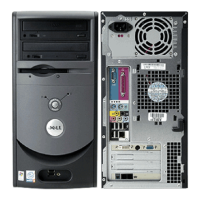
Dell™ Dimension™ 4600 Series
*On computers with an optional floppy drive.
CD or DVD drive
activity light
CD or DVD
headphone
connector
CD or DVD eject button
floppy drive light*
floppy drive eject button*
hard-drive activity light
power button
CD or DVD
volume
control dial
power light
USB 2.0 connectors (2) headphone connector
Service Tag
keyboard connector
mouse connector
USB 2.0 connectors (6)
microphone connector*
line-in connector*
line-out connector*
parallel connector
serial connector
PCI card slots (3)
voltage selection switch
power connector
network adapter connector
diagnostic lights (4)
video connector
cover latch
center/LFE connector*
surround connector*
optional sound card connector
(see the setup diagram)
*On computers with integrated sound.
J2936bk0.book Page 1 Tuesday, September 2, 2003 3:06 PM

Table of Contents

Other manuals for Dell Dimension 4600 Series

Questions and Answers

  • K
    kelsey52Jul 26, 2025
    What to do if memory failure occurred on Dell Dimension 4600?
    • J
      johnny48Jul 26, 2025
      If a memory failure occurs on your Dell Desktop, and you have one memory module installed, try reinstalling it and restarting the computer. If you have multiple modules, remove them all, reinstall just one, and restart. If available, try installing properly working memory of the same type.
  • E
    Elizabeth IbarraJul 30, 2025
    How to fix no memory modules detected on Dell Dimension 4600?
    • M
      Michelle CaseJul 30, 2025
      If your Dell Desktop isn't detecting memory modules, reinstall all memory modules and restart the computer. To rule out a faulty memory connector, remove all modules. If your computer supports it, reinstall one module at a time and restart. If the computer starts normally, move the memory module to a different connector and restart the computer.
  • A
    Amanda RichardsAug 3, 2025
    What to do if a video card failure has occurred on Dell Dimension 4600 Desktop?
    • S
      Sharon ClineAug 3, 2025
      If you suspect a video card failure on your Dell Desktop, and the computer has a video card, remove the card and reinstall it, and restart the computer. If the problem persists, install a video card that you know works and restart the computer.
  • T
    Travis HunterAug 8, 2025
    How to troubleshoot expansion card failure on Dell Dimension 4600?
    • A
      anthony29Aug 8, 2025
      To troubleshoot a possible expansion card failure on your Dell Desktop, remove a card (but not the video card) and restart the computer to see if a conflict exists. If the problem persists, reinstall the card you removed, remove a different card, and restart. Repeat this process for each card. If the computer starts normally, troubleshoot the last card removed for resource conflicts.
  • M
    mark81Aug 12, 2025
    What to do if other failure has occurred on Dell Dimension 4600?
    • C
      charleskevinAug 12, 2025
      If another failure has occurred with your Dell Desktop, ensure that the cables are properly connected from the hard drive, CD drive, and DVD drive to the system board. If there is an error message on your screen identifying a problem with a device (such as the floppy drive or hard drive), check the device to make sure it is functioning properly. Check system setup to make sure the boot sequence is correct for the devices installed on your computer, as the operating system might be attempting to boot from an incorrect device.
  • H
    Hannah HarrisAug 16, 2025
    What to do if floppy or hard drive failure occurred on Dell Dimension 4600 Desktop?
    • S
      stephen01Aug 16, 2025
      If you suspect a floppy or hard drive failure on your Dell Desktop, reseat all power and data cables and restart the computer.
  • C
    Christine CowanAug 20, 2025
    How to resolve USB failure on Dell Dimension 4600?
    • J
      Jacqueline WolfeAug 20, 2025
      To resolve a potential USB failure on your Dell Desktop, reinstall all USB devices and check the cable connections, then restart the computer.

Dell Dimension 4600 Series Specifications

General IconGeneral
ChipsetIntel 865G
Expansion Slots1 AGP, 3 PCI
NetworkIntegrated 10/100 Ethernet
ProcessorIntel Pentium 4
MemoryDDR SDRAM
Memory Speed400 MHz
GraphicsIntegrated Intel Extreme Graphics 2
Optical DriveCD-ROM, CD-RW, DVD-ROM
AudioIntegrated Audio
Operating SystemWindows XP Home or Professional
PortsSerial, Parallel, Audio
USB Ports6 (2 front, 4 rear)

Related product manuals