EasyManua.ls Logo

Dell E2418HN - User Manual

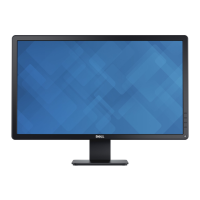
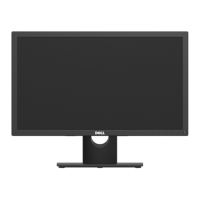
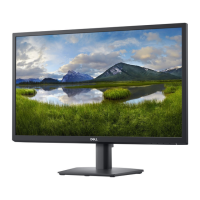
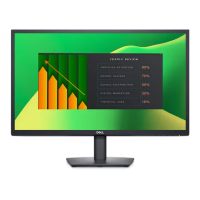
Dell E2418HN
48 pages
Print Icon
To Next Page IconTo Next Page
Loading...
Regulatory model: E2418HNb
User‘s Guide
Dell E2418HN

Questions and Answers

  • S
    Sandra AguilarSep 23, 2025
    How to fix unbalanced sound output on my Dell Monitor soundbar?
    • J
      josephwatsonSep 23, 2025
      If you are experiencing unbalanced sound output from your Dell monitor's soundbar, clear any obstructions between the Soundbar and the user. Confirm that the audio line-in plug is completely inserted into the jack of the sound card or audio source. Set all Windows audio balance controls (L-R) to their midpoints. Clean and reseat the audio line-in plug, troubleshoot the computer’s sound card, and test the Soundbar using another audio source (For example: portable CD player, MP3 player).
  • K
    Karen KaufmanAug 23, 2025
    What to do if my Dell E2418HN Monitor has no video but the power LED is on?
    • A
      Alexander PaulAug 23, 2025
      If your Dell monitor displays no video but the power LED is on, try the following: Increase the brightness and contrast controls via the OSD (On-Screen Display). Perform the monitor's self-test feature check. Inspect the video cable connector for bent or broken pins. Ensure the correct input source is selected via the Input Source Select menu. Finally, run the built-in diagnostics to identify any issues.
  • M
    Melissa AllenAug 25, 2025
    Why is the screen image too small on my Dell Monitor?
    • S
      Sierra PenaAug 25, 2025
      If the screen image on your Dell monitor appears too small, check the Aspect Ratio setting in the Display OSD. You can also try resetting the monitor to Factory Settings.
  • L
    littlejeremiahAug 27, 2025
    What to do if my Dell Monitor shows 'No Input Signal' when pressing user controls?
    • G
      gmayAug 27, 2025
      If you are seeing a 'No Input Signal' message when pressing user controls on your Dell monitor, check the signal source. Ensure the computer is not in power-saving mode by moving the mouse or pressing any key on the keyboard. Also, check whether the signal cable is plugged in properly, and re-plug it if necessary. You may also need to reset the computer or video player.
  • C
    Christopher MaciasAug 27, 2025
    How to fix a Dell Monitor with no video and the power LED off?
    • J
      Juan WilliamsAug 27, 2025
      If your Dell monitor is not displaying any video and the power LED is off, ensure the video cable connecting the monitor and the computer is properly connected and secure. Also, verify that the power outlet is functioning properly by testing it with another electrical device. Make sure the power button is fully depressed and the correct input source is selected using the Input Source Select button. Finally, check the “Power LED Button” option under Energy in the OSD Menu.
  • P
    Penny TaylorSep 18, 2025
    How to fix distorted sound on my Dell E2418HN soundbar?
    • R
      reedjamesSep 18, 2025
      If you are experiencing distorted sound from your Dell monitor's soundbar, clear any obstructions between the Soundbar and the user. Confirm that the audio line-in plug is completely inserted into the jack of the audio source. Decrease the volume of the audio source and turn the Power/Volume knob on the Soundbar counter-clockwise to a lower volume setting. Clean and reseat the audio line-in plug and test the Soundbar using another audio source (For example: portable CD player, MP3 player).
  • N
    nelsonaaronSep 15, 2025
    What can I do about stuck-on pixels on my Dell Monitor?
    • S
      Sara HollandSep 15, 2025
      To address stuck-on pixels on your Dell monitor, try cycling the power on and off. Note that a pixel that is permanently on is a natural defect that can occur in LCD technology.
  • J
    jennifer63Sep 16, 2025
    How to fix low volume on my Dell Monitor soundbar?
    • A
      Ashley BakerSep 16, 2025
      If you are experiencing low volume on your Dell monitor's soundbar, clear any obstructions between the Soundbar and the user. Turn the Power/Volume knob on the Soundbar clockwise to the maximum volume setting. Set all Windows volume controls to their maximum and increase the volume of the audio application. Test the Soundbar using another audio source (For example: portable CD player, MP3 player).
  • K
    Kelly KerrSep 6, 2025
    How to fix missing color on a Dell E2418HN Monitor?
    • E
      etranSep 6, 2025
      If you are experiencing missing color on your Dell monitor, perform a monitor self-test feature check. Ensure that the video cable connecting the monitor to the computer is connected properly and is secure. Also, check the video cable connector for bent or broken pins.
  • C
    Craig BakerSep 3, 2025
    How to fix horizontal/vertical lines on a Dell E2418HN?
    • K
      Kevin CochranSep 4, 2025
      To resolve horizontal or vertical lines on your Dell monitor, reset the monitor to Factory Settings. You can also perform Auto Adjust via the OSD and adjust the Phase and Pixel Clock controls via the OSD. Perform a monitor self-test feature check to determine if these lines are also present in self-test mode. Check the video cable connector for bent or broken pins.

Summary

About Your Monitor

Package Contents

Lists all components included with the monitor for initial setup.

Product Features

Details the monitor's capabilities, screen size, resolution, and special features.

Identifying Parts and Controls

Identifies front and back panel controls, buttons, and connection ports.

Monitor Specifications

Provides detailed technical specifications like screen type, resolution, dimensions, and power.

Plug and Play Capability

Explains how the monitor automatically configures with compatible systems via EDID.

Maintenance Guidelines

Instructions on caring for the monitor, including cleaning and handling precautions.

Setting Up the Monitor

Attaching the Stand

Step-by-step instructions for assembling and attaching the monitor stand.

Connecting Your Monitor

Guide to connecting the monitor to a computer using HDMI or VGA cables.

Organizing Your Cables

Tips for managing and tidying monitor cables for a cleaner setup.

Removing the Monitor Stand

Procedures to detach the monitor stand, often for wall mounting.

Wall Mounting (Optional)

Instructions for securely mounting the monitor on a wall using a VESA bracket.

Operating the Monitor

Power On the Monitor

Simple instructions on how to turn the monitor on using the power button.

Using the Front-Panel Controls

Explains the function of each front-panel button for adjustments.

Using the On-Screen Display (OSD) Menu

Comprehensive guide to navigating and adjusting settings via the OSD menu.

Setting the Maximum Resolution

Steps to set the display to its optimal 1920 x 1080 resolution in Windows.

Using the Tilt

Guidance on adjusting the monitor's tilt angle for comfortable viewing.

Troubleshooting

Self-Test

Procedure to run a self-test to diagnose monitor issues when no signal is detected.

Built-in Diagnostics

How to use the monitor's built-in tool to check for screen abnormalities.

Common Problems

A guide to common issues and their possible solutions, including no video, poor focus, and jitter.

Product-Specific Problems

Troubleshooting for issues unique to the monitor, like image centering or locked controls.

Dell Soundbar Problems

Solutions for common issues encountered with the Dell Soundbar accessory.

Appendix

Safety Instructions

Crucial warnings and guidelines for safe operation and handling of the monitor.

FCC Notices (U.S. Only) and Other Regulatory Information

Information on regulatory compliance, including FCC rules for device operation.

Contact Dell

Contact details and methods for obtaining technical support and service from Dell.

Dell E2418HN Specifications

General IconGeneral
DisplayLED
On/off switchYes
TV tuner integratedNo
Color gamut87 %
Pixel pitch0.275 x 0.275 mm
Screen shapeFlat
Pixel density93 ppi
Response time8 ms
SmartResponse5 ms
Display diagonal23.8 \
Native aspect ratio16:9
Maximum refresh rate60 Hz
Viewable size, vertical296.46 mm
Contrast ratio (typical)1000:1
Display number of colors16.78 million colors
Viewable size, horizontal527.04 mm
Display brightness (typical)250 cd/m²
Supported graphics resolutions1920 x 1080 (HD 1080)
Operating altitude0 - 5000 m
Non-operating altitude0 - 12192 m
Storage temperature (T-T)-20 - 60 °C
Operating temperature (T-T)0 - 40 °C
Storage relative humidity (H-H)5 - 90 %
Operating relative humidity (H-H)10 - 80 %
Sustainability certificatesEPEAT Gold, ENERGY STAR
CertificationTCO, RoHS
Product colorBlack
Market positioningBusiness
Package weight5770 g
Cables includedAC
Tilt angle range-5 - 21 °
Panel mounting interface100 x 100 mm
Input current1 A
AC input voltage100 - 240 V
AC input frequency50 - 60 Hz
Power consumption (max)25 W
Power consumption (standby)0.3 W
Power consumption (typical)22 W
Power consumption (PowerSave)12.64 W
Weight and Dimensions IconWeight and Dimensions
Depth (with stand)179.9 mm
Height (with stand)425.1 mm
Depth (without stand)53.5 mm
Width (without stand)562.6 mm
Height (without stand)331.1 mm
Weight (without stand)3280 g

Related product manuals