EasyManua.ls Logo

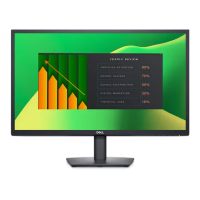
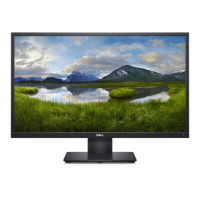
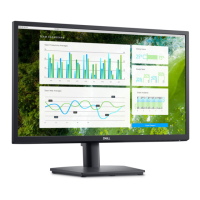
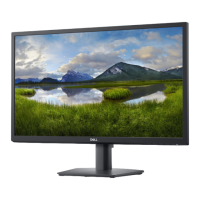
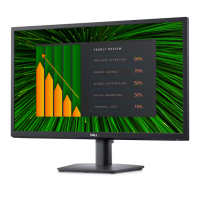
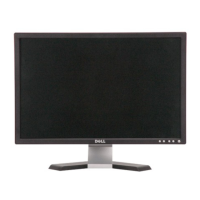
Dell E2414H - User Manual

Dell E2414H
34 pages
Print Icon
To Next Page IconTo Next Page
Loading...
User’s Guide
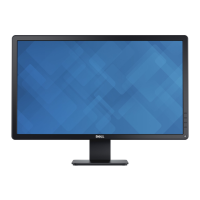
Dell E2414H
Dell E2414Hr
Model No.: E2414H/E2414Hr
Regulatory model: E2414Ht

Table of Contents

Other manuals for Dell E2414H

Questions and Answers

  • L
    Lorraine SandersAug 20, 2025
    How to fix brightness problems on a Dell E2414H Monitor?
    • S
      Stephen RileyAug 20, 2025
      To resolve brightness issues on your Dell monitor: Reset the monitor to Factory Settings. Then, perform Auto Adjust via the OSD. If the issue persists, adjust the brightness and contrast controls via the OSD.
  • A
    Alexis BullockAug 22, 2025
    What to do if my Dell monitor screen image is too small?
    • D
      Donald WhiteAug 22, 2025
      If the screen image on your Dell monitor appears too small, check the Scaling Ratio setting in the Image Setting OSD. If that doesn't work, reset the monitor to Factory Settings.
  • A
    Austin MendozaAug 25, 2025
    Why is there no video and the power LED is off on my Dell monitor?
    • D
      davisderekAug 25, 2025
      If your Dell monitor's power LED is off and there's no video, ensure the video cable connecting the monitor and computer is properly connected and secure. Verify the power outlet is functioning with other electrical equipment. Make sure the power button is fully depressed. Also, ensure the correct input source is selected via the Input Source Select button and check the 'Power Button LED' option under Energy Settings in the OSD Menu.
  • A
    Alex HernandezAug 26, 2025
    What to do if my Dell E2414H has no video but the power LED is on?
    • K
      Kimberly WilliamsAug 26, 2025
      If your Dell monitor's power LED is on but there is no video, try the following: Increase the brightness and contrast controls via the OSD. Perform a monitor self-test feature check. Check for bent or broken pins in the video cable connector. Run the built-in diagnostics. Ensure that the correct input source is selected via the Input Source Select button.
  • P
    Phillip ThomasAug 28, 2025
    How to fix a shaky or jittery video on a Dell E2414H Monitor?
    • B
      brocktheodoreAug 28, 2025
      To fix shaky or jittery video on your Dell monitor, you can try the following steps: 1. Perform Auto Adjust via the OSD. 2. Adjust the Phase and Pixel Clock controls via the OSD. 3. Reset the monitor to Factory Settings. 4. Check environmental factors. 5. Relocate the monitor and test it in another room.
  • A
    Amber LeeAug 29, 2025
    How to resolve synchronization problems on a Dell monitor?
    • T
      Todd FosterAug 29, 2025
      To resolve synchronization problems on your Dell monitor, try these steps: Reset the monitor to Factory Settings. Perform Auto Adjust via the OSD. Adjust the Phase and Pixel Clock controls via the OSD. Perform a monitor self-test feature check to see if the scrambled screen appears in self-test mode. Check for bent or broken pins in the video cable connector. Restart the computer in safe mode.
  • D
    Deborah HerreraAug 31, 2025
    How to resolve horizontal or vertical lines on a Dell E2414H?
    • A
      Amanda JohnsonSep 1, 2025
      To address horizontal or vertical lines on your Dell monitor, try these steps: Reset the monitor to Factory Settings. Perform Auto Adjust via the OSD. Adjust the Phase and Pixel Clock controls via the OSD. Perform a monitor self-test feature check to determine if these lines are also in self-test mode. Check for bent or broken pins in the video cable connector. Run the built-in diagnostics.
  • X
    xwilliamsSep 2, 2025
    How to fix poor focus on a Dell E2414H Monitor?
    • A
      Amy LambertSep 2, 2025
      To correct poor focus on your Dell monitor, try the following: * Perform Auto Adjust via the OSD. * Adjust the Phase and Pixel Clock controls via the OSD. * Eliminate video extension cables. * Reset the monitor to Factory Settings. * Change the video resolution to the correct aspect ratio (16:9).
  • D
    Deborah ParkSep 4, 2025
    How to correct geometric distortion on a Dell monitor?
    • J
      Jennifer ReedSep 4, 2025
      To correct geometric distortion on your Dell monitor, you can try the following: Reset the monitor to Factory Settings. Perform Auto Adjust via the OSD. Adjust the Horizontal Position & Vertical Position controls via the OSD.
  • B
    brian77Sep 6, 2025
    What to do if my Dell E2414H Monitor has missing color?
    • W
      watkinsdanielSep 6, 2025
      If your Dell monitor is displaying missing color, perform a monitor self-test feature check. Also, ensure that the video cable connecting the monitor to the computer is connected properly and secure. Check for bent or broken pins in the video cable connector.

Summary

Appendix

Safety Instructions and Regulatory Information

Covers essential safety guidelines and regulatory compliance details for the monitor.

Setting Up Your Monitor

Connecting Your Monitor

Instructions for connecting the monitor to a computer.

Monitor Setup Procedures

Operating the Monitor

Using the Front Panel Controls

Explains how to use the monitor's physical buttons for adjustments.

Monitor Controls and OSD Menu

Using the On-Screen Display (OSD) Menu

Guide to navigating and using the monitor's OSD menu.

Accessing the Menu System

Steps to launch and interact with the monitor's OSD menu.

Adjusting Image Settings

Brightness and Contrast Adjustment

How to adjust the monitor's brightness and contrast levels.

Auto Adjust Function

Utilizing the auto-adjust feature for optimal display settings.

Input and Color Settings

Input Source Selection

How to select the active video input source for the monitor.

Color Settings Menu

Options for adjusting the monitor's color parameters.

Preset Modes and Image Enhancement

Preset Mode Selection

Choosing from predefined color modes for different applications.

Image Enhance, Hue, and Saturation

Adjusting image clarity, hue, and color saturation.

Display and Energy Settings

Display Settings (Wide Mode, Position, Sharpness)

Adjusting aspect ratio, image position, and sharpness.

Menu and Other Settings

Menu Settings (Language, Transparency, Timer, Lock)

Customizing OSD language, transparency, timer, and button lock.

Other Settings (DDC;CI, LCD Conditioning)

Managing DDC/CI communication and LCD conditioning.

Advanced Display Configuration

Setting Maximum Resolution

Guide to setting the display resolution to 1920 x 1080.

Troubleshooting Guide

Self-Test Feature

Procedure to run the monitor's self-test for basic diagnostics.

Built-in Diagnostics

Using the built-in diagnostic tool to identify screen abnormalities.

Common Monitor Problems

Advanced Troubleshooting Topics

Specific Problem Resolutions

Setting Display Resolution

Advanced Display Setup

Dual Monitor Setup Procedures

Instructions for setting up multiple monitors.

Dell E2414H Specifications

General IconGeneral
Screen Size24 inches
Resolution1920 x 1080
Panel TypeTN
Aspect Ratio16:9
Refresh Rate60 Hz
Response Time5 ms
Brightness250 cd/m²
Contrast Ratio1000:1
InputsVGA, DVI-D
Power Consumption18W (typical)
Viewing Angles170° (H) / 160° (V)

Related product manuals