56 Setting Up Your Monitor Setting Up Your Monitor 57
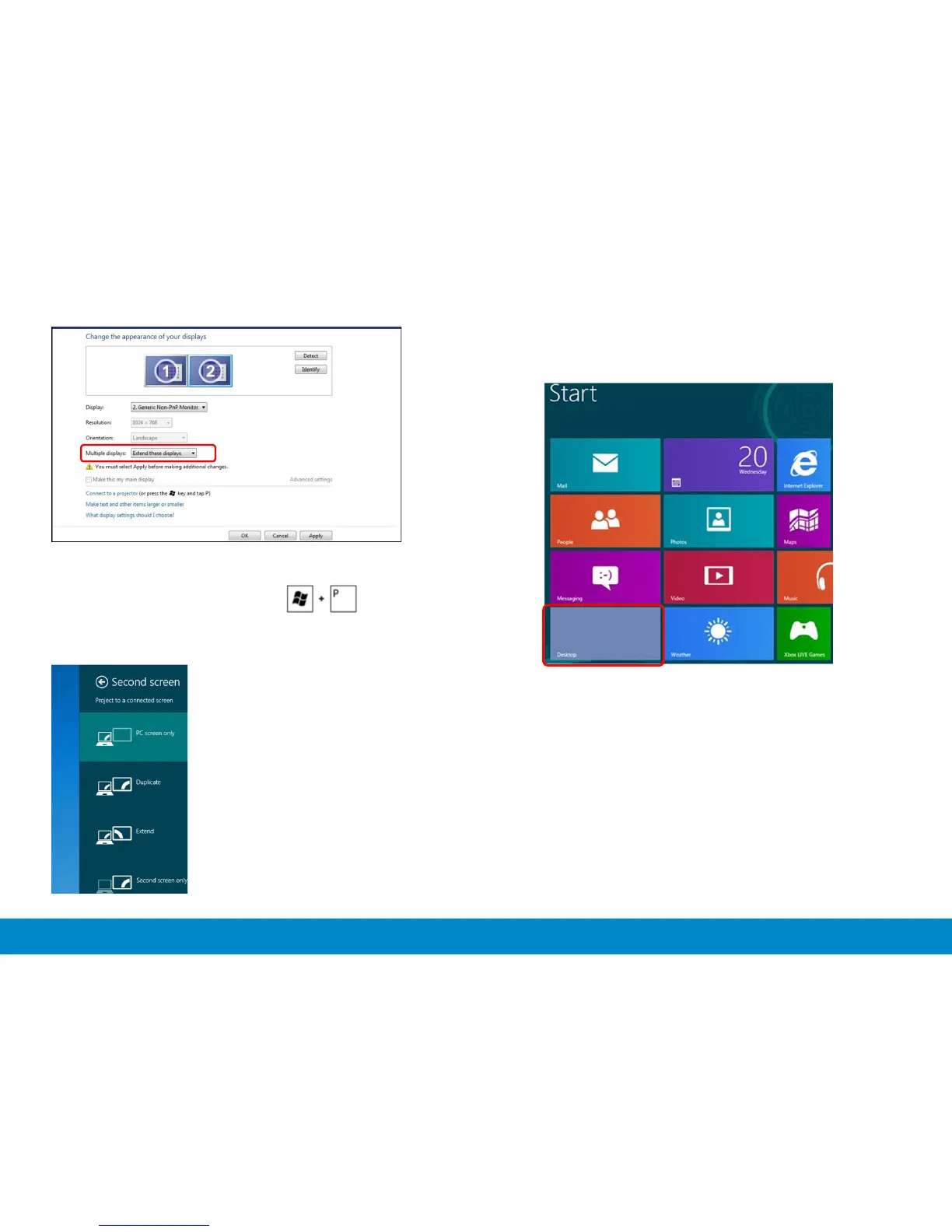
Method 2: Using the “Screen Resolution” menu
1. From the Start screen, select Desktop tile to switch to the Classic
Windows desktop.
(c) For Windows
®
8
Connect the external monitor(s) to your laptop or desktop using a video
cable (VGA, DVI etc.) and follow any of the below setup method.
Method 1: Using keyboard shortcut “Win+P”
1. Press the Windows logo key + P on your keyboard.
2. While holding down the Windows logo key, press P to toggle be-
tween the display selections.
2. Right-click on the desktop and click Screen resolution.
3. Click Multiple displays to choose a display selection. If you do not
see the additional monitor listed, click Detect.
You may need to restart your system and repeat steps 1 to 3 if the
system does not detect the added monitor.


 To Next Page