52 Setting Up Your Monitor Setting Up Your Monitor 53
If you have non Dell desktop, portable computer, or
graphic card
In Windows XP
®
:
1. Right-click on the desktop and click Properties.
2. Select the Settings tab.
3. Select Advanced.
4. Identify your graphics controller supplier from the description at the top of
the window (e.g. NVIDIA, ATI, Intel etc.).
5. Refer to the graphic card provider website for updated driver (for example,
http://www.ATI.com OR http://www.NVIDIA.com ).
6. After installing the drivers for your Graphics Adapter, attempt to set the
resolution to 1920 x 1080 again.
In Windows Vista
®
,Windows
®
7or Windows
®
8:
1. Right-click on the desktop and click Personalization.
2. Click Change Display Settings.
3. Click Advanced Settings.
4. Identify your graphics controller supplier from the description at the top of
the window (e.g. NVIDIA, ATI, Intel etc.).
5. Refer to the graphic card provider website for updated driver (for example,
http://www.ATI.com OR http://www.NVIDIA.com ).
6. After installing the drivers for your Graphics Adapter, attempt to set the
resolution to 1920 x 1080 again.
NOTE: If you are unable to set the resolution to 1920 x 1080, please
contact the manufacturer of your computer or consider purchasing a
graphics adapter that will support the video resolution of 1920 x 1080.
Procedures for setting up dual monitors in Windows
Vista
®
, Windows
®
7 or Windows
®
8
Content
(a) For Windows Vista
®
(b) For Windows
®
7
(c) For Windows
®
8
(d) Setting Display Styles For Multiple Monitor
(a) For Windows Vista
®
Connect the external monitor(s) to your laptop or desktop using a video
cable (VGA, DVI etc.) and follow any of the below setup method.
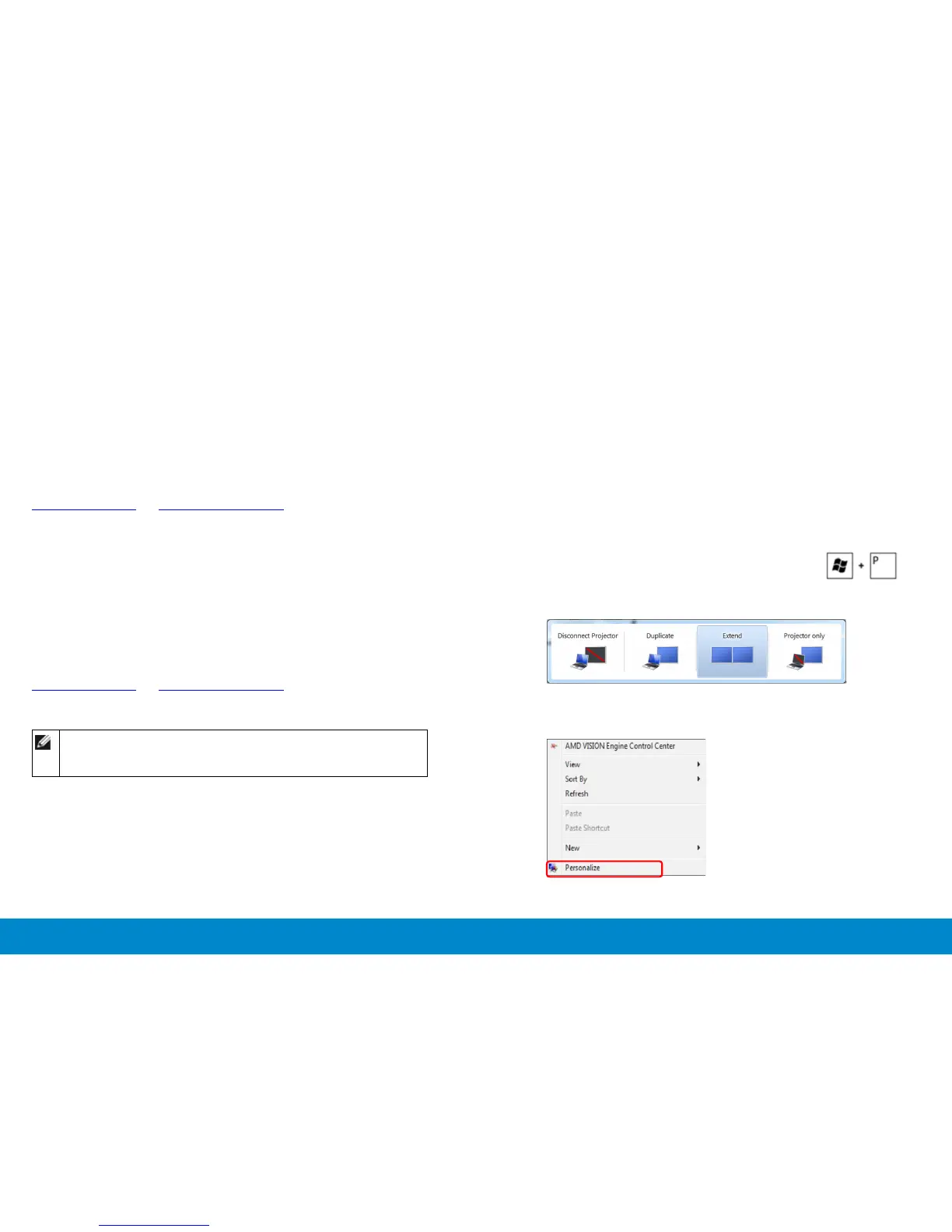
Method 1: Using keyboard shortcut “Win+P”
1. Press the Windows logo key + P on your keyboard.
2. While holding down the Windows logo key, press P to toggle be-
tween the display selections.
Method 2: Using the “Personalize” menu
1. Right-click on the desktop and click Personalize.
2. Click Display Settings.


 To Next Page