Dell Latitude Ultrabook, E-Family & Mobile Precision Reimage “How-To” Guide
3.2 Image Installation Guidelines
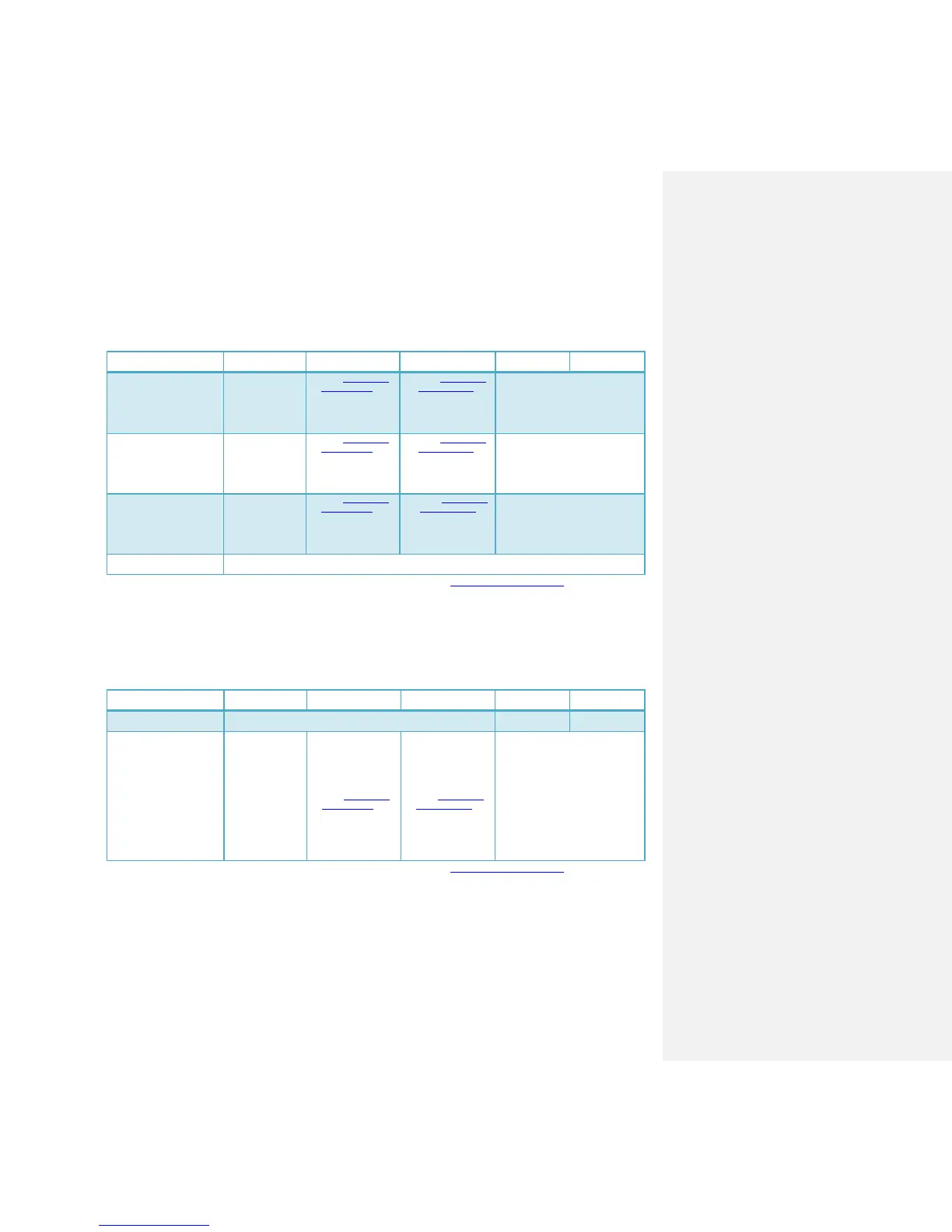
3.2.1 Clean Image Installation on an Advanced Format HDD
Microsoft® OS Installation
Method
Windows 7 SP1 Windows 7 Windows Vista SP1 Windows Vista Windows XP
System Media
Intel RST
Storage driver to
9.6 or later
(1)
article 982018
2. Install/Upgrade Intel
RST Storage driver
to 9.6 or later
(1)
article 2470478
2. Install/Upgrade
Intel RST Storage
driver to 9.6 or
later
(1)
1. Use Alignment Tool
to ensure
Advanced Format drive partitions
are properly aligned
2. Install/Upgrade Intel RST Storage
driver to 9.6 or higher
(1)
Using non-Dell off the shelf
Operating System Media
Intel RST
Storage driver to
9.6 or later
(1)
article 982018
2. Install/Upgrade Intel
RST Storage driver
to 9.6 or later
(1)
article 2470478
2. Install/Upgrade
Intel RST Storage
driver to 9.6 or
later
(1)
1. Use Alignment Tool
to ensure
Advanced Format drive partitions
are properly aligned
2. Install/Upgrade Intel RST Storage
driver to 9.6 or higher
(1)
Using Windows PE 3.0 or
prior
If using a Win PE
version earlier than 3.0,
apply Windows Automated
KIT
1.
Install/Upgrade
Intel RST
Storage driver to
9.6 or later
(1)
1.
Apply Microsoft KB
article 982018
2. Install/Upgrade Intel
RST Storage driver
to 9.6 or later
(1)
1.
Apply Microsoft KB
article 2470478
2. Install/Upgrade
Intel RST Storage
driver to 9.6 or
later
(1)
1.
Install/Upgrade Intel RST Storage
driver to 9.6 or higher
(1)
Using Windows PE 3.1
1. Install/Upgrade Intel RST Storage driver to 9.6 or later
(1)
- (1)
The Intel RST Driver 9.6 or higher can be found on the Dell Support website in Dell Drivers and Downloads for your system
under the SATA drivers section
- (2)
Please refer to the Partition Alignment Tools - Section 3.4
3.2.2Deploying 512B pre-installed image to an Advanced Format drive
Microsoft® OS Installation
Method
Windows 7 SP1 Windows 7 Windows Vista SP1 Windows Vista Windows XP
Using Dell Factory Installed
Image
No actions required. Dell Factory Images include required components. Not Available Not Available
Using Sector-Based Utilities
(Norton Ghost, Altiris, etc.)
Tool
(2)
to
ensure
Advanced
Format drive
partitions are
properly aligned
before re-
imaging
2. Install/Upgrade
Intel RST Storage
driver to 9.6 or
(1)
Tool
(2)
to ensure
Advanced Format
drive partitions are
properly aligned
before re-imaging
2. Apply Microsoft KB
article 982018
3. Install/Upgrade Intel
RST Storage driver
to 9.6 or later
(1)
Tool
(2)
to ensure
Advanced Format
drive partitions are
properly aligned
before re-imaging
2. Apply Microsoft KB
article 2470478
3. Install/Upgrade Intel
RST Storage driver
to 9.6 or later
(1)
1. Use Alignment Tool
(2)
to ensure
Advanced Format drive partitions
are properly aligned before re-
imaging
2. Install/Upgrade Intel RST Storage
driver to 9.6 or later
(1)
- (1)
The Intel RST Driver 9.6 or higher can be found on the Dell Support website in Dell Drivers and Downloads for your system
under the SATA drivers section
- (2)
Please refer to the Partition Alignment Tools - Section 3.4



 To Next Page