Dell Latitude Ultrabook, E-Family & Mobile Precision Reimage “How-To” Guide
1 Overview
The purpose of this document is for reimaging Dell Latitude Ultrabook, E-Family & Mobile Precision
notebooks. Dell Latitude Ultrabook , E-Family & Mobile Precision notebooks systems ship with Microsoft
operating systems (see Chapter 2.1 for detail). These images include the Dell recommended software
stack and settings, drivers, and applications which are tested and validated with the system.
Drivers and applications must be installed on Dell Latitude E-Family & Mobile Precision systems in a
prescribed order to ensure optimal performance. Failure to install drivers and applications in this
document may result in undesirable performance.
Dell provides drivers and applications that are not included in Microsoft Operating Systems. These
drivers are required to enable the new technologies and features of Dell Latitude E-Family & Mobile
Precision products (e.g., including the 512e Advanced Format HDD (See appendix –B). Reinstalled images
should be built from a clean hand installed OS load and following the steps in this guide. Dell does not
recommend starting from an image built on previous generations of products or other computer
systems.
Dell recommends ensuring BIOS settings (including SATA configurations modes) are correctly set and
using the latest device drivers and applications when imaging their systems.
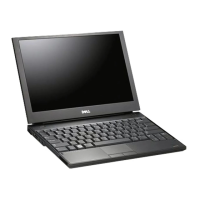
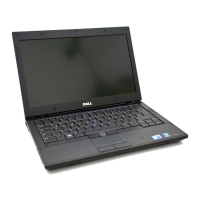
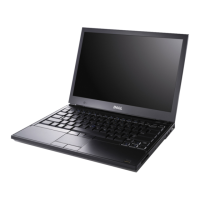
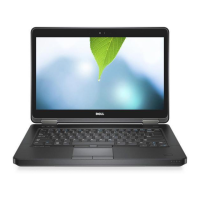
This “How-To” guide applies to the following Latitude systems:
Product
1st
2nd
Generation
3rd
Generation
4th Generation/
Ultrabook
Ultrabook
Ultrabook
Ultra book
Latitude E-Family, Ultrabook and other
series
E4300 E4310 E6320 E6330/3330 3340 3150
E5400 E5410
E5430
E5440/3440 E5450/5450/3450/E74
50
E5470
E5500 E5510
E5530
5550/3550
3470/3570
E6410 ATG E6420 ATG E6430 ATG
E7440 E7270/7370/
E7470
Mobile
Workstations
M2400 - - M2800 3510/5510
M4400 M4500 M4600 M4700 M4800 M7510



 To Next Page