Setting up the monitor | 29
Connecting your monitor
WARNING: Before you begin any of the procedures in this section, follow
the Safety instructions.
NOTE: Dell monitors are designed to work optimally with the Dell-supplied
cables inside the box. Dell does not guarantee the video quality and
performance if non-Dell cables are used.
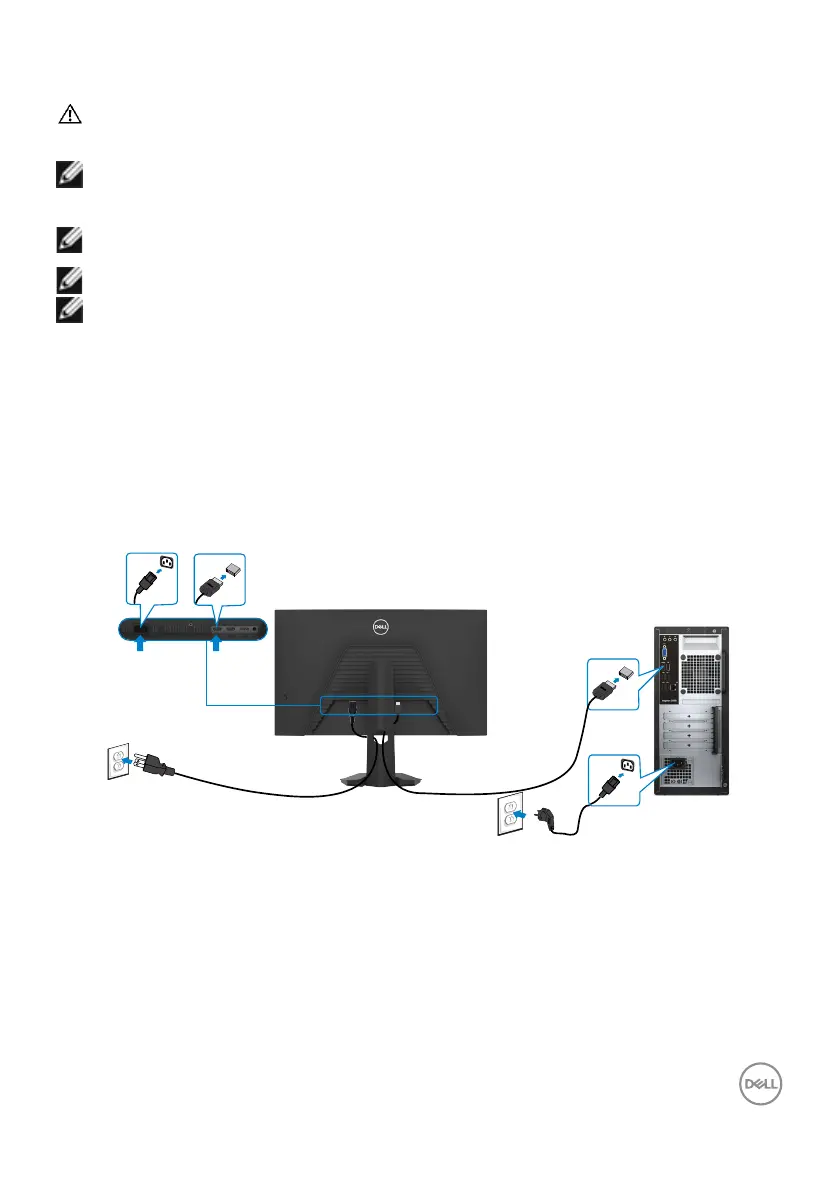
NOTE: Route the cables through the cable-management slot before
connecting them.
NOTE: Do not connect all the cables to the computer at the same time.
NOTE: The images are for the purpose of illustration only. The appearance
of the computer may vary.
To connect your monitor to the computer:
1. Turn o your computer.
2. Connect the DisplayPort/HDMI cable from your monitor to the computer.
3. Turn on your monitor.
4. Select the correct input source from the OSD Menu and turn on your
computer.
Connecting the HDMI cable
HDMI
HDMI


 To Next Page