EasyManua.ls Logo

Dell Inspiron 15 5518 - User Manual

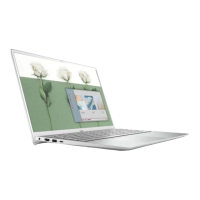
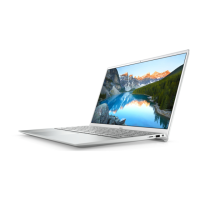
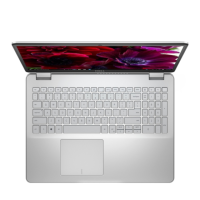
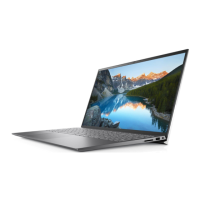
Dell Inspiron 15 5518
79 pages
Print Icon
To Next Page IconTo Next Page
Loading...
Inspiron 15 5518
Service Manual
Regulatory Model: P106F
Regulatory Type: P106F001
September 2021
Rev. A01

Table of Contents

Questions and Answers

  • M
    Michael McdanielJul 28, 2025
    What to do if Dell Inspiron 15 5518 Laptop battery is swollen?
    • D
      David McdonaldJul 28, 2025
      If you notice that your Dell Laptop's lithium-ion battery is swollen, immediately discontinue using the laptop. Then, discharge the battery by disconnecting the AC adapter and allowing it to drain completely. Swollen batteries are unsafe for use and should be replaced and disposed of correctly. You may contact Dell product support to explore options for replacing the swollen battery under your warranty or service contract.

Summary

Chapter 1: Working inside your computer

Electrostatic discharge-ESD protection

Methods and precautions to prevent damage from static electricity to components.

Chapter 2: Removing and installing components

Battery - Precautions

Critical safety warnings and handling procedures for lithium-ion batteries.

Memory module - Removal

Step-by-step guide to remove RAM modules from their slots.

Memory module - Installation

Step-by-step guide to insert new RAM modules into their slots.

M.2 Slot 1 - Removing 2230 SSD

Steps to remove a 2230-sized M.2 SSD from the primary slot.

M.2 Slot 1 - Installing 2230 SSD

Steps to install a 2230-sized M.2 SSD into the primary slot.

M.2 Slot 1 - Removing 2280 SSD

Steps to remove a 2280-sized M.2 SSD from the primary slot.

M.2 Slot 1 - Installing 2280 SSD

Steps to install a 2280-sized M.2 SSD into the primary slot.

M.2 Slot 2 - Removing 2230 SSD

Steps to remove a 2230-sized M.2 SSD from the secondary slot.

M.2 Slot 2 - Installing 2230 SSD

Steps to install a 2230-sized M.2 SSD into the secondary slot.

Wireless card - Removal

Steps to disconnect antenna cables and remove the wireless card.

Wireless card - Installation

Steps to connect antenna cables and install the wireless card.

Fan - Removal

Steps to disconnect fan cable and remove the fan from the laptop.

Fan - Installation

Steps to mount the fan and connect its cable to the system board.

Heat sink - Removal

Steps to loosen screws and lift the heat sink off the system board.

Heat sink - Installation

Steps to align and secure the heat sink onto the system board.

Touchpad - Removal

Steps to disconnect cables, remove bracket, and lift the touchpad.

Touchpad - Installation

Steps to align, secure, and connect the touchpad assembly.

Display assembly - Removal

Steps to disconnect cables and detach the display from the base.

Display assembly - Installation

Steps to align and connect the display assembly to the base.

Power button - Removal

Steps to remove the screw and lift the power button assembly.

Power button - Installation

Steps to align and secure the power button assembly.

System board - Removal

Steps to disconnect all cables and remove screws securing the system board.

System board - Installation

Steps to connect cables and secure the system board to the palm-rest assembly.

Power-adapter port - Removal

Steps to disconnect cable and lift the power port assembly.

Power-adapter port - Installation

Steps to place and connect the power port assembly.

Palm-rest and keyboard assembly - Removal

Detailed steps to remove all components before lifting the palm-rest assembly.

Chapter 4: System setup

Chapter 5: Troubleshooting

Dell Inspiron 15 5518 Specifications

General IconGeneral
Display15.6-inch FHD (1920 x 1080) Anti-glare LED Backlight Non-Touch Narrow Border WVA Display
Battery4-Cell Battery, 54WHr (Integrated)
Weight1.63 kg (3.59 lbs)
Processor11th Generation Intel Core i5-11300H
RAM8GB DDR4 3200MHz
Storage256GB M.2 PCIe NVMe SSD
GraphicsIntel Iris Xe Graphics
Operating SystemWindows 10 Home
Ports1 x HDMI 1.4
WirelessIntel Wi-Fi 6 AX201 2x2 (Gig+) + Bluetooth 5.1

Related product manuals